

AI tools
Set AI rules for an assignment
Match Writing Studio to your course's AI policy. Turn off the kinds of AI help your syllabus doesn't allow, and those features grey out.
AI rules let you match Writing Studio to your course’s AI policy. Turn off the kinds of AI help your syllabus doesn’t allow, and those features grey out for that paper.
The rules are guidance you set for yourself, not a lock. Writing Studio doesn’t report them to anyone.
Set rules for a paper
- Click the AI rules chip beside your paper’s title, in the bar at the top. On your phone, tap ⋯ (More actions), then AI rules. You can also set them in Paper settings under AI rules.
- The AI rules for this assignment box opens. It reminds you: “Match them to your syllabus. Anything outside them is greyed out, and they go on your AI use statement. Not sure? Check your syllabus or ask your instructor.”
- Pick a preset, or turn each kind of help on or off.
The chip then shows the preset’s name, or what you turned off, like “No drafting”.
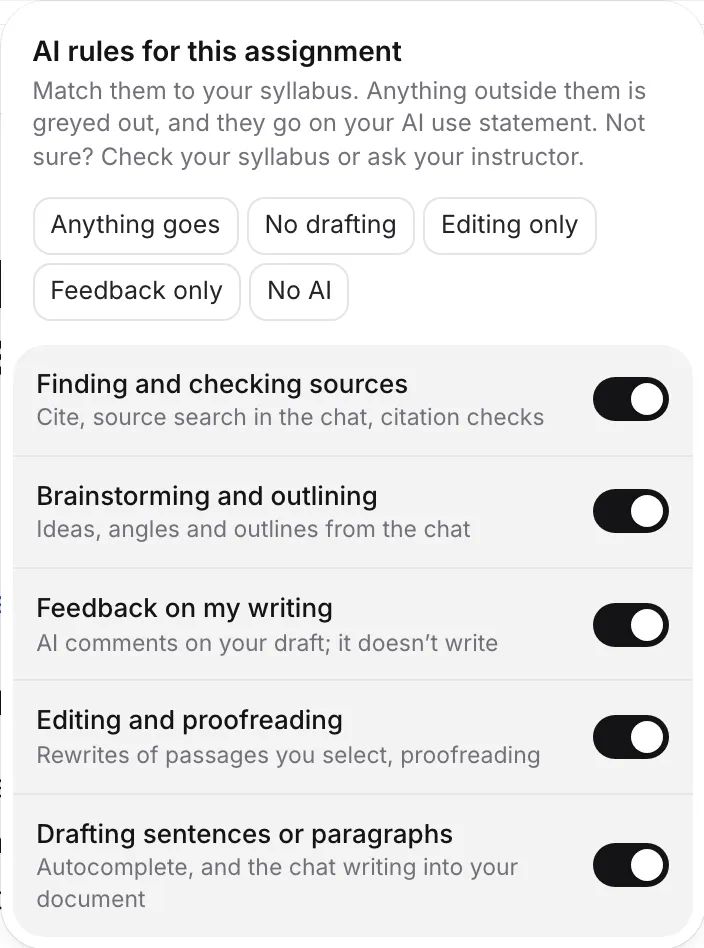
Choose a preset
| Preset | What it allows |
|---|---|
| Anything goes | Every kind of AI help. |
| No drafting | Everything except drafting sentences or paragraphs. |
| Editing only | Finding and checking sources, and editing and proofreading. |
| Feedback only | Finding and checking sources, and feedback on your writing. |
| No AI | No AI help at all. |
If your switches don’t match a preset, it counts as Custom. Clear rules removes them, so everything is allowed again.
The five kinds of AI help
Each switch matches the way syllabi usually describe AI use:
- Finding and checking sources: Cite, source search in the chat, and citation checks.
- Brainstorming and outlining: ideas, angles and outlines from the chat.
- Feedback on my writing: AI comments on your draft. It doesn’t write.
- Editing and proofreading: rewrites of passages you select, and proofreading.
- Drafting sentences or paragraphs: autocomplete, and the chat writing into your document.
What happens when something is off
- Features outside your rules are greyed out with “Not allowed on this assignment”, for example “Not allowed on this assignment: your AI rules don’t allow drafting.”
- AI Chat is told your rules. If you ask for something they don’t allow, it says so and offers what is allowed. With No AI, the chat box says “Your AI rules don’t allow AI on this assignment”.
- With finding sources off, the Citation finder says “This paper’s AI rules turn off finding sources with AI. Search, titles and DOIs still work.”
Searching for papers, citing with @, your library, and formatting your references always work. They don’t use AI to write anything.
Rules are guidance, not a lock
- You set the rules, and you can change them at any time.
- Writing Studio doesn’t report them or tell your instructor when you change them.
- They don’t change anything already in your paper.
- They help you stay inside your course’s rules without having to remember which button is allowed.
If you are not sure what your course allows, check your syllabus or ask your instructor. Your course’s policy is what counts, not this setting.
Rules on your AI use statement and receipt
Your rules go on your AI use statement. For a task your rules don’t allow, the statement can say you didn’t use AI for it. They also appear on your writing receipt, as a list of what was allowed and not allowed.
Rules from your brief
When you read your assignment brief, Writing Studio can set the rules for you if you haven’t set any. The chip and the checklist then show the preset’s name followed by “from your brief”. Check them against your syllabus anyway. See Read your assignment brief.
Rules for a course or a shared paper
- A new paper you create inside a course takes that course’s AI rules. See Organize papers into courses.
- On a shared paper, the rules are the same for everyone who can edit it.
- If you set no rules, every AI feature is available.
Frequently asked questions
Does my instructor see my AI rules?
No. Writing Studio doesn't send your rules to anyone. They only appear on your AI use statement or writing receipt if you choose to share those.
Can I change the rules later?
Yes, at any time. Click the AI rules chip beside your paper's title. The rules are guidance you set for yourself, not a lock.
Do the rules stop me pasting AI text from somewhere else?
No. Rules only change what Writing Studio's own AI features do. Text pasted from anywhere shows as pasted in your writing history.
What happens if I don't set any rules?
Every AI feature is available, as most courses don't restrict AI.
Was this page helpful?
Thanks for letting us know.