

AI tools
Rewrite highlighted text
Highlight a passage and let AI improve, shorten, expand or change it the way you describe. You see the result before it replaces anything.
Highlight a passage and click Rewrite to improve it, shorten it, or change it the way you describe. You see the result first, and your text only changes when you choose to replace it.
Open Rewrite
- Highlight some text, then click Rewrite (the sparkle) on the selection bar.
- On a computer, you can also click the Rewrite sparkle in the left margin beside a paragraph.
- On your phone, select text and tap Rewrite on the bar that appears.
Pick a change or describe one
Type what you want in the box (“Describe a change, or pick one below…”), like “make this more concise and keep the citation”, and press Enter. Or pick a ready-made change.
Strengthen writing
- Improve fluency: smoother, clearer sentences.
- Rephrase: same meaning, new words.
- Simplify: shorter sentences, plainer words.
- Make academic: formal register, no contractions.
- Strengthen argument: tighter reasoning and links.
- Add a counter-argument: the strongest objection, answered.
- Soften claims: match claims to the evidence.
Transform
- Shorten: about two thirds the length.
- Expand: more detail and reasoning.
- Convert to bulleted list
- Convert to numbered list
Check the result and use it
When the result appears:
- Show edits marks what changed against your text. Show result shows the clean version again.
- Previous version and Next version move between the results you have asked for.
- Type in the follow-up box (“Change it, like keep the first sentence”) to adjust the result.
- Try again asks for a new result. Stop ends one that is still coming in.
Then choose what to do with it:
- Replace selection: put the result in place of your highlighted text.
- Insert below: keep your text and add the result under it.
- Discard: close it and keep your text as it was.
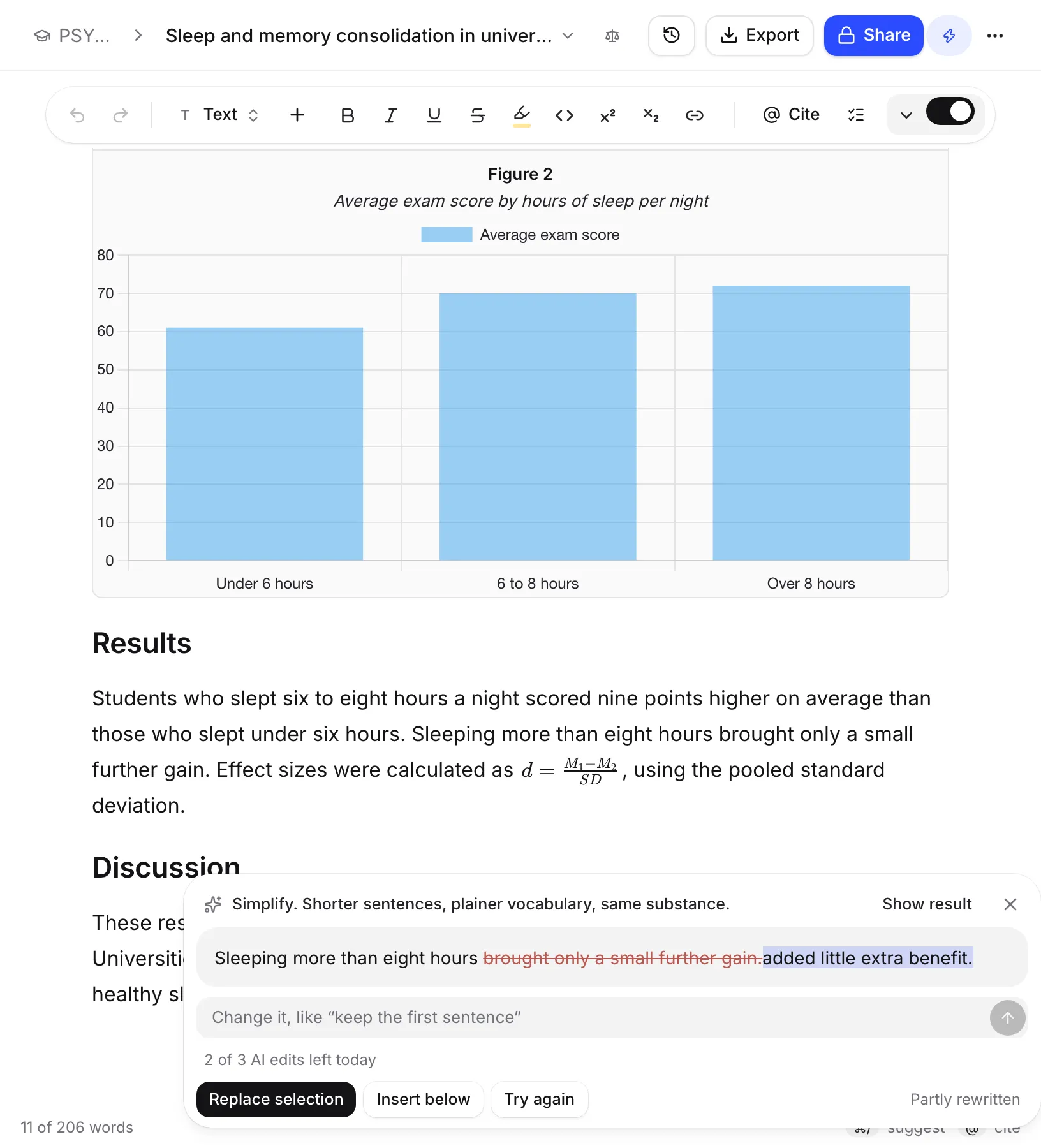
Continue writing from a selection
Highlight text, open More (⋯) on the selection bar and choose Continue writing. Autocomplete writes on from the end of your selection, as grey text you can accept. This counts as an AI autocomplete, not an AI edit. See Write faster with autocomplete.
When something goes wrong
- “It was too long to finish. Try a shorter passage.”
- “The passage you highlighted has been deleted, so there’s nothing to replace. You can still insert the rewrite where it was.”
- If you changed the passage after asking, Writing Studio warns you that replacing it would lose your edits.
- “Needs internet”: you are offline.
Allowance and AI rules
Each rewrite counts as 1 AI edit:
- Free: 3 a day
- Plus: 300 a month
- Pro: unlimited, with fair-use limits
On your own AI key, rewrites don’t use your allowance. See AI allowances and limits.
Rewrite needs Editing and proofreading to be allowed in your AI rules. Add a counter-argument and Expand add new writing, so they also need Drafting sentences or paragraphs.
Text you put in your paper from a rewrite is recorded as AI text, from AI rewrites, in your writing history. If you later rewrite it by hand, it counts as yours.
Frequently asked questions
Does Rewrite change my text straight away?
No. You see the result first. Your text only changes when you click Replace selection or Insert below.
How many rewrites do I get?
Each rewrite counts as 1 AI edit: 3 a day on Free, 300 a month on Plus, and unlimited on Pro with fair-use limits. On your own AI key they aren't counted.
Why are some rewrite options greyed out?
Your AI rules for this paper don't allow them. Rewrite needs Editing and proofreading, and Add a counter-argument and Expand also need Drafting sentences or paragraphs.
Was this page helpful?
Thanks for letting us know.