

AI tools
Read your assignment brief
Paste your assignment brief into Check and get a live checklist of what it asks for, with your word goal, citation style and AI rules filled in.
Paste your assignment brief into Check, and Writing Studio turns it into a live checklist. It also fills in your word goal, citation style and AI rules if you haven’t set them.
Read your brief
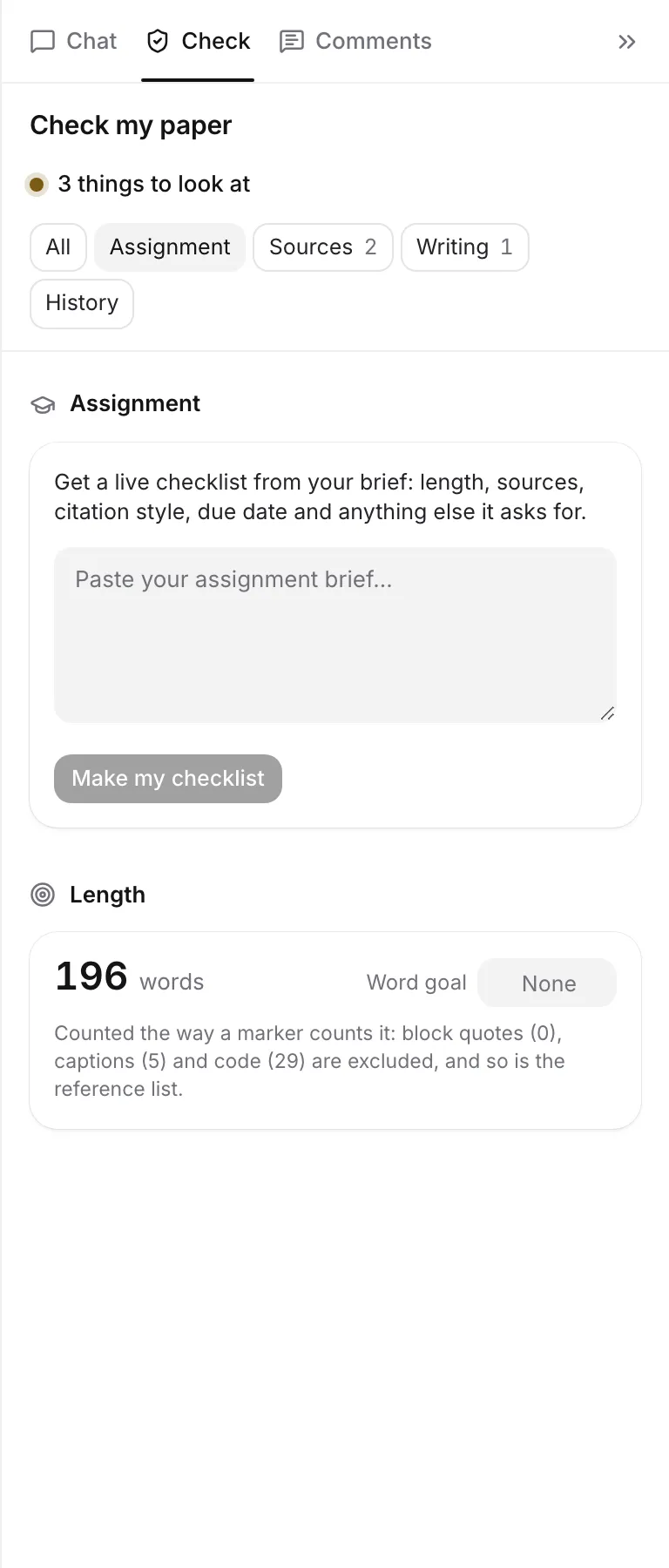
- Open the Check tab in the panel on the right. On your phone, tap ⋯ and then Check my paper.
- Click Assignment at the top.
- If your paper doesn’t have a brief yet, paste your brief into the Assignment brief box and click Make my checklist. If you started the paper from your brief on the home screen, click Read my brief.
- Wait a moment while Writing Studio reads it.
A brief you paste here becomes the paper’s brief, so autocomplete, rewrites and the chat read it too. You can also read your brief from Section briefs. See Guide the AI with briefs.
What it picks out
From your brief, Writing Studio looks for:
- a short summary of the task
- the word count, or a minimum and maximum
- the due date
- the citation style
- how many sources, and how many journal articles, you need
- how recent your sources should be
- up to 8 other requirements
- whether you need an AI use statement
- the course’s AI policy
What it sets in your paper
Where you haven’t already set them yourself, it fills in:
- your word goal
- your citation style
- your AI rules, shown as the preset’s name followed by “from your brief”
A line under your paper’s title sums it up, like “From your brief: 2,000 words · APA · due 14 November”, with Review. If the brief has none of these, it says “Your brief sets no length, style or due date”.
If the brief asks for an AI use statement, Writing Studio remembers that too. See Write your AI use statement.
Use the checklist
The checklist updates as you write. Depending on your brief, it shows:
- Length: your words against the range, and whether you are within the usual 10%, or over the limit.
- Sources: how many you have cited, against the minimum.
- Journal articles: how many you have cited, against the minimum.
- Recent sources: whether your sources are recent enough.
- Citation style: whether you are using the style the brief asks for. If not, click the Switch to button to change it.
- Due date: when the paper is due. If the brief has no date, you can add one here.
- AI rules: the rules taken from your brief.
Under The brief also asks for, tick off the other requirements yourself as you meet them.
Length here is counted the way a marker counts it, so it can differ from the count in the status bar. See Word count and word goal.
Read it again
If you change your brief, click Read the brief again to update the checklist.
If it doesn’t work
- “Paste the assignment brief first.”: the box is empty or too short.
- “Couldn’t read the brief. Try again.”: something went wrong. Try again in a moment.
What it costs
Reading a brief doesn’t use any of your AI allowances, on any plan. It only counts toward the hourly limit that every AI request has: 40 an hour on Free, 200 on Plus and 600 on Pro. You need to be signed in and online. See AI allowances and limits.
Frequently asked questions
Will reading my brief change settings I already chose?
No. It only fills in the word goal, citation style and AI rules where you haven't set them yourself.
Does reading my brief use my AI allowance?
No. It doesn't count against any daily or monthly allowance, only the hourly limit that every AI request has.
Does my instructor see the checklist?
No. The checklist is part of your paper's Check tab. Nothing is sent to your instructor.
Was this page helpful?
Thanks for letting us know.