

Account and billing
Change the theme
Pick a light, dark, paper or high contrast theme for Writing Studio in this browser.
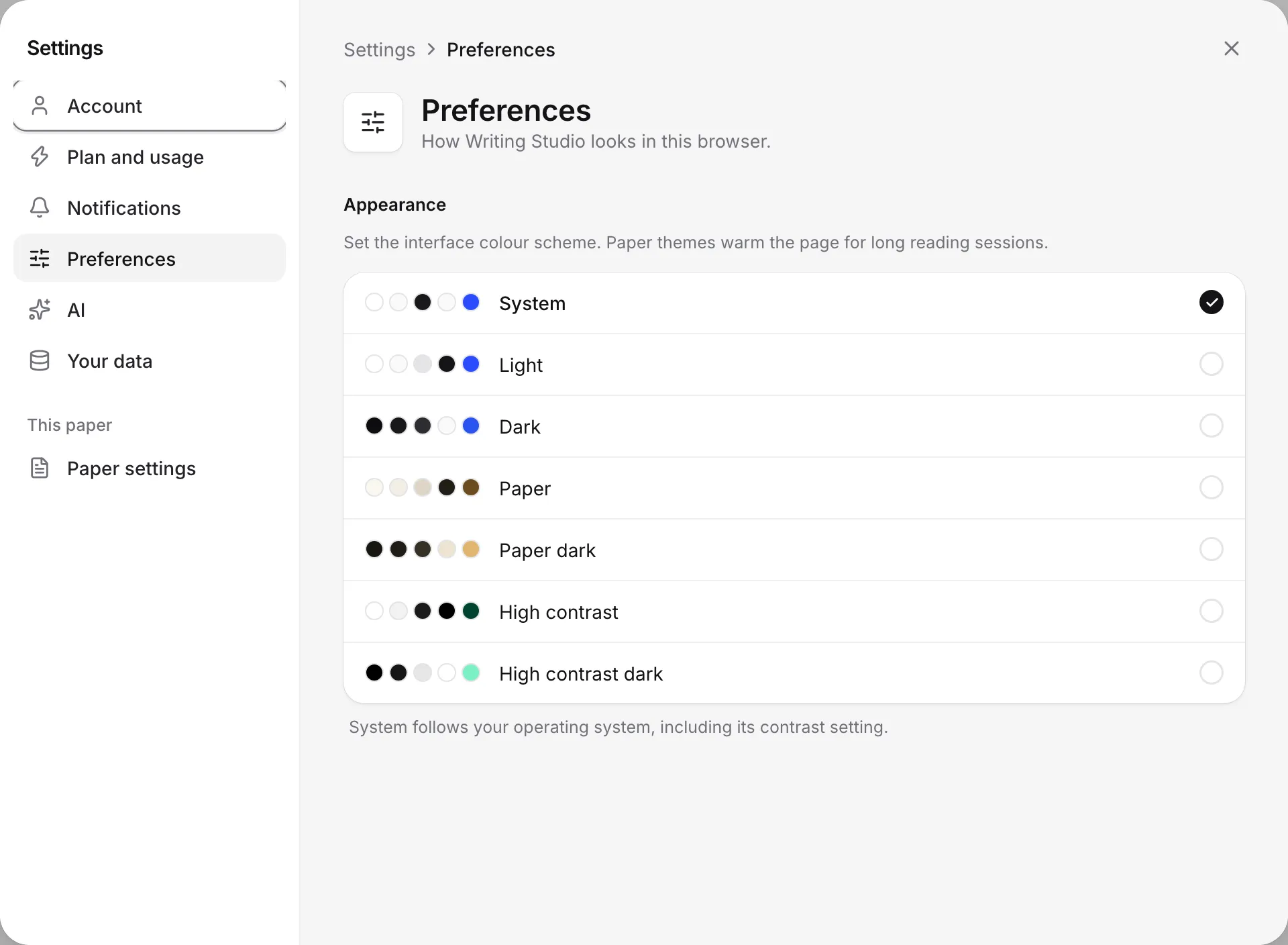
To change the theme, click your name at the top of the sidebar, choose Settings, go to Preferences, and pick a theme under Appearance. It changes straight away.
Pick a theme
There are seven themes:
| Theme | What it looks like |
|---|---|
| System | Follows your computer or phone, including its contrast setting |
| Light | Dark text on a white background |
| Dark | Light text on a dark background |
| Paper | A warm, light page for long reading sessions |
| Paper dark | A warm, dark page for long reading sessions |
| High contrast | Light, with stronger contrast |
| High contrast dark | Dark, with stronger contrast |
Each theme has a small preview, so you can see it before you choose.
Themes are saved per browser
Your theme is saved in the browser you set it in. It isn’t synced to your account, so your laptop and phone can use different themes. Set it again in each browser you use.
Change the typeface of a paper
The theme sets the colours. To change the font of a paper, open the paper’s ⋯ menu, choose Paper settings, and set Typeface under Just for you to Default or Serif. This only changes how the paper looks to you. See Change a paper’s settings.
Frequently asked questions
Why did my theme change on another computer?
Themes are saved in each browser, not in your account. Set the theme you want in each browser you use.
Can I change the font of my paper?
Yes, per paper. Open Paper settings and set Typeface to Default or Serif. It only changes how the paper looks to you.
Can I change the language of the app?
No. Writing Studio's interface is in English only. You can still write in any language, and set the language of your citations in Paper settings.
Was this page helpful?
Thanks for letting us know.