

Citations
Cite a source with @
Type @ in your paper, find the work and choose Cite. The citation, your library and your reference list all update in one step.
Type @ where the citation should go, search for the work, and choose Cite. Writing Studio puts the citation in your text, saves the source to your library and adds it to your reference list, all in one step.
Searching and citing are free on every plan, with no limit.
Open the Citation finder
Any of these opens the Citation finder at your cursor:
- Type @ at the start of a word, after a space or at the start of a line.
- Click Cite in the toolbar.
- On a phone, tap Cite in the bottom bar.
- Click Citation finder in the left sidebar while your paper is open.
An @ in the middle of a word, like in an email address, types normally. If you close the finder without citing, the @ you typed stays in your text, so delete it like any other character.
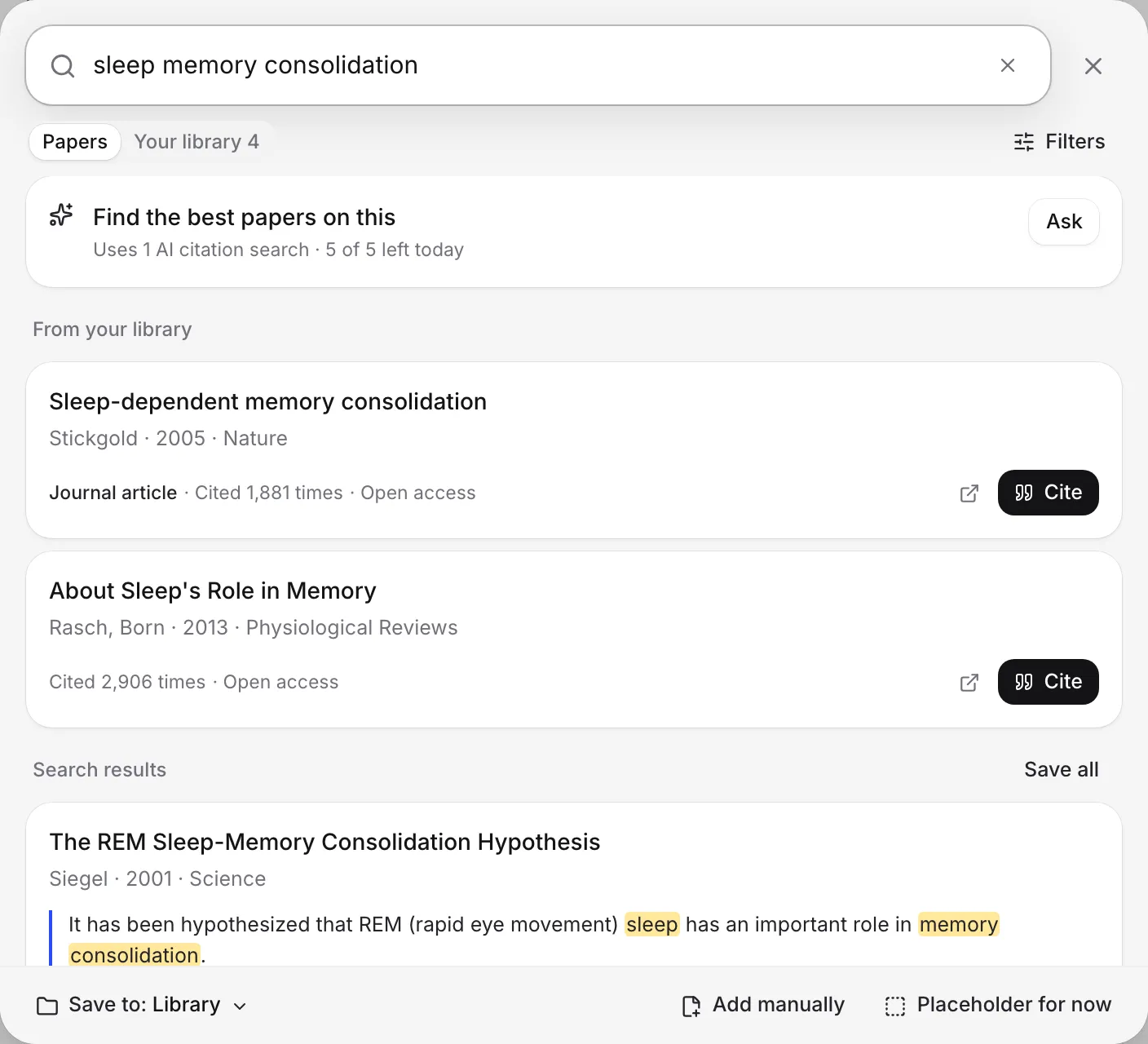
Search for the work
The search box says “Search, paste a DOI, or ask”. What you type decides how it searches:
- An ID or link. Paste a DOI, PubMed ID, PMC ID, arXiv ID, ISBN or a link to the paper, and it finds that exact work.
- A full reference. Paste a reference copied from another paper’s reference list, and it finds the real published record.
- A title or keywords. You get a list of papers, best match first.
- A question or a sentence. It offers to find papers with AI (see below).
A small tag beside the box shows how it read your text, for example DOI, arXiv, Reference or Question.
Results come from OpenAlex, a catalog of about 250 million scholarly works. To narrow them by year, citations or type, see Search for papers with the Citation finder.
Choose between Papers and Your library
When you are citing, the finder has two tabs:
- Papers searches the databases. Sources already in your library show first.
- Your library searches only the sources you have saved. The number beside it is how many you have.
Cite or save a result
Each result has two buttons:
- Cite puts the citation at your cursor and saves the source to your library.
- Save adds the source to your library without citing it. The button then reads Saved.
To read a paper before you decide, click the Open the paper icon on its card.
The citation appears in your paper’s citation style, and the reference list at the end of your paper updates by itself. If you cite next to an existing citation, the two merge into one group, like (Jones, 2019; Smith, 2020).
Choose where saved sources go
The Save to menu at the bottom of the finder decides where new sources land: Library only, one of your courses or collections, or a New course… or New collection…. After a save, a message says where it went, with Change if you want to move it.
Use the keyboard
- ↑ and ↓ choose a result.
- Enter cites the chosen result. If you haven’t chosen one, it cites the exact match, or runs the AI search when you typed a question.
- ⌘Enter (Ctrl+Enter on Windows) runs the AI search.
- Esc closes the finder.
Find papers with AI
If you type a question or a topic, the finder offers to find papers with AI, for example Find papers that answer this. The AI reads up to 14 papers and quotes the lines that answer you.
If you open the finder with @ and type nothing, it offers to find sources for the sentence you are writing. Typing a sentence that makes a claim does the same. Both open the Cite tab beside your paper, explained in Find sources for a sentence.
Each AI search uses 1 AI citation search: 5 a day on Free, 300 a month on Plus, and unlimited on Pro. Asking the same thing again in the same finder is free. With your own AI key, these searches are not counted. See AI allowances and limits.
If your paper’s AI rules turn off finding sources with AI, the AI options are greyed out, but search, titles and DOIs still work.
If you can’t find it
If nothing matches, the finder says “Nothing found for that.” Try the exact title or a DOI, or ask it as a question. You can also:
- Choose Add it manually (or Add it as written for a pasted reference) to enter the details yourself.
- Choose Placeholder for now at the bottom of the finder to put “[citation needed]” in your text and come back later.
Both are explained in Add a source by hand or a placeholder.
If you see “Couldn’t reach search. Check your connection.”, check your internet and choose Try again. If you see “Too many searches in a short time”, wait a minute and search again.
Cite on your phone
On a phone, the finder opens full screen. Search and tap Cite as on a computer, or tap Cancel to close it.
Frequently asked questions
Does citing use up my AI allowance?
No. Searching, looking up a DOI or ID, and citing are free and unmetered on every plan, in every citation style. Only the AI search options (Ask, and finding sources for a sentence) use AI citation searches.
How do I type an @ without opening the Citation finder?
Type it in the middle of a word, as in an email address, and it types normally. If the finder opens and you close it without citing, the @ stays in your text.
What is the difference between Cite and Save?
Cite puts a citation at your cursor and saves the source to your library. Save only adds the source to your library, so you can cite it later.
Will the same paper end up in my library twice?
No. If the work is already in your library (same DOI, or the same title, first author and year), Writing Studio uses the copy you have instead of saving a new one.
Was this page helpful?
Thanks for letting us know.