

Sharing and comments
Share a paper
Invite people to edit, comment on or view your paper, or open it to anyone with the link.
To share a paper, click Share at the top of the paper, type someone’s email address, pick what they can do, and click Invite. They get an email with a link that opens the paper.
You need a Writing Studio account with a confirmed email address to share. If yours isn’t confirmed, Share says “Your account needs a verified email address to share documents.”
Invite people by email
- Open the paper and click Share in the bar at the top, or press ⌘⇧L (Ctrl+Shift+L on Windows). On a phone, tap ⋯ and then Share.
- Type an email address in Add people by email.
- Pick a role: Editor (the default), Commenter or Viewer. See Understand roles and access for what each one can do.
- If you like, write a short message in Add a note to the email (optional). It can be up to 300 characters.
- Click Invite, or press Enter.
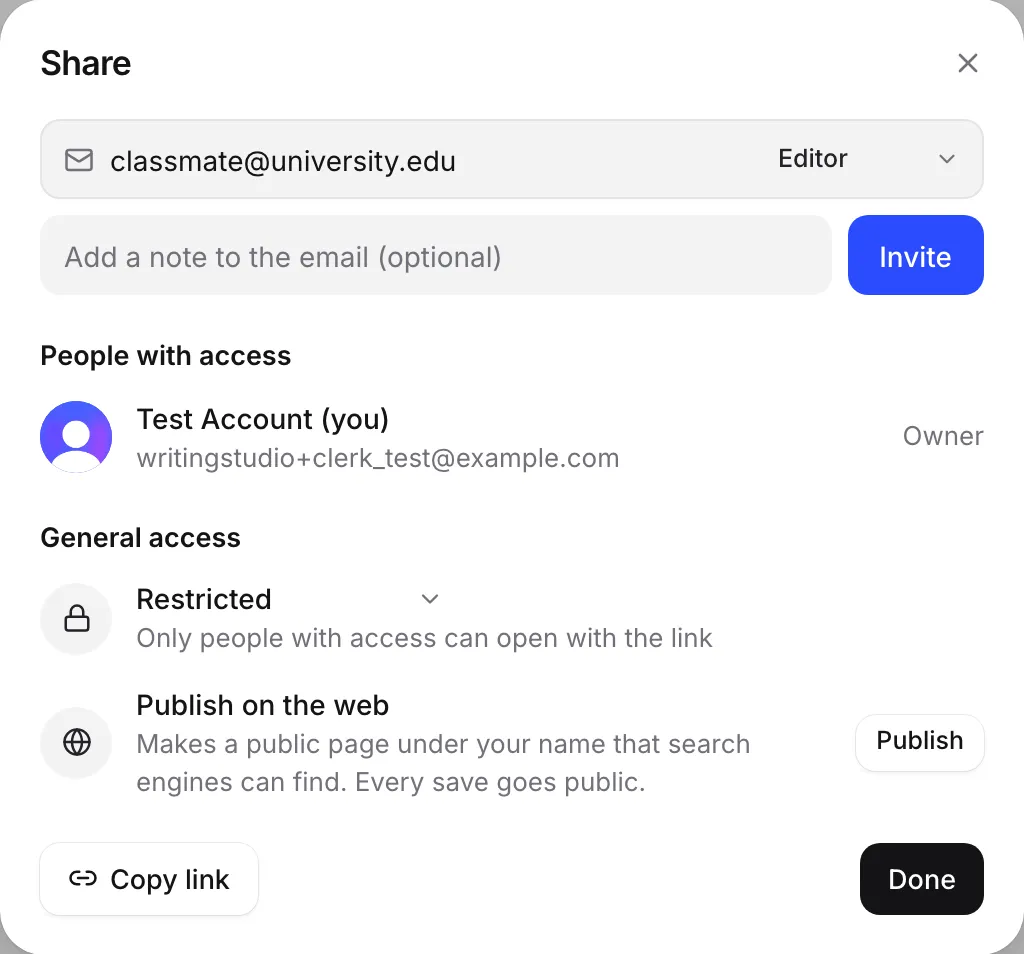
The person gets an email inviting them to the paper. Until they open it, they show under People with access with a note that they haven’t opened it yet. To open it, they sign in with the email address the invite went to.
You can send up to 20 invites an hour. If an invite email doesn’t go through, the person still has access, and Writing Studio tells you to send them the link yourself.
Change or remove someone’s access
Open Share. Next to each person under People with access is their role. Click it to pick a different role, or choose Remove access to take the paper away from them.
Only you, the owner, can add people or change access. People you’ve shared with see “Only the owner can add people or change access.” in their Share dialog.
Share with anyone who has the link
Under General access in Share, you choose who can open the paper with its link:
- Restricted: only people with access can open with the link. This is the default.
- Anyone with the link: anyone on the internet who has the link can open it. A second picker sets whether they can edit, comment or only view.
Click Copy link to copy the paper’s address, then paste it wherever you like. The button changes to Copied.
People who open a link-shared paper without signing in can only read it. They see “Sign in to edit this document” or “Sign in to comment” if the link allows more.
To put your paper on a public page that search engines can find, use Publish on the web instead. See Publish a paper on the web.
How shared editing works
Writing Studio does not edit in real time. There are no live cursors, and you won’t see other people type.
Your copy of the paper checks for other people’s changes every 30 seconds, and again whenever you come back to the tab. So a collaborator’s saved edits appear within about 30 seconds.
If two people change the paper at almost the same moment, the newer saved copy loads, and the other copy goes into Version history so no words are lost. It’s easiest to agree who is editing when. See Work on a paper shared with you for more.
Accept requests for access
People can ask you for access to a paper, or ask to edit when they can only view or comment. You get an email, and the request shows under Requesting access in Share. Pick a role and click Approve, or click the × to deny it. See Understand roles and access.
Frequently asked questions
Can we edit the same paper at the same time?
Not live. Writing Studio is not a real-time editor, so you won't see other people typing. Their saved changes show up in your copy within about 30 seconds, or as soon as you come back to the tab.
Why can't I share my paper?
Sharing needs a Writing Studio account with a confirmed email address. If you see a message about a verified email, confirm your address in Settings under Account, then try again.
Does the person I invite need an account?
Yes. They sign in or create a free account with the email address the invite went to, and the paper opens for them.
Can I stop sharing later?
Yes. Open Share, pick Remove access next to the person, or set General access back to Restricted. They lose access straight away.
Was this page helpful?
Thanks for letting us know.