

Getting started
Start your first paper
Start a paper from your assignment brief, from a blank page, or from a Word document, and give it a title.
To start a paper, click New document in the left sidebar. You can then paste your assignment brief and let the chat do the research first, start writing on a blank page, or import a Word document.
Open the home screen
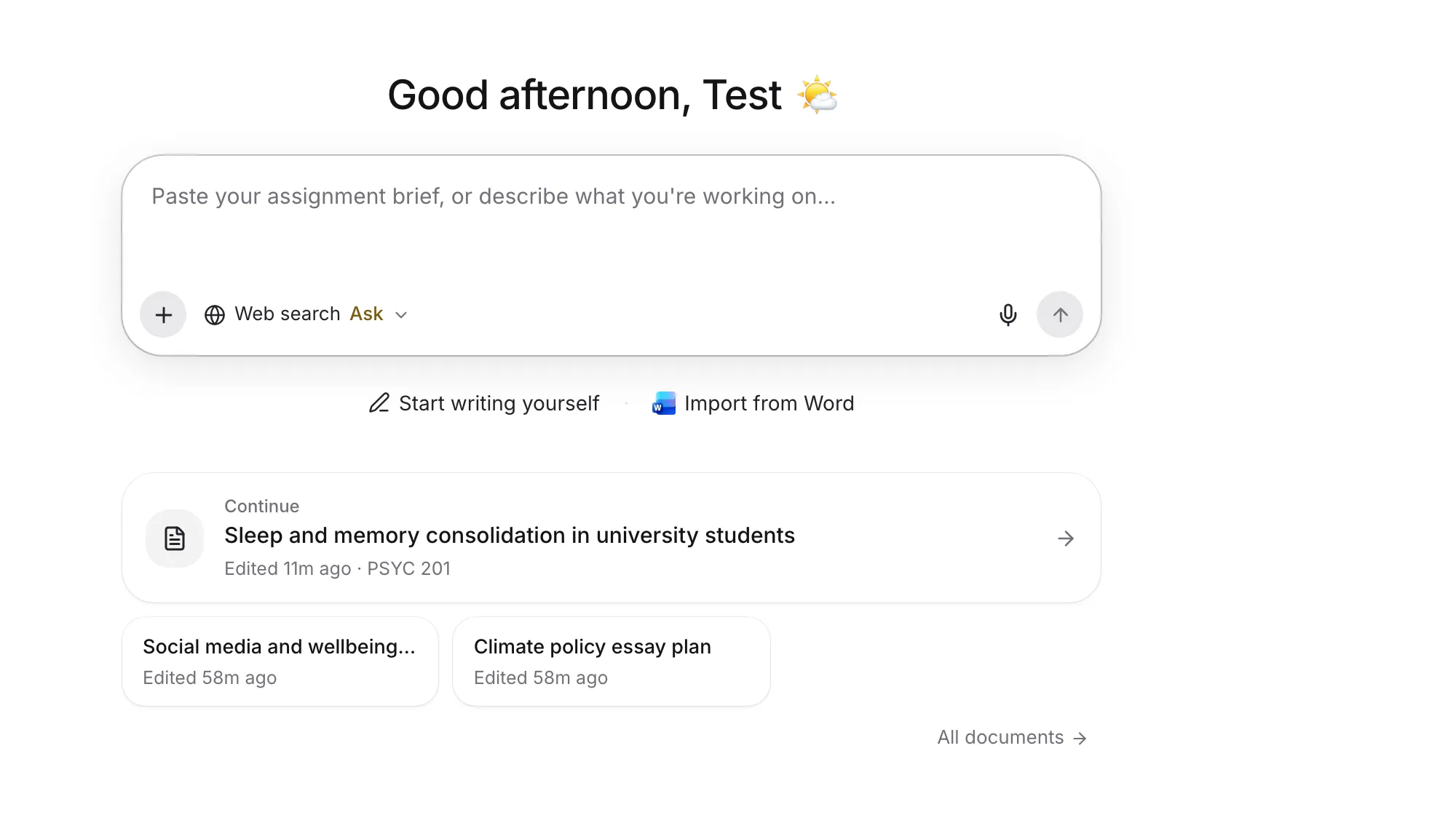
Click New document at the top of the left sidebar. The home screen greets you by name, with a large box that says “Paste your assignment brief, or describe what you’re working on…”.
Below the box are two more ways to start: Start writing yourself and Import from Word.
Start from your assignment brief
This is the quickest way in if you have an assignment.
- Paste your assignment brief into the box, or describe what you’re writing about.
- Press Enter to send it.
- If Writing Studio asks “Search the web in this conversation?”, choose Search so it can find real sources.
The first answer does the research before any writing:
- What the research says: three to five key findings from real sources, each with its citation.
- Angles you could take: two or three one-line arguments you could make.
- A working title for your paper.
- The next step, such as which angle to outline.
If you asked it to write the essay or a draft, it puts an outline into your paper (headings and short bullet points with citations) and offers to draft from it. It only does this if your AI rules allow it.
Your first message also becomes the paper’s brief, which autocomplete, reviews and source searches read from then on. A long brief, or one you attach as a file, is read for your assignment’s details too: the word count, citation style and due date. See Read your assignment brief.
Sending the message uses one AI chat message from your allowance. See AI allowances and limits.
Start writing yourself
Click Start writing yourself under the box. A blank paper opens with the cursor ready, and nothing is sent to the AI.
Import a Word document
Click Import from Word and choose a .docx file. It opens as your paper, with its headings, images and comments.
You can also drop a .docx file onto the box, or attach one. Writing Studio then asks whether the file is your paper or the brief:
- Open as my paper opens the file as the paper you’ll keep writing.
- Use as the brief reads it as your assignment instructions instead.
See Import a Word document for what comes across.
Give your paper a title
Click Untitled at the top of the page and type your title. Press Enter to move down into the body.
Until you add a title, your documents list names the paper after its first few words.
Pick up where you left off
Once you have papers, the home screen shows them under the box:
- The paper you worked on last, in a large Continue card.
- Up to three more papers. A paper due within two days takes the first spot, so a deadline never hides.
- Labels such as “Edited just now”, “Due today” or “Shared with you”.
Click All documents to see every paper. See Find and open your documents.
What happens to blank papers
A paper gets its own web address once you start writing in it. A paper you leave empty doesn’t show in your documents list, and is tidied away after a day.
Next steps
- Cite your first source by typing @ in your paper. See Cite a source with @.
- Set the citation style, word goal and due date in Paper settings.
- File the paper under a course with Add to course at the top. See Organize papers into courses.
Frequently asked questions
Does starting from the chat use my AI allowance?
Yes. Your first message is an AI Chat message, so it uses one from your allowance. Starting with Start writing yourself or Import from Word uses none.
Where did my blank paper go?
A paper with nothing in it isn't kept. Blank papers don't show in your documents list and are tidied away after a day. Type anything into a paper and it is saved.
Can I change the title later?
Yes. Click the title at the top of the page and type a new one. The change saves straight away.
Was this page helpful?
Thanks for letting us know.