

Getting started
Use the Get started checklist
Five quick steps that show you the main parts of Writing Studio, ticked off as you do them.
The Get started checklist is a small card at the bottom of the left sidebar. It walks you through five things worth trying first, and ticks each one off when you do it.
Open the checklist
The card shows “Get started” with a ring that fills as you go, and how many steps you’ve done, such as “2 of 5 done”.
Click the card to open the list of steps, and click it again to fold it. On a brand-new account it opens by itself, then folds once you finish your first step.
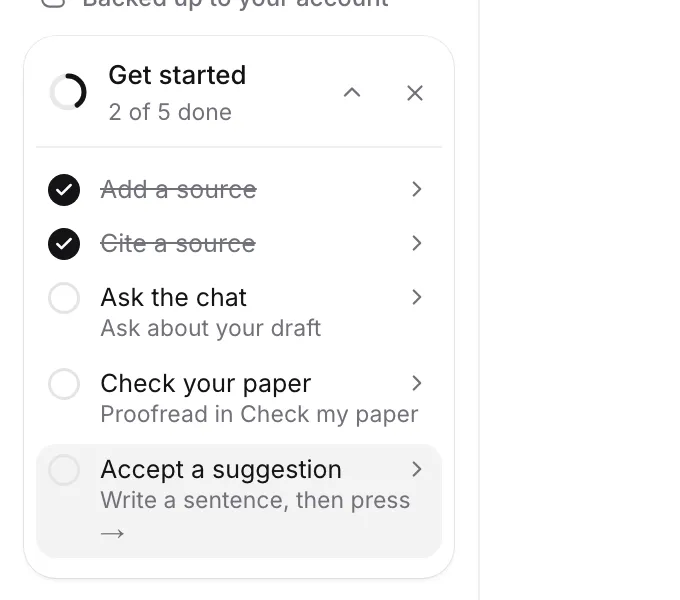
The five steps
Click any step to go straight to where it’s done.
- Add a source. Upload a PDF or paste a DOI. It ticks when any source is added to your library. See Add sources to your library.
- Cite a source. Press @ and search. It ticks when you cite a source in a paper. See Cite a source with @.
- Ask the chat. Ask about your draft. It ticks when you send a message in the AI Chat. See Chat with AI about your paper.
- Check your paper. Proofread in Check my paper. It ticks when you run a review, such as a proofread. See Proofread and review your paper.
- Accept a suggestion. Write a sentence, then press →. It ticks when you accept a whole autocomplete suggestion. See Write faster with autocomplete.
Done steps are crossed out, and you can still click them to go back to that place.
Hide the checklist
Click ✕ on the card to dismiss it. It also goes away by itself once all five steps are done.
Bring the checklist back
- Click Help at the bottom of the left sidebar.
- Click Get started.
The card comes back open, even if you’ve finished every step. If the sidebar is folded to icons because the window is narrow, the checklist opens beside Help instead.
On a phone, the card is in the menu that opens from the button at the top left of your paper.
Where your progress is kept
Your ticks are remembered in the browser you use. If you sign in on another computer, the checklist may start from the beginning there.
Frequently asked questions
I did a step but it isn't ticked. Why?
Each step is ticked by doing the real thing, not by visiting a page. For example, Accept a suggestion only ticks when you accept a whole suggestion, and Check your paper only ticks when you run a review.
How do I get the checklist back after closing it?
Click Help at the bottom of the left sidebar, then Get started.
Why did my progress reset on another computer?
Your ticks are remembered in the browser you use. On a new computer or browser, the checklist may start again, but nothing else about your account changes.
Was this page helpful?
Thanks for letting us know.