

Documents
Find and open your documents
Open the Documents list to search, sort and open every paper you've written or that's been shared with you.
Click Documents in the left sidebar, or press ⌘K (Ctrl+K on Windows), to see all your papers. Type to search them, then click a paper to open it.
Open the Documents list
Use any of these:
- Click Documents in the left sidebar.
- Press ⌘K anywhere in Writing Studio. (If you have words selected in your paper, ⌘K adds a link instead.)
- Click Documents at the start of the breadcrumb in the bar above your paper.
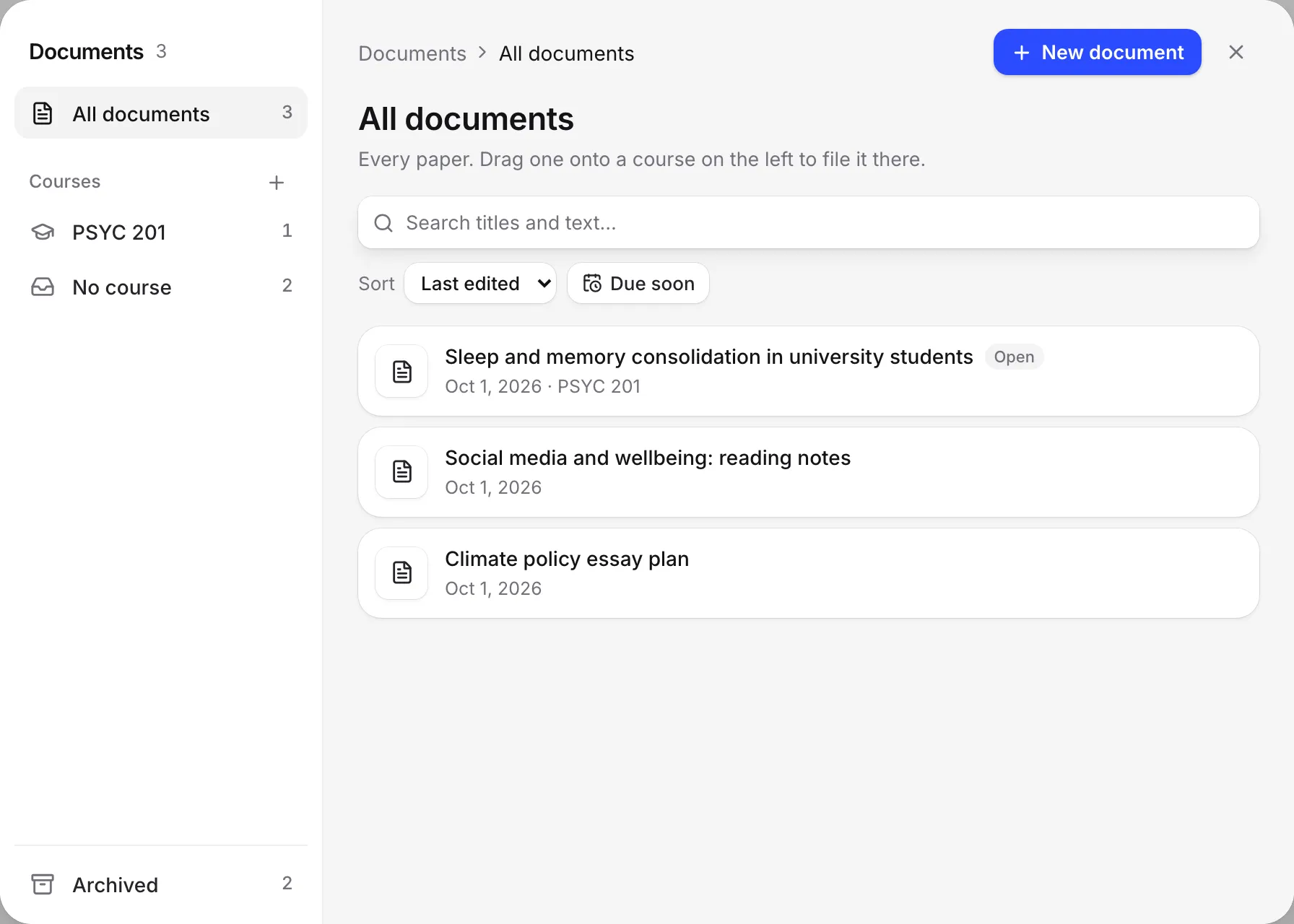
On the left of the list you’ll see:
- All documents: every paper.
- Courses: each course and folder you’ve made. See Organize papers into courses.
- No course: papers not filed in a course.
- Archived: papers you’ve archived. See Rename, duplicate, archive or delete a paper.
Search your papers
Type in the box that says “Search titles and text…”. Writing Studio searches both the titles and the words inside your papers, and shows a snippet of where each match is.
If nothing matches, you’ll see “No documents match.”
Sort and filter
- Click Sort to order papers by Last edited, Title (A to Z) or Due date.
- Turn on Due soon to see only papers due in the next 14 days, or up to 7 days overdue.
Read the labels on each paper
Each row can show:
- Open, for the paper you have open right now.
- A due date label, like Due today, Due tomorrow, Due in 5 days, 1 day overdue or 3 days overdue. Set a due date in Paper settings.
- Shared with you, with what you can do: can edit, can comment or can view. See Work on a paper shared with you.
A paper without a title is named after its first few words, so you can still tell it apart.
The list shows 200 papers at a time. Click Show more at the bottom to see the rest.
Act on a paper from the list
Each row has quick actions:
- Move, to file it in a course.
- Duplicate, to make a private copy.
- Archive, to put it away.
To act on several papers at once, click the tick beside each one, or Shift-click to pick a range. See Rename, duplicate, archive or delete a paper.
Pick up where you left off
The home screen also shows your recent papers under Pick up where you left off. The Continue card opens the paper you edited last, and up to three more cards show other recent papers, with labels like “Edited just now”, “Due today” or “Shared with you”. Click All documents to open the full list.
Start a new paper
- Click New document in the sidebar to go to the home screen and start a paper. See Start your first paper.
- In the Documents list, New document starts a paper in the course you’re looking at, with that course’s citation style, typeface and AI rules.
A new paper doesn’t appear in the list until you write something in it. Blank papers are tidied away after a day.
On your phone
On a phone, Documents opens as a sheet from the bottom of the screen. The courses and other places show as a row of chips at the top instead of a list on the left.
Frequently asked questions
Why can't I find a paper I just started?
A blank paper isn't listed until you write something in it, and empty papers are tidied away after a day. As soon as you type, it gets its own address and shows up in Documents.
Does search look inside my papers?
Yes. Search titles and text finds words in the titles and in the body of your papers, and shows a snippet of where it matched.
Where are papers other people shared with me?
They're in All documents with your own papers, labelled Shared with you and whether you can edit, comment or view. You can also file them into your own courses.
Was this page helpful?
Thanks for letting us know.