

Writing
Use headings to organize your paper
Add headings to split your paper into sections, then jump between them and see how long each one is.
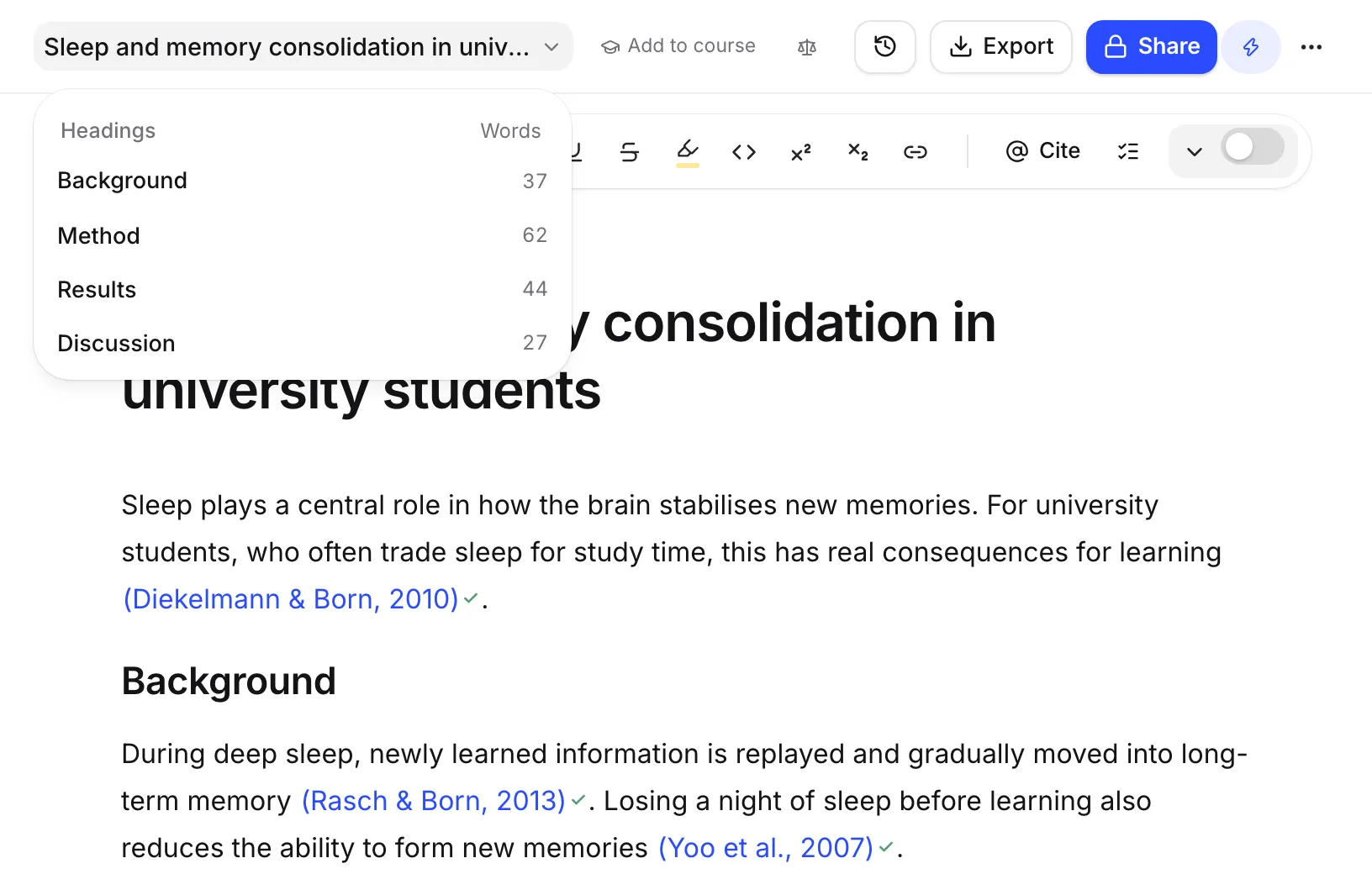
Use headings to split your paper into sections like Introduction, Methods and Discussion. Then click your paper’s title in the top bar to see every heading, jump to one, and see how many words each section has.
Add a heading
Use whichever way you like:
- Type
#and a space at the start of a line for Heading 1,##for Heading 2,###for Heading 3 or####for Heading 4. - Type /heading and pick a level from the / menu.
- Click Block type in the toolbar and choose Heading 1 to Heading 4.
To turn a heading back into normal text, choose Text from Block type, or use Turn into in the block’s menu.
Choose the right level
Think of the levels like an outline:
- Heading 1 for the main sections, like Introduction or Results.
- Heading 2 for sections inside them.
- Heading 3 for subsections.
- Heading 4 for small headings, used rarely.
Your paper’s title is separate from your headings. Don’t repeat it as a Heading 1.
Jump to a section
- Click your paper’s title in the bar at the top of the page (it says Jump to a heading when you hover over it).
- The Headings list opens. Headings are indented by level, and each shows the number of words in its section.
- Click a heading to go straight to it.
This works on phones too: tap the title at the top of the screen.
If your paper has no headings yet, the list says “No headings yet. Each heading you add is listed here, to jump to.”
Give each section a brief
You can tell the AI what each section should cover by adding a section brief to its heading. Autocomplete, rewrites and the chat all read it. A brief on a heading also covers the headings under it.
To add one, open the heading’s Block actions menu and choose Section brief, or click Briefs in the toolbar. See Guide the AI with briefs.
Headings in your exports
Headings keep their levels in every export. In Word, they use Word’s own heading styles. See Export your paper.
Frequently asked questions
How many heading levels can I use?
Four: Heading 1 to Heading 4. On a phone, the Format row has Heading 1 and Heading 2, and you can type ### or #### followed by a space for the smaller ones.
Is the paper title a heading?
No. The big title at the top of the page is separate. Your sections start with Heading 1, or Heading 2 if you prefer smaller section titles.
Do my headings come through in Word?
Yes. Word exports use Word's own heading styles, so Word's navigation pane and table of contents tools work with them.
Was this page helpful?
Thanks for letting us know.