

Getting started
Create an account and sign in
Sign up with Google or with your email and a password, confirm your email, and sign in on any device.
You need a free account to use Writing Studio. You can sign up with your Google account or with an email address and a password, and it takes about a minute.
Create your account
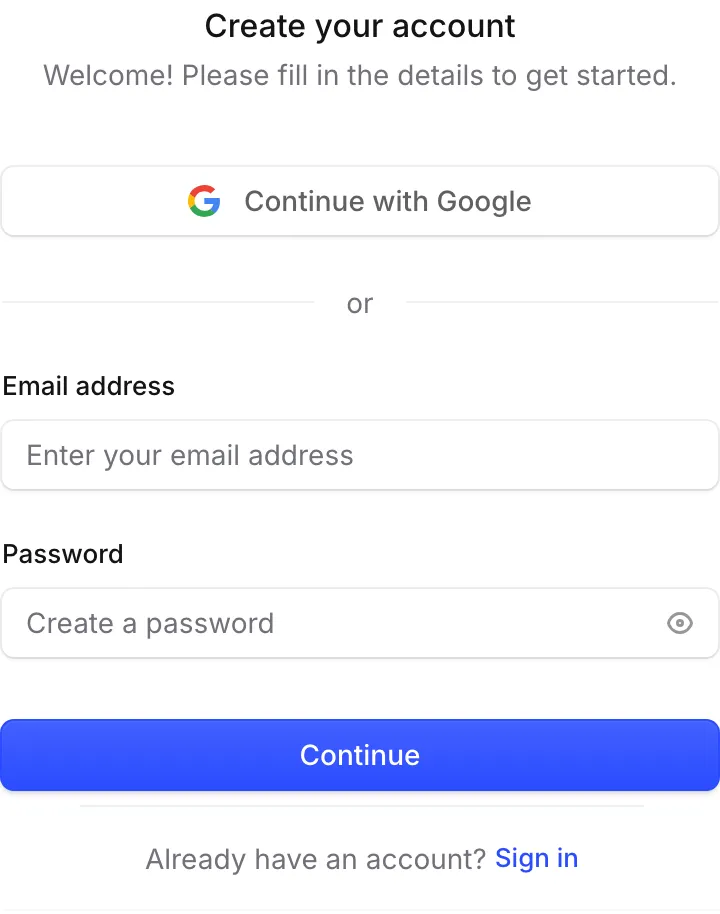
- Go to app.writingstudio.com/sign-up. The page says “Create your Writing Studio account”.
- Choose how to sign up:
- With Google: click the Google button at the top and pick your Google account.
- With email: type your email address and a password.
- If you used your email, check your inbox for a six-digit code and type it in to confirm the address is yours.
That’s it. You land in Writing Studio, ready to start your first paper.
By creating an account, you agree to the Terms of Service and Privacy Policy, linked under the sign-up form.
Sign up from the Writing Studio website
On writingstudio.com, Start free with Google takes you straight to Google. After you pick your account, you come back to the app (it shows “Finishing sign-in…” for a moment). If you’re new, your account is created on the way.
If you picked a plan on the website
If you chose Plus or Pro on the website before signing up, Writing Studio remembers it. The sign-up page shows a line like “Next: checkout for Plus, yearly.” and checkout opens once your account is ready. See Upgrade, change or cancel your plan.
Sign in
- Go to app.writingstudio.com/sign-in. The page says “Sign in to Writing Studio”.
- Sign in the same way you signed up: with the Google button, or with your email and password.
You can add a password to a Google account, or connect Google to an email account, later in Settings > Account. See Manage your password and sign-in.
When you open a link from an email
If you open an invite to a paper or an email about a comment, the sign-in page tells you which address to use, for example “You’ve been invited to a paper. Use the email the invite went to.” Sign in with that address so the paper opens for you.
If you see “You’ve been signed out”
Sometimes a strip at the top of Writing Studio says “You’ve been signed out. Writing still saves here, and backs up once you sign in again.”
Your work is safe. Keep writing if you like, then click Sign in again. Anything you wrote while signed out backs up as soon as you’re back in.
What your account is for
- Backup and other devices. Your papers and sources save in your browser first, then back up to your account, so they come back on any device you sign in on. See How saving and backup work.
- AI features. AI features need you to be signed in, even if you use your own AI key.
- Sharing. To share a paper, your account needs a verified email address. See Share a paper.
Frequently asked questions
Is creating an account free?
Yes. Every new account starts on the Free plan. You only pay if you choose Plus or Pro.
I didn't get the six-digit code. What should I do?
Check your spam or junk folder, since the code comes from our sign-in service. If it still hasn't arrived after a few minutes, email support@writingstudio.com.
Can I sign in with Microsoft, Apple or my university login?
Not at the moment. You can sign in with Google, or with an email address and a password.
Can I use Writing Studio on more than one device?
Yes. Sign in with the same account on each device. Your papers and sources back up to your account and come back when you sign in.
Was this page helpful?
Thanks for letting us know.