

Library
Upload PDFs
Upload PDFs to your library to read, quote and cite them with page numbers. Writing Studio reads each file and fills in its details for you.
Upload a PDF to your library to read it beside your paper, keep quotes from it, and cite it with page numbers. Writing Studio reads the file in your browser and fills in its details for you.
Uploading PDFs is free on every plan.
Upload PDFs to your library
- Open your Library from the left sidebar.
- Click Upload PDF and choose one or more PDF files. You can also drag PDFs straight onto the library.
- Wait while it shows “Reading” and the file name. If the PDF has a DOI on its first page, you see “Looking up” while it fills in the details from the published record.
Each PDF becomes a source in your library, ready to read and cite. A PDF of a work you already have joins that source instead of making a second one. If you upload while looking at a course or collection, the source goes into it.
Add a PDF to a source you already saved
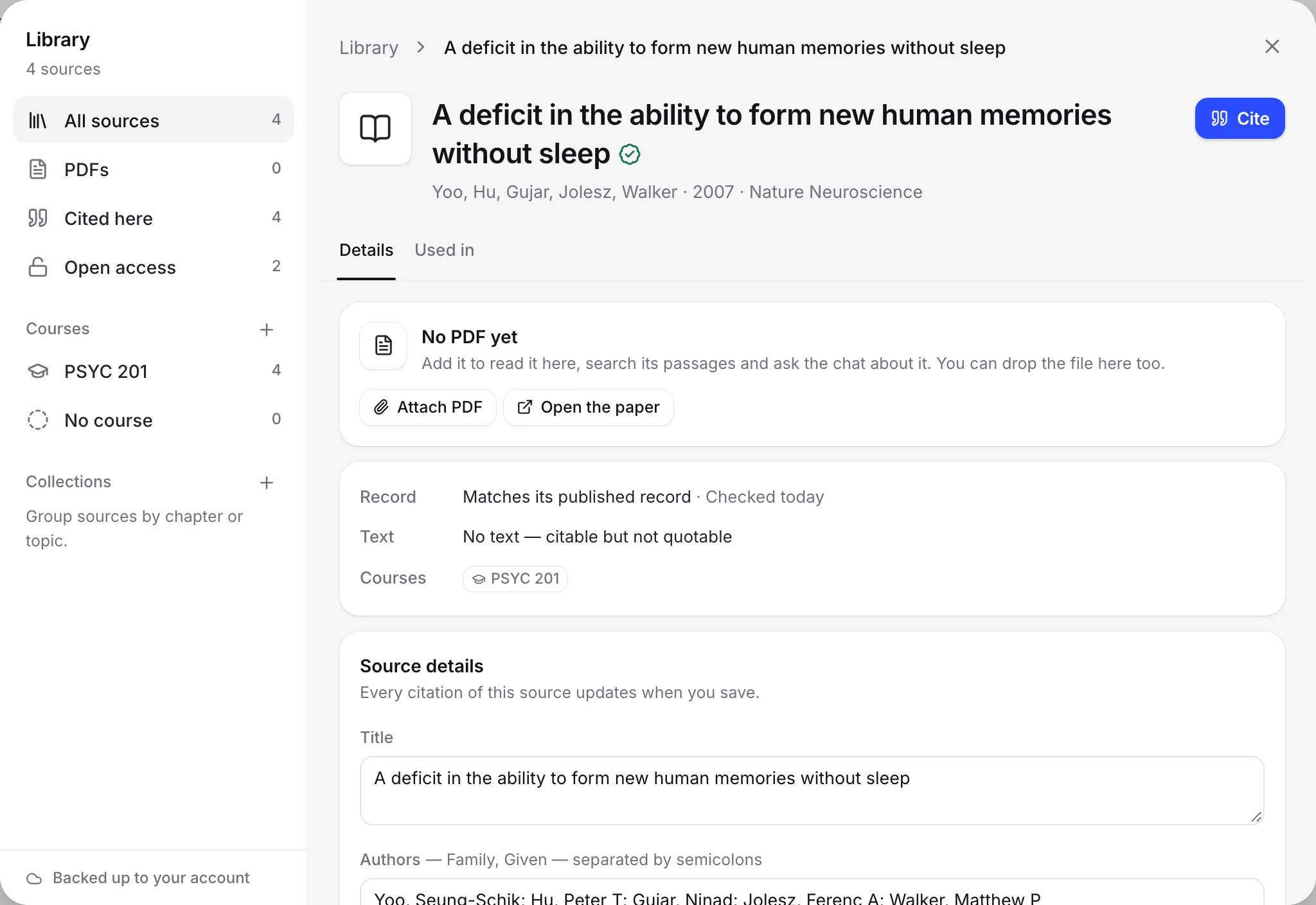
Open a source that has no PDF. Its page says No PDF yet, with three options:
- Get the free PDF looks for a free, legal open access copy and attaches it.
- Attach PDF lets you choose the PDF from your computer. You can also drop it on the source’s page.
- Open the paper opens the publisher’s page, where you may be able to download it.
When it works, you see “PDF attached” with its size, and “Passages and the chat can use it now.”
If no free copy turns up, attach the PDF yourself if you have it, or get it from the publisher.
If the PDF you attach shows a different DOI from the source, Writing Studio asks “Attach a different paper?”. Choose Attach anyway only if you are sure it’s the right paper.
What happens to the text
Writing Studio reads the PDF’s text in your browser, so you can search inside your PDFs, keep quotes, and let the chat use it.
It keeps up to 400,000 characters of text, in whole pages. For a very long PDF, a badge such as “Searchable to p. 150 of 300” shows how far that reaches. Passages, the Citation finder and the chat don’t reach the pages after it, but you can still read and cite the whole PDF.
Limits
- 50 MB per file.
- 100 uploads an hour.
- 500 MB a day.
If a PDF goes over a limit, it still saves in this browser, and you see “PDF saved on this device only” with the reason. It works here, but it isn’t backed up to your account, so your other devices can’t open it yet.
If a PDF won’t upload
- “That file is too big to upload. The limit is 50 MB.” The PDF stays on this device only. Use a smaller copy if you need it on other devices.
- “That isn’t a PDF. Pick the paper’s PDF file.” Only PDF files can be attached.
- “That file couldn’t be read as a PDF. Try another copy.” The file may be damaged.
- “It has no text to search: it may be a scan.” A scanned PDF is only pictures of pages, so it can be read but not searched or quoted.
- A PDF locked with a password can’t be opened. Remove the password, then upload it again.
Frequently asked questions
How big can a PDF be?
Up to 50 MB per file. You can upload up to 100 PDFs an hour and 500 MB a day.
Why can't I search or quote my PDF?
It is probably a scan, which is a picture of the pages with no text in it. Find a copy with real text, for example from the publisher or your library's database.
What does Searchable to p. mean?
For very long PDFs, Writing Studio keeps the text of the first 400,000 characters, in whole pages. The badge shows the last page you can search and quote. You can still read and cite the whole PDF.
Can I open my PDFs on another device?
Yes. Uploaded PDFs back up to your account. If a PDF couldn't be backed up, Writing Studio says PDF saved on this device only, and other devices can't open it yet.
Was this page helpful?
Thanks for letting us know.