

Citations
Your reference list
Writing Studio builds your reference list from your citations, formats it in your style and checks each entry against its published record.
You never type your reference list. Writing Studio builds it at the end of your paper from the sources you cite, formats it in your citation style, and keeps it up to date as you write.
How the list builds itself
- It appears as soon as your paper has at least one citation.
- Every source you cite is in it once, however many times you cite it. A source you stop citing leaves it.
- It always sits at the end of your paper and can’t be moved.
- Numbering and order follow the style. The line at the bottom says how many sources are cited and in which style.
The title comes from the style, so you can’t edit it:
- Works Cited in MLA.
- Bibliography in Chicago.
- References in every other style.
Change the style
Use the Citation style menu at the top of the list to switch between APA 7th, MLA 9th, Chicago 17th, IEEE, Harvard, Vancouver or More styles…. See Change your citation style.
Copy or download the list
Open the Copy menu at the top of the list:
- Copy the list copies the formatted references, ready to paste anywhere.
- Copy as BibTeX copies them as BibTeX, for LaTeX or a reference manager.
- Download RIS file saves them as references.ris, for EndNote, Zotero, Mendeley and others.
See Import or export BibTeX and RIS.
Work with one entry
Click an entry in the list to see more:
- Cited in shows how many places your paper cites it. Click it to step through each one.
- Edit details opens the source, where you can fix its title, authors, year and more. Every citation of it updates when you save. See Edit a source’s details.
- Checked and a date shows when it was last checked against its published record.
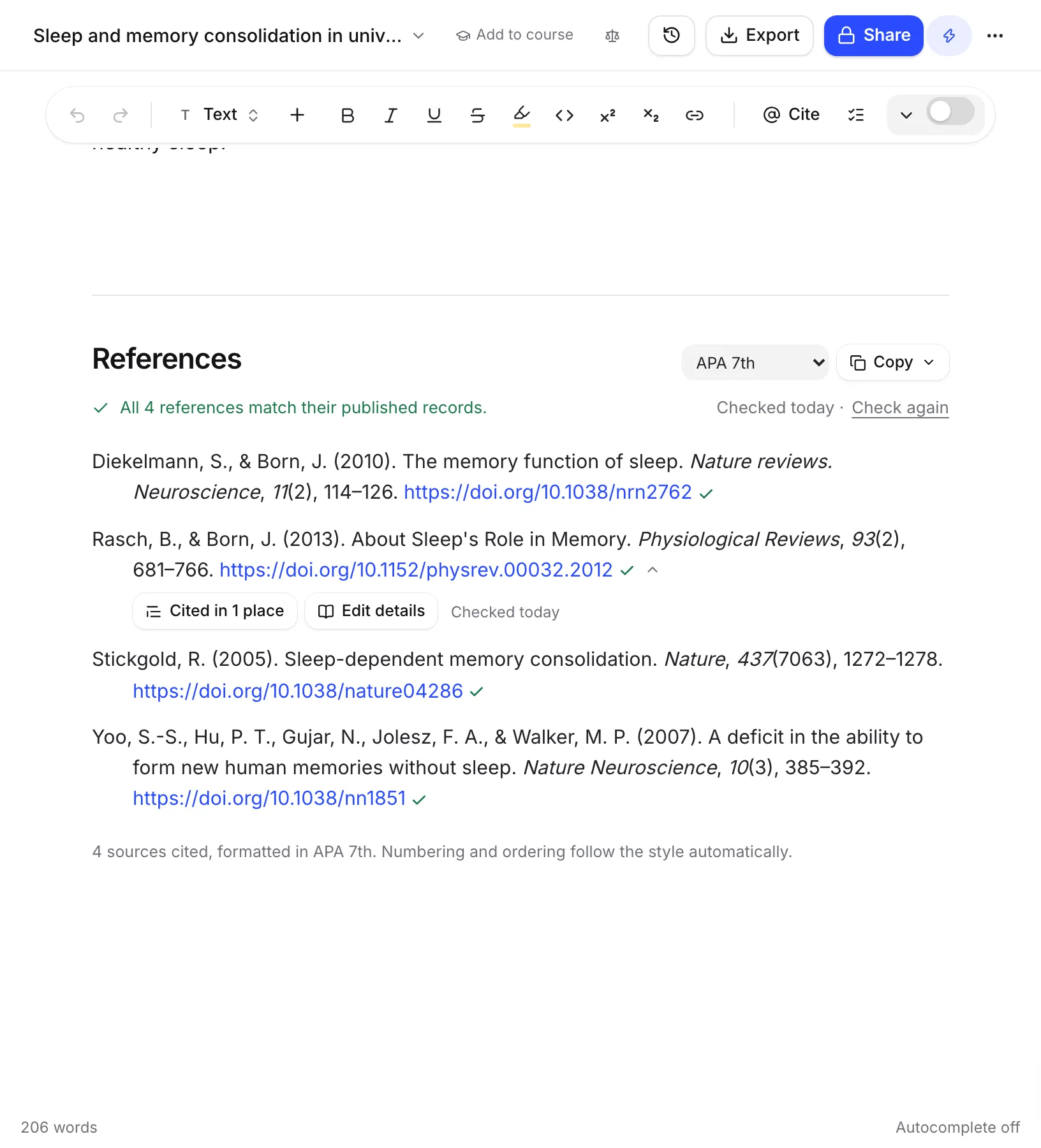
Check the list against published records
Writing Studio checks every reference against academic databases in the background, for free. The line above the list tells you how they stand:
- “All references match their published records.” Nothing to do.
- “2 of 12 references need a look”, with Fix it (or Fix and a number) to correct wrong details from the published records in one click, and Show to jump to them. After a fix, Undo puts your version back for a few seconds.
- “Couldn’t check 1 reference just now”, with Try again. Nothing is known to be wrong with it.
Entries with a problem show a label, such as Retracted or Check details, with buttons to fix them. See Check your references.
Typed references
If your paper has a reference list you typed or pasted yourself, for example from a Word document, a Typed citations card offers Make citations live. This links each typed citation to a real source so the list writes itself. See Turn typed citations into live ones.
Frequently asked questions
How do I add a reference list to my paper?
You don't need to. It appears at the end of your paper as soon as you cite your first source, and updates every time you add or remove a citation.
Can I rename or move the reference list?
No. Its title comes from your citation style (References, Works Cited or Bibliography), and it always stays at the end of your paper.
How do I fix a mistake in a reference?
Click the entry and choose Edit details. Fix the author, title or other details and save. Every citation of that source updates too.
Is the reference list included when I export?
Yes. It is part of your paper in Word, PDF, LaTeX, web page and clipboard exports.
Was this page helpful?
Thanks for letting us know.