

Documents
Rename, duplicate, archive or delete a paper
Change a paper's title, make a private copy, put old papers in the archive, or delete them for good.
Click a paper’s title to rename it. To duplicate, archive or delete a paper, use the ⋯ menu at the top of the paper or the actions in your Documents list.
Rename a paper
- Click the big title at the top of your paper. A new paper says Untitled.
- Type the new title.
- Press Enter to move down into your writing.
The new title shows in your Documents list straight away, and it’s used as the file name when you export.
Make a copy
You can duplicate a paper to try a different version without changing the original.
- In an open paper, click ⋯ (More actions) at the top right and choose Duplicate.
- Or open Documents and click Duplicate on the paper’s row.
The copy is called “[title] (copy)”. A message says “Duplicated as” its name, with an Open button to go to it.
A copy is always private to you. Sharing isn’t copied, even if the original was shared.
To make a new paper from an older version, use Make a copy in Version history.
Archive a paper
Archiving puts a paper away without deleting it. It’s a good way to tidy up after a term.
- Click ⋯ (More actions) at the top of the paper and choose Archive, or click Archive on its row in Documents.
- A message says it’s archived, with an Undo button if you change your mind.
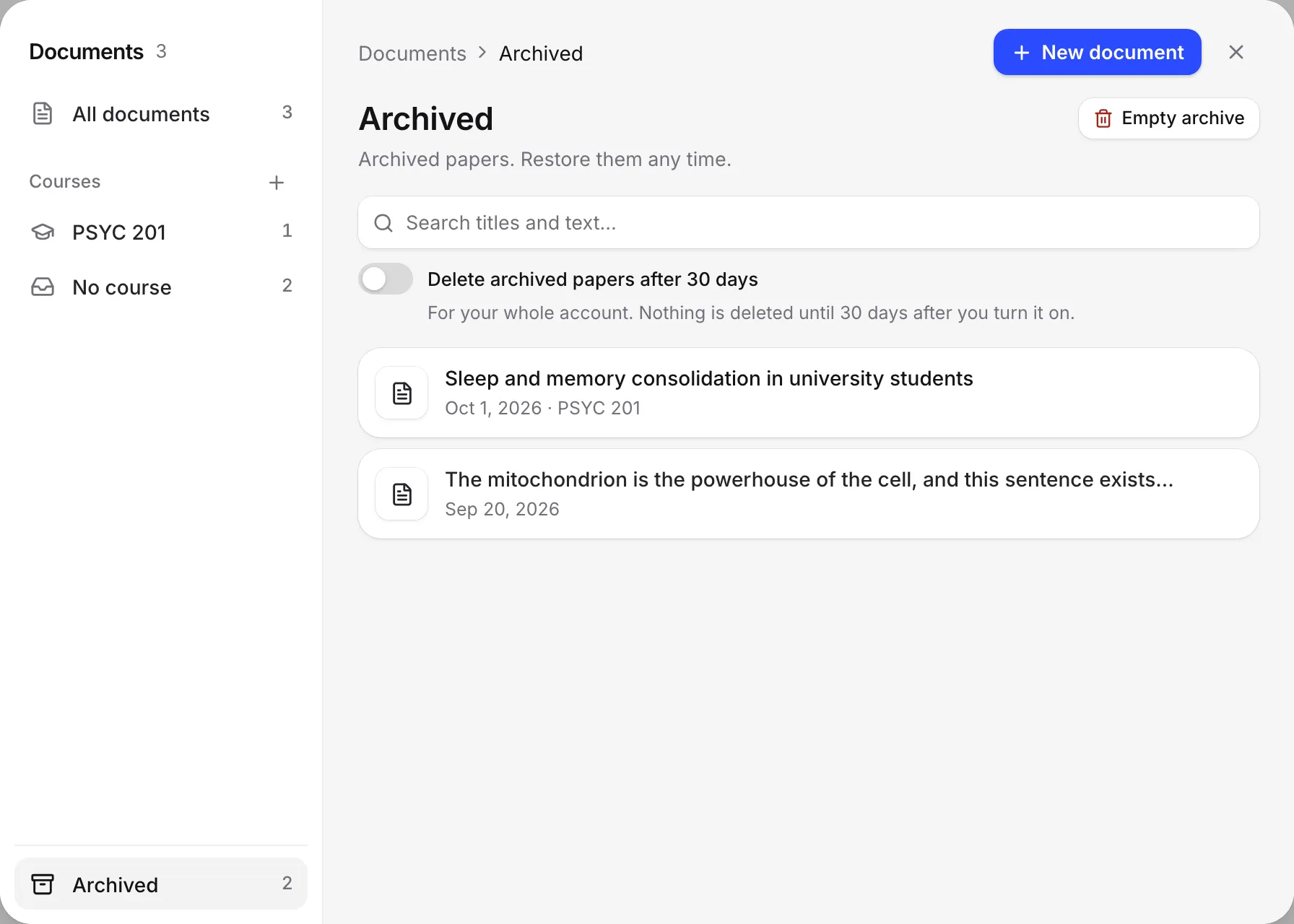
Archived papers move to Archived in the Documents list. You can still open, read and edit them. A line at the top of an archived paper says Archived with a Restore button.
Restore an archived paper
- Open Documents, click Archived on the left, and click Restore on the paper.
- Or open the paper and click Restore at the top, or choose Restore from archive in the ⋯ menu.
Delete a paper permanently
Deleting can’t be undone. If you’re not sure, archive the paper instead.
- Open Documents and click Archived.
- Click Delete permanently on the paper.
- Read the message, then click Delete.
To delete papers that aren’t archived, select them in Documents and click Delete in the bar at the bottom.
When you delete a paper you own, it’s gone for you and for everyone you shared it with, along with its comments and version history. If the paper was shared with you, it’s only removed from your list, and the owner keeps it.
Empty the archive automatically
At the top of Archived, you can:
- Click Empty archive to delete every archived paper at once.
- Turn on Delete archived papers after 30 days. Nothing is deleted until 30 days after you turn it on. Each archived paper then says when it will be deleted, like “Deleted in 12 days”. Papers other people can open are kept.
You’ll also find this switch in Settings, under Your data.
Work with several papers at once
- In Documents, click the tick beside a paper, or Shift-click to select a range.
- The bar at the bottom shows how many are selected. Click Select all to pick every paper in the list.
- Choose Archive, Move to course or Delete. In Archived, you get Restore and Delete forever.
Press Esc to clear your selection.
Frequently asked questions
Can I get back a paper I deleted permanently?
No. Delete permanently can't be undone, and it removes the paper's version history and comments too. If you might need it again, archive it instead.
Can I still open an archived paper?
Yes. Archived papers are kept until you delete them, and you can read and write in them. A line at the top says Archived, with a Restore button.
Does duplicating a shared paper share the copy?
No. A duplicate is always private to you. Its sharing settings aren't copied, so nobody else can see it until you share it.
What happens if I delete a paper someone shared with me?
It's only removed from your own list. The owner keeps it, along with everyone else they shared it with.
Was this page helpful?
Thanks for letting us know.