

Integrations
Zotero
Move your references between Zotero and Writing Studio with BibTeX or RIS files. A direct connection isn't available yet.
A direct connection to Zotero isn’t available yet. You can still move your references between Zotero and Writing Studio in either direction, using a BibTeX (.bib) or RIS (.ris) file.
Bring your Zotero references into Writing Studio
Step 1: Export from Zotero
- Open the Zotero desktop app.
- Choose what to export:
- Your whole library: choose File > Export Library…
- One collection: right-click the collection and choose Export Collection…
- A few items: select them, right-click and choose Export Items…
- Set Format to BibTeX or RIS, then click OK.
- Save the file somewhere easy to find.
Step 2: Import into Writing Studio
- Click Library in the left sidebar.
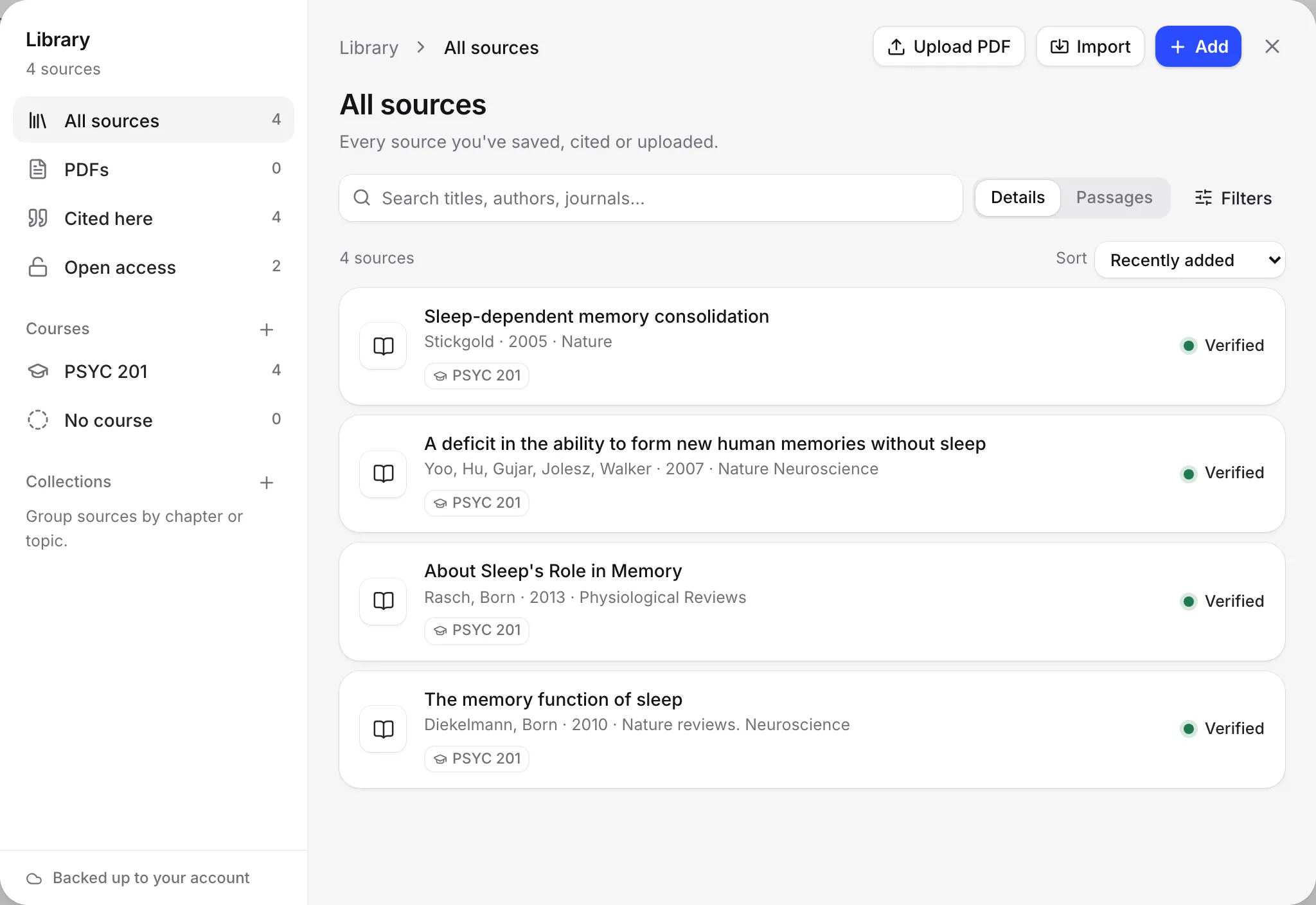
- Click Import at the top of the library.
- Choose the .bib or .ris file.
You can also drag the file straight onto the library. Writing Studio shows “Imported N sources”, and how many were already in your library.
What comes across
For each reference, Writing Studio reads the title, authors, year, journal or book title, publisher, volume, issue, pages, DOI, web address, abstract and type.
Entries without a title are skipped. Once a source is in your library, you can cite it in any style. See Cite a source with @.
Send your Writing Studio sources to Zotero
Step 1: Export from Writing Studio
Pick the way that fits what you want to send:
- Some sources: in your Library, select the sources you want, then click BibTeX or RIS in the bar that shows how many are selected. The file downloads as library.bib or library.ris.
- The sources cited in one paper: at the end of the paper, open the reference list’s Copy menu and choose Download RIS file. Or choose Copy as BibTeX, then paste into Zotero with File > Import from Clipboard. See Your reference list.
- Your whole library: go to Settings > Your data and click Export everything. The zip includes references.bib with every source. See Download a copy of all your work.
Step 2: Import into Zotero
- In Zotero, choose File > Import…
- Choose A file (BibTeX, RIS, Zotero RDF, etc.) and click Next.
- Pick the file and follow the steps to finish.
Keep both up to date
Nothing syncs by itself. When you add references in Zotero, export them again and import the file. Writing Studio merges sources it already has, so you won’t get duplicates. See Find and merge duplicate sources.
What’s not supported
- A direct Zotero connection or automatic sync. It’s listed as “Not yet” in Settings > AI.
- PDFs, notes, tags and collections. Only the reference details come across. Upload PDFs separately with Upload PDFs.
- Zotero citations in a Word document. If you import a Word file with Zotero citations, they come in as plain text. See Microsoft Word.
Frequently asked questions
Can I connect my Zotero account to Writing Studio?
Not yet. A direct Zotero connection isn't available yet. For now, export a BibTeX or RIS file from Zotero and import it into your Writing Studio library.
Will importing the same Zotero file twice give me duplicates?
No. Writing Studio merges a source it already has, matching by DOI, or by title, first author and year. It tells you how many were already in your library.
Do my PDFs come across from Zotero?
No, only the reference details. Upload the PDFs to your library separately, or use Get the free PDF on a source that has an open access copy.
Was this page helpful?
Thanks for letting us know.