

Library
Edit a source's details
Fix a source's title, authors, year or other details once, and every citation of it updates in every paper.
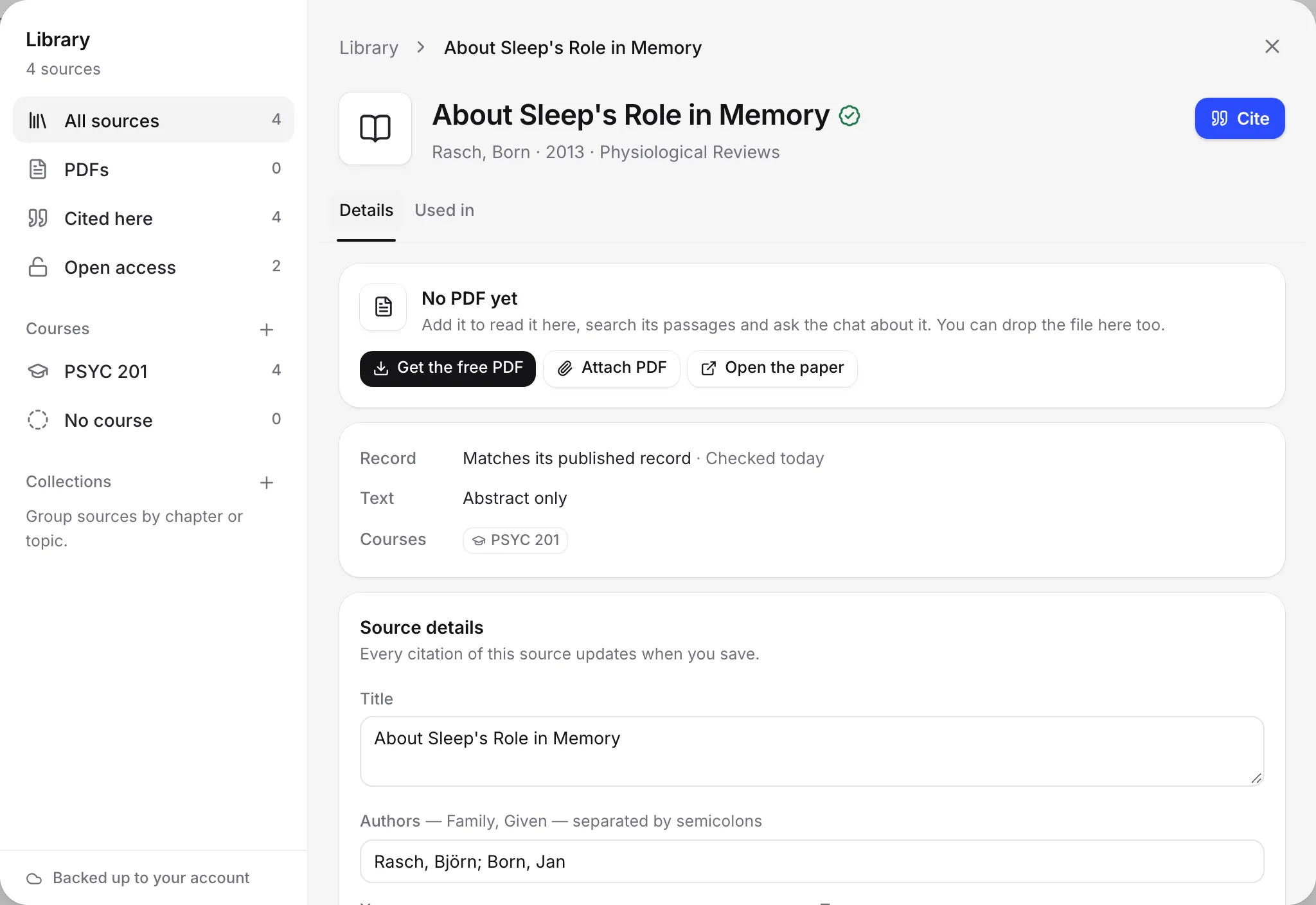
Each source in your library has its own page, where you can fix its details, see the quotes you kept, and see which papers cite it. When you fix a detail, every citation of that source updates, in every paper.
Open a source’s page
Any of these opens it:
- In your library, click a source card. Or hover over it and choose Edit details.
- In a paper’s reference list, click an entry and choose Edit details.
At the top of the page are the title, authors, year and journal, with Read PDF (if it has a PDF) and Cite (if a paper is open). Below are three tabs: Details, Passages and Used in.
Check how the source stands
The top of the Details tab shows:
- Record: how the source compares with its published record, such as “Matches its published record”, and when it was checked. If something is wrong, the fix buttons are right there. See Check your references.
- Text: whether you have its full text, only its abstract, or no text. Without text, you can cite it but not quote from it.
- Courses: the courses it belongs to.
Fix its details
- On the Details tab, go to Source details.
- Change what you need:
- Title
- Authors: family name, comma, given name, with a semicolon between people. For example: Smith, Jane; Okafor, Chidi.
- Year
- Type
- Journal or publisher
- Volume, Issue and Pages
- DOI
- Collections: click a collection’s name to add or remove the source.
- Choose Save. To throw away your changes, choose Cancel.
Every citation of this source updates when you save, and the reference list in each paper reformats. The source is then checked again against the published record.
See your kept quotes
The Passages tab lists the quotes you kept while reading the PDF, each with its page. From each one you can:
- Open quote: open the PDF at that quote.
- Cite: cite the source with the quote’s page.
- Quote & cite: put the quote and its citation in your paper.
- Remove the quote.
The tab appears once the source has text or kept quotes. See Read PDFs and keep quotes.
See where it’s cited
The Used in tab lists every paper that cites this source, with its course and when it was last edited. Click one to open it. If no paper cites it yet, the tab says so.
Remove a source
- On the Details tab, choose Remove from library. Or hover over its card in the library and choose Remove.
- Confirm with Remove.
Its PDF, extracted text and kept quotes are removed too. Citations of it already in your papers show as [missing source], so check the Used in tab first.
Frequently asked questions
Do I have to fix the same mistake in every paper?
No. Edit the source once in your library, and every citation of it, in every paper, updates when you save.
How should I type authors?
Family name, then a comma, then given name, with a semicolon between people. For example: Smith, Jane; Okafor, Chidi.
What happens to my citations if I remove a source?
Citations of it already in your papers show as [missing source]. Its PDF, extracted text and kept quotes are removed too.
Was this page helpful?
Thanks for letting us know.