

Getting started
Use Writing Studio on your phone
How Writing Studio works on a phone, from the bar at the bottom of the screen to what's only on a computer.
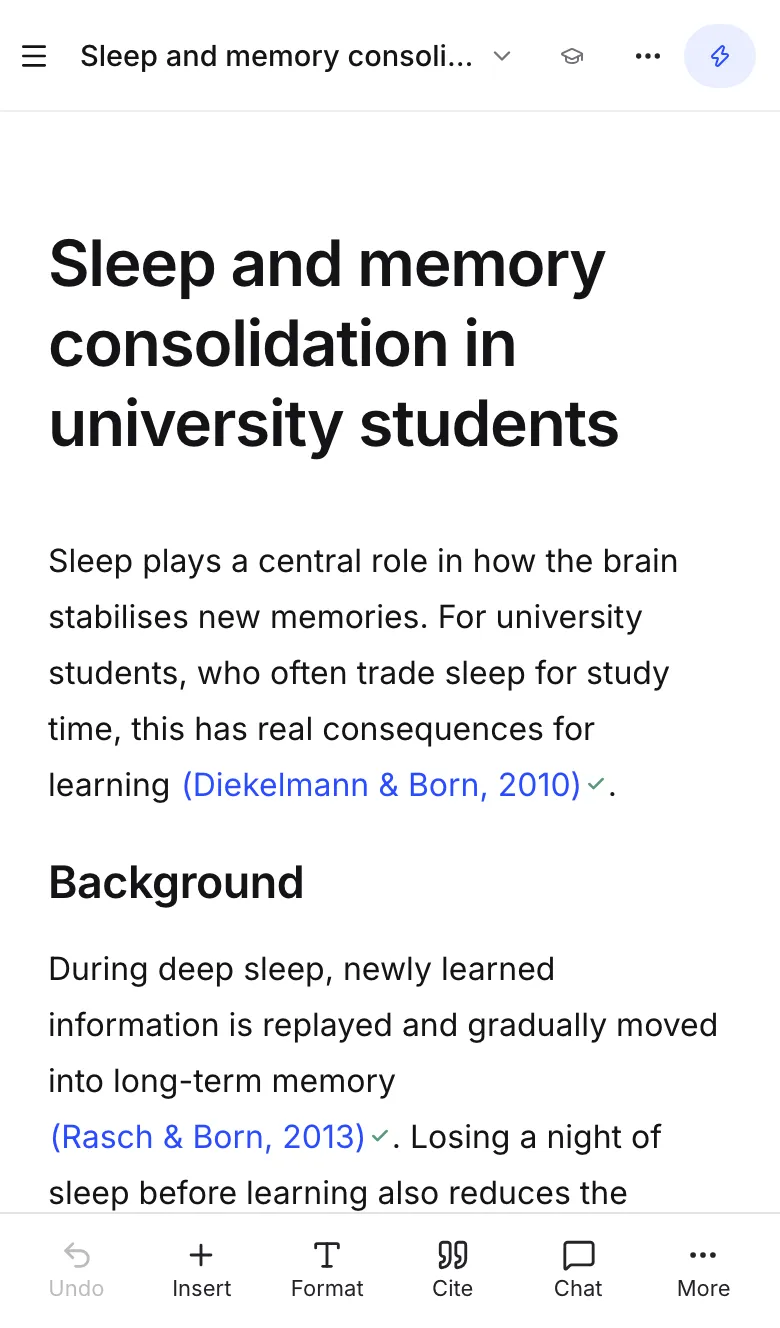
Writing Studio works in your phone’s web browser. Open app.writingstudio.com, sign in, and your papers are there. The layout changes to fit a small screen: your writing tools move to a bar at the bottom, and the paper’s actions move into a menu.
The phone layout is used on any screen narrower than 768 pixels. A tablet gets the computer layout, with the side panel floating over the page.
Move around
- Open the sidebar: tap the menu button at the top left of your paper. It holds the same places as the sidebar on a computer, including New document, Documents, Library, your courses and Help.
- Open the paper’s actions: tap ⋯ at the top right. The full list is below.
- Close a sheet: most windows open as sheets that rise from the bottom of the screen. Drag the sheet down by its top edge, or tap outside it, to put it away.
The bottom bar
While you write, the bar at the bottom of the screen has:
- Undo, to undo your last change.
- Insert, which starts a new line with the / menu open, for headings, lists, tables, images and more.
- Format, which opens a row of formatting buttons.
- Cite, which opens the Citation finder to search for a source and cite it. See Cite a source with @.
- Chat, which opens the AI Chat as a sheet. See Chat with AI about your paper.
- More, which opens the More sheet.
The Format row
Tap Format for Bold, Italic, Underline, Heading 1, Heading 2, Bulleted list, Numbered list and Block quote.
At the end of the row there are also Duplicate this block and Delete this block. With words selected, these become Highlight and Clear formatting.
The More sheet
Tap More for:
- Redo.
- Section briefs, to guide the AI for the whole paper or each section. See Guide the AI with briefs.
- Suggest, to ask autocomplete for a suggestion now.
- Autocomplete, a switch to turn suggestions on or off.
- Your word count, with Set a goal or Change goal. See Word count and word goal.
When you select words
Select some words and the bottom bar changes to actions for them:
- Rewrite, to have the AI rewrite the passage. See Rewrite highlighted text.
- Cite, to find a source for the passage.
- Ask AI, to ask the chat about it.
- Comment, to comment on it. See Add and reply to comments.
- Format, for the formatting row.
The ⋯ menu
Tap ⋯ at the top right of your paper for:
- AI Chat
- AI rules, which shows the rules set for this assignment
- Check my paper
- Comments
- Cite
- Share
- Export
- Version history
- Paper settings
- Duplicate and Archive
A dot on ⋯ means something is waiting, such as a new comment.
Autocomplete on a phone
Autocomplete suggestions appear as grey text, as on a computer. Since there are no shortcut keys, a small bar under the suggestion has Accept, Dismiss and Refine. See Write faster with autocomplete.
What’s only on a computer
Some tools need more room, so they aren’t on phones:
- The formatting toolbar at the top of the page, and the bar that appears over selected words
- The block handles in the margin (to add, move or rewrite a block)
- Links, strikethrough, superscript, subscript and inline code
- Heading 3 and Heading 4
- The Keyboard shortcuts window, and the status bar at the bottom of the page
Everything you add on a computer still shows on your phone. For example, a link or a Heading 3 you made on your computer looks the same on your phone.
Frequently asked questions
Do my papers on my phone and computer stay the same?
Yes, if you sign in with the same account on both. Your work backs up to your account and comes back on each device. If the same paper is open on both, the other one updates by itself.
How do I see my word count on a phone?
Tap More in the bottom bar. The word count is at the bottom of the sheet, with Set a goal or Change goal beside it.
Can I make a heading 3 or a link on my phone?
Not on a phone. The phone's Format row has Heading 1 and Heading 2 only, and there's no link button. Use a computer for smaller headings, links, superscript, subscript and strikethrough.
Was this page helpful?
Thanks for letting us know.