

Integrations
Microsoft Word
Import a Word document as a paper, and export your paper as a Word file with its citations and reference list.
Writing Studio works with Microsoft Word through .docx files. You can import a Word document to keep writing it in Writing Studio, and export any paper as a Word file to hand in, send to a supervisor, or keep editing in Word.
There’s no live connection or Word add-in: each import or export is a copy of the paper at that moment.
Import a Word document
- Click New document in the left sidebar to go to the home screen.
- Click Import from Word under the big box.
- Choose your .docx file.
The file opens as a new paper. You can also drop a .docx file onto the home screen’s box. Writing Studio then asks whether it’s your paper or your brief: choose Open as my paper.
What comes in
- Your text and its structure: headings, bold, italic, lists and tables.
- Images, which are saved with the paper.
- Comments from the Word file, attached to the same passages. Writing Studio tells you how many came in.
- The title. If the file starts with a heading or a short line, that becomes the paper’s title.
Fonts, colours, spacing and page layout don’t come in. Your paper takes on Writing Studio’s own look, and you choose the layout again when you export.
Typed citations
Citations typed into the Word file come in as plain text. Writing Studio notices them and shows “This draft’s citations are typed.” Click Make them live to turn them into real citations linked to your library, with a reference list that updates itself. This uses one citation check. See Turn typed citations into live ones.
Export your paper as a Word file
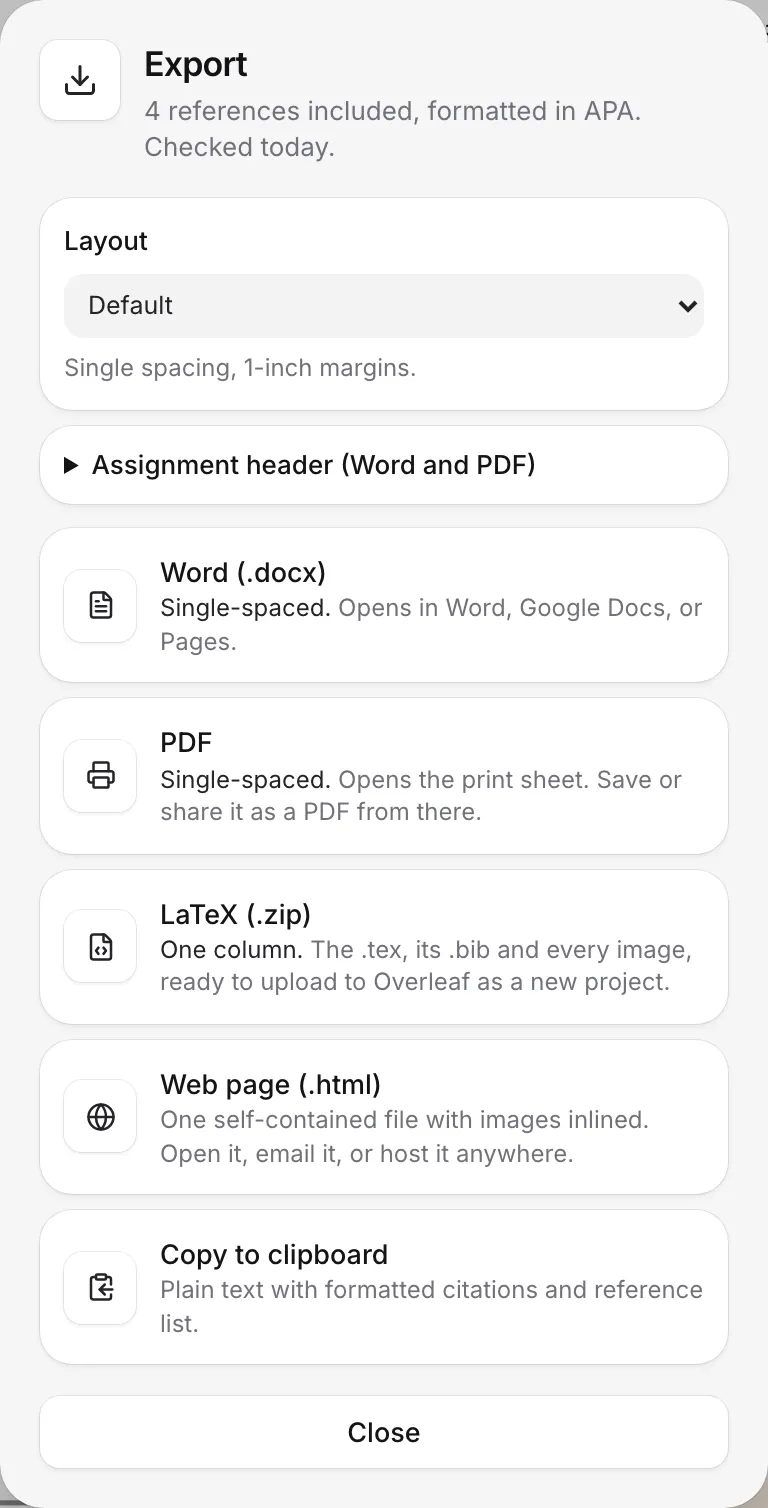
- Open the paper and click Export in the document bar, or press ⌘⇧E (Ctrl+Shift+E on Windows).
- Under Layout, choose Default (single spacing, 1-inch margins) or Double-spaced manuscript (for submission and marking).
- If your course wants it, fill in the Assignment header: your name, instructor and course. Leave it empty to skip it.
- Click Word (.docx).
The file downloads, named after your paper’s title. Writing Studio also keeps a copy in version history, labelled “Exported as Word”. See Export your paper.
What the Word file contains
- Headings as Word’s own heading styles, so Word’s navigation pane and table of contents work.
- Citations and the reference list, formatted in your paper’s citation style. Each reference links to its DOI or web address.
- The reference list on a new page, at the end.
- Block quotes in Word’s Quote style, and your highlights as Word highlights.
- Equations as Word equations, and page breaks where you added them.
- Images, tables and figure numbers, with captions. Charts and diagrams are drawn as pictures.
- The assignment header, if you filled it in: your name, instructor, course and today’s date above the title, and your surname beside the page number.
Go back and forth between Word and Writing Studio
You can export a paper, edit it in Word, and import it again. Keep in mind:
- Importing creates a new paper. The original stays as it was, with its version history.
- Citations come back as typed text. Use Make them live to link them to your library again.
- Comments you add in Word come in with the file.
Limits
- Only .docx files can be imported. Old .doc files need saving as .docx in Word first.
- If a file can’t be read, Writing Studio says “That file couldn’t be opened”. Save it again from Word as a .docx file and try once more.
- Exports don’t include comments. To keep a copy of every comment, use Export everything in Settings > Your data. See Download a copy of all your work.
What’s not supported
- A live link with Word, or a Word add-in. Changes in one don’t reach the other.
- Footnotes. Writing Studio doesn’t have footnotes, so check any footnotes after importing a file that has them.
- Citations from reference manager plugins in Word, such as Zotero’s or EndNote’s. They come in as plain text. If Writing Studio offers Make them live, use it to link them to your library.
Frequently asked questions
Can I import an old .doc file?
No, only .docx files. Open the file in Word, choose File, then Save As, pick Word Document (.docx), and import the new file.
Do my citations stay live in the Word file?
No. In the Word file, citations and the reference list are ordinary formatted text, with each source linked to its DOI or web address. If you import the file back into Writing Studio, you can turn the citations live again with Make them live.
Are comments included when I export to Word?
No, exports don't include comments. Comments in a Word file you import do come in, though.
Can I open the Word file in Google Docs or Pages?
Yes. The .docx file opens in Word, Google Docs and Pages.
Was this page helpful?
Thanks for letting us know.