

Writing
Add headings, lists and more with /
Type / to add headings, lists, tables, images, equations, page breaks and more without leaving the keyboard.
Type / at the start of a line, or after a space, to open the insert menu. Keep typing to filter the list, then press Enter to add the block you want.
Insert a block with /
- Put your cursor on an empty line, or after a space.
- Type /. A list of blocks appears.
- Type a few letters to narrow it down, like
/tabfor Table. - Use ↑ and ↓ to choose, then press Enter or Tab. Press Esc to close the menu.
If nothing fits what you typed, the menu says “Nothing matches that.”
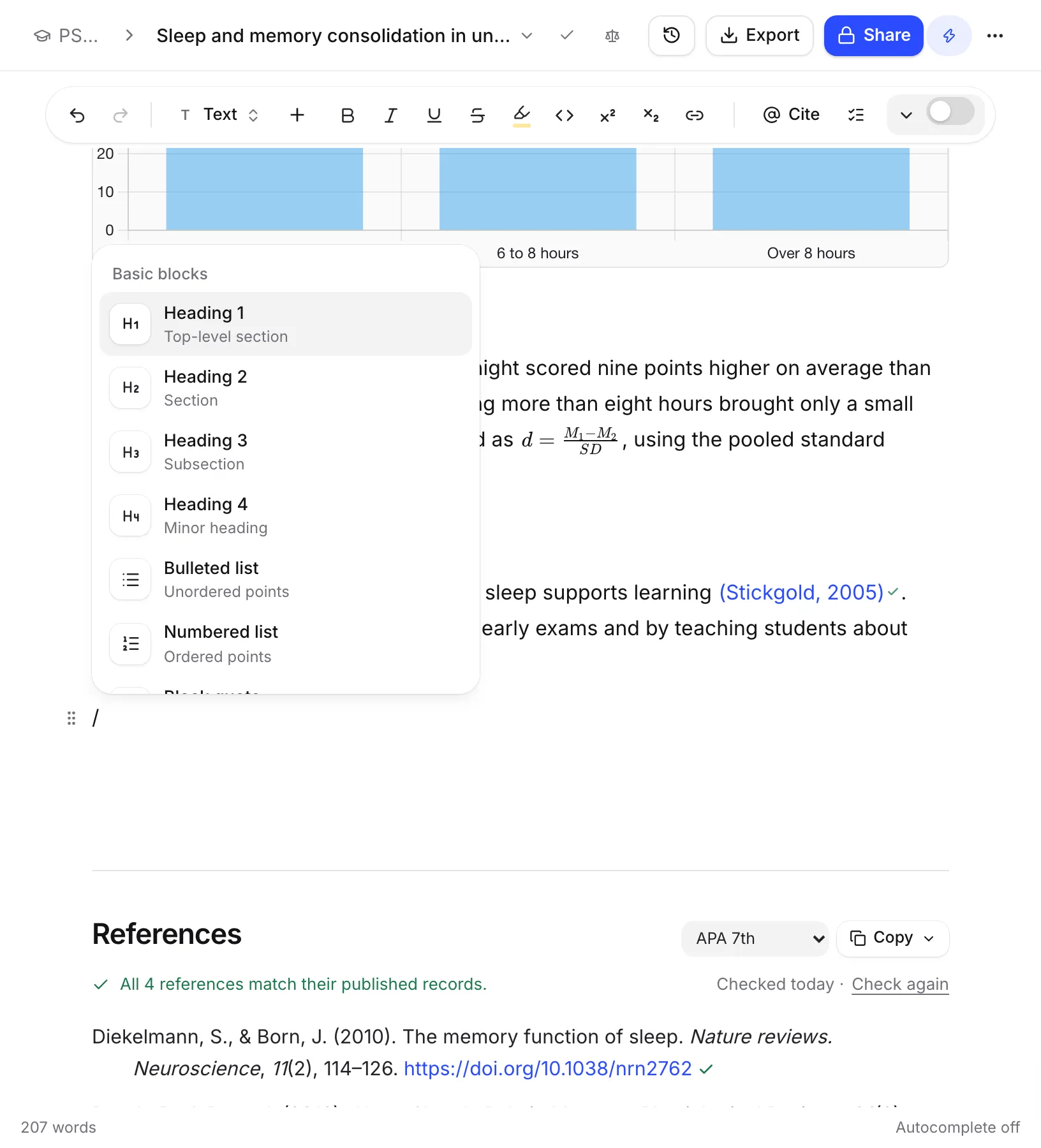
What you can add
Basic blocks
- Heading 1: a top-level section
- Heading 2: a section
- Heading 3: a subsection
- Heading 4: a minor heading
- Bulleted list: unordered points
- Numbered list: ordered points
- Block quote: a longer quotation set apart from your text
- Divider: a horizontal line
Research
- Citation: search for a source and cite it. This works like typing @. See Cite a source with @.
Insert
- Table: rows and columns. See Add a table.
- Image: upload, paste or drop one in. See Add images.
- Equation: a display equation on its own line.
- Inline equation: maths inside a sentence. See Write equations.
- Code block: monospaced text with syntax highlighting.
- Diagram: a flowchart from Mermaid code.
- Chart: a bar, line, pie or other chart. See Add diagrams, charts and code.
- Figure or table reference: a “Figure 2” or “Table 1” that stays up to date. See Number figures and refer to them.
- Page break: starts a new page when you export or print.
Add a page break
- Put your cursor where the new page should start.
- Type /page and press Enter.
The break shows in your paper as a line marked Page break. It starts a new page in Word, PDF and LaTeX files. You don’t need one before your reference list in Word, because Word exports always start the reference list on a new page.
Other ways to open the list
- Click Insert in the formatting toolbar. It has the same Insert items, plus Divider.
- Hover over a line and click the + in the left margin (Insert a block below). This adds a new line with a / ready.
- On a phone, tap Insert in the bottom bar.
Move, copy or delete a block
On a computer, hover over any paragraph, heading or other block. A grip icon (Block actions) appears in the left margin. Click it for:
- Turn into, to change the block into text, a heading, a list, a quote or a code block
- Cite and Ask AI
- Section brief, on headings (see Guide the AI with briefs)
- Highlight
- Copy text
- Duplicate
- Move up and Move down
- Delete
Tables, images, charts and diagrams have their own options in this menu. For tables, see Add a table.
The block handle is not on phones. To delete or duplicate a block there, tap Format in the bottom bar and choose Duplicate this block or Delete this block.
Frequently asked questions
Why doesn't the / menu open when I type a slash?
It only opens at the start of a line or after a space, so slashes inside words and dates like 1/2 stay as they are. Type a space first, then the slash.
How do I start a new page?
Type / and choose Page break. It shows as a Page break line in your paper and starts a new page in your Word, PDF and LaTeX files.
Can I use the / menu on my phone?
Yes. Tap Insert in the bottom bar, which puts a / on a new line and opens the same list. Moving and duplicating blocks with the block handle is only on a computer.
Was this page helpful?
Thanks for letting us know.