

Documents
Organize papers into courses
Group your papers by course, add folders inside a course, and give each course a colour.
A course is a folder for the papers you write for one class, like “PSYC 201”. Create one in the Documents list, then drag papers onto it or use Move. Courses can hold folders, and each course can have its own colour.
Create a course
- Open Documents from the sidebar, or press ⌘K (Ctrl+K on Windows).
- On the left, click + beside Courses (New course).
- Type a name, like “BIO 101”, and click Create.
You can also create a course while filing a paper: choose New course… from a paper’s Move menu, or type a new name in the course menu in the paper’s top bar.
File a paper in a course
Use whichever is easiest:
- Drag a paper from the Documents list onto a course on the left.
- Click Move on a paper’s row and pick a course, No course or New course….
- In an open paper, click Add to course in the top bar, or click the course name if it already has one. Pick a course, or choose Remove from the course.
- Choose a course under Course in Paper settings.
To move several papers at once, select them with their ticks (or Shift-click a range) and click Move to course.
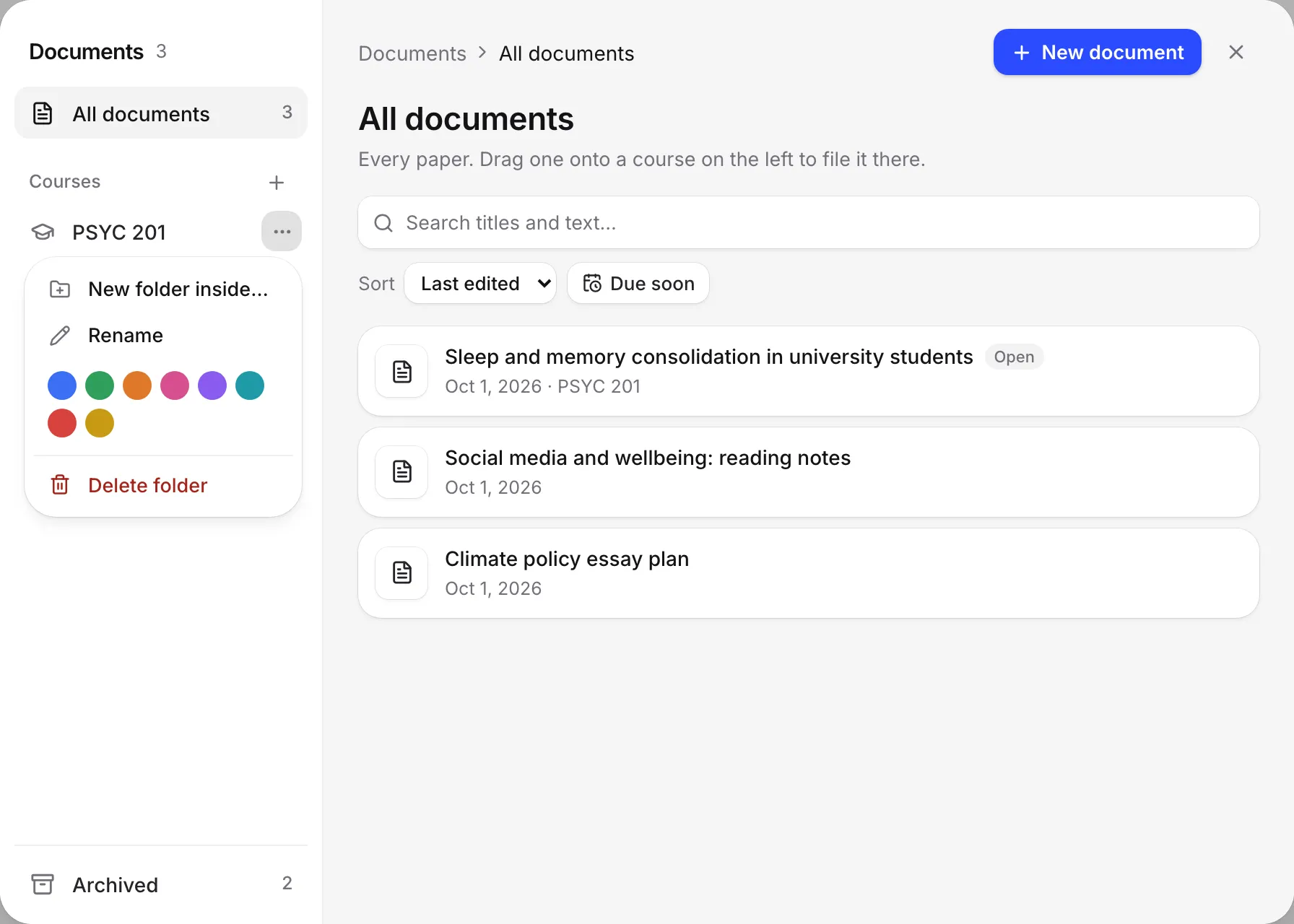
Add folders inside a course
- On the left of the Documents list, click ⋯ (Course options) beside the course.
- Choose New folder inside….
- Type a name, like “Lab reports”, and click Create.
You can add folders inside a course, and folders inside those, so up to three levels: course, folder and subfolder.
Rename, colour or delete a course
Open Course options (⋯) beside the course or folder:
- Rename changes its name everywhere.
- Pick one of the colour swatches to colour its icon in the sidebar and the dot on its papers. Click the chosen colour again to remove it.
- Delete folder removes the course or folder. Its papers aren’t deleted: they move to No course, and their sources stay in your library.
See your courses in the sidebar
Your courses are listed under Courses in the left sidebar. Click one to open Documents showing just that course. Click the arrow beside a course to show its folders.
What a course gives your papers
- New papers start with the course’s settings. When you click New document while looking at a course in Documents, the new paper takes the citation style, typeface and AI rules of that course’s latest paper.
- Sources are grouped by course. Sources you find or cite in a paper join that course’s place in your library, so your readings for each class stay together.
Frequently asked questions
Does deleting a course delete my papers?
No. Its papers move to No course, including any in folders inside it, and the sources stay in your library. Only the course name and folders are removed.
How deep can folders go?
Two levels inside a course: a course, a folder inside it, and a folder inside that. For example, PSYC 201, then Lab reports, then Week 3.
Can I put a paper someone shared with me into my course?
Yes. A course only files the paper in your own list, so you can move a shared paper into any of your courses. It doesn't change anything for the owner.
Was this page helpful?
Thanks for letting us know.