

Sharing and comments
Publish a paper on the web
Put a read-only copy of your paper on a public web page that anyone can read and search engines can find.
Publishing puts a read-only copy of your paper on a public web page. Anyone can read it, search engines can find it, and every save you make goes public. Only the owner of a paper can publish it.
Publish your paper
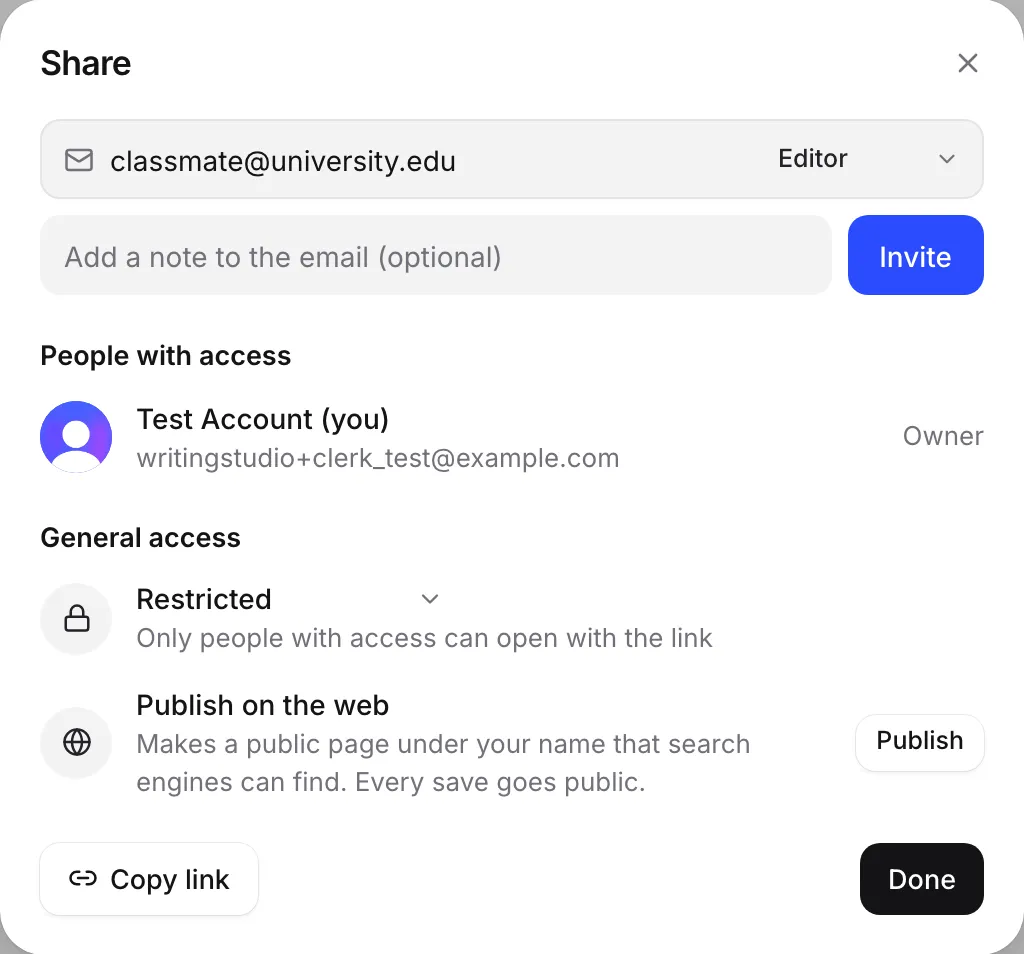
- Open the paper and click Share (or press ⌘⇧L, Ctrl+Shift+L on Windows).
- Under General access, find Publish on the web. It says “Makes a public page under your name that search engines can find. Every save goes public.”
- Click Publish.
The line changes to Published on the web, with your page’s address under it.
Share or view your published page
After you publish, Share shows two buttons under the page address:
- Copy published link copies the public address. It’s different from the paper’s own link.
- View page opens the public page in a new tab, so you can see exactly what readers see.
What readers see
The public page shows your paper’s title and text, read-only. It carries your name and the date it was last updated, and a line at the top saying it was published with Writing Studio.
Your name comes from your profile. To change it, see Change your name, picture and email.
When you open your own published page while signed in, you also see Edit in Writing Studio, which takes you back to the paper.
Keep your page up to date
You don’t need to publish again after changes. Every save goes public, so the page always matches your latest version.
Unpublish your paper
- Open the paper and click Share.
- Next to Published on the web, click Unpublish.
The public page stops working straight away. Your paper and the people you shared it with are not affected.
Publishing and general access are separate
Publishing doesn’t change who can edit or comment. A paper can be Restricted under General access and still be published: readers get the public page, and only the people you invited can open the paper itself.
If you’d rather give someone a file than a web page, see Export your paper. The Web page (.html) option makes one file you can email or host anywhere.
Frequently asked questions
Do changes I make after publishing go public?
Yes. Every save goes public, so the page always shows your latest version. Unpublish first if you want to make changes privately.
Can people edit or comment on my published page?
No. The public page is read-only. To let people edit or comment, invite them with Share instead.
Is publishing the same as sharing by link?
No. Anyone with the link opens the paper inside Writing Studio, and search engines don't list it. Publishing makes a separate public page that search engines can find. A restricted paper can still be published.
Was this page helpful?
Thanks for letting us know.