

Library
Get to know your library
Your library holds every source you save, cite or upload. Open it, move between its places, search it, sort it and see how each source stands.
Your library holds every source you have saved, cited or uploaded, across all your papers. Click Library in the left sidebar to open it.
A source lands in your library whenever you cite it, save it from the Citation finder, upload its PDF or import it from a BibTeX or RIS file. There is no limit on how many sources you keep, on any plan.
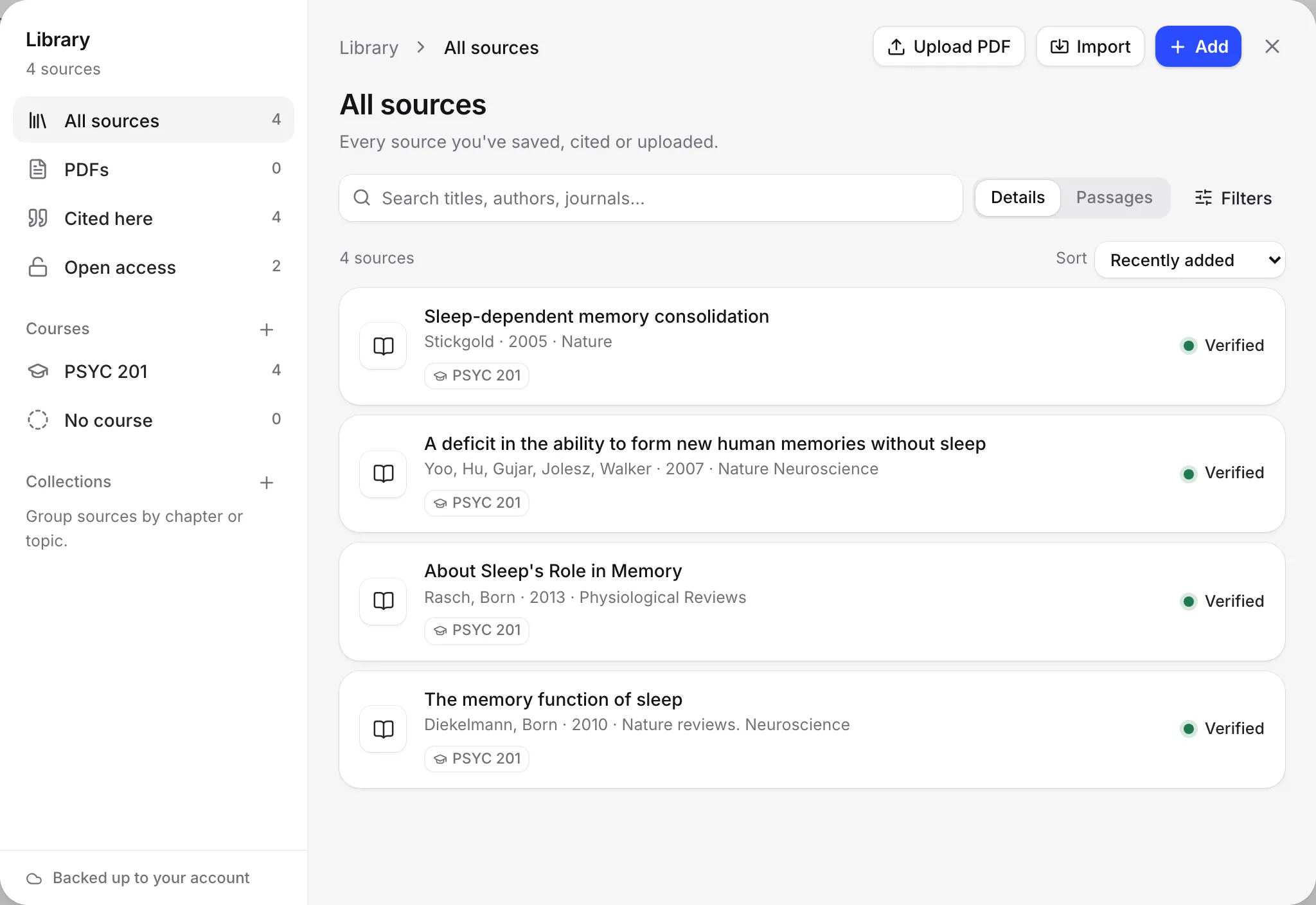
Move between places
The column on the left lists your library’s places:
- All sources: every source you’ve saved, cited or uploaded.
- PDFs: sources whose full text you can search and quote from.
- Cited here: sources the open paper cites. Shown when a paper is open.
- Open access: sources that are free to read, with a legal copy online.
- Needs a look: sources that were retracted, can’t be found or don’t match their published record, and any saved more than once. Shown when something needs attention.
- Courses, and No course for sources not in a course yet.
- Collections, and Uncollected for sources not in a collection.
On a phone, the places show as a row of chips at the top.
To create and use courses and collections, see Organize sources with collections and filters.
Search your library
The search box has two modes, under Search in:
- Details searches titles, authors, journals and abstracts.
- Passages searches the words inside your PDFs. See Search inside all your PDFs.
Sort and filter
Use Sort to order sources by Recently added, Newest published, Title or Author.
Use Filters to narrow the list by publication date, full text, whether the open paper cites it, open access, and type. See Organize sources with collections and filters.
Read a source card
Each card shows the title, authors, year and journal, and how the source stands against its published record, such as Verified or Check details. See Check your references.
A long PDF shows “Searchable to p.” and a page number when only part of its text could be kept. See Upload PDFs.
Hover over a card for its actions:
- Read PDF: open its PDF in the reader, if it has one.
- Cite: cite it in the open paper.
- Add to: add it to a course or collection.
- Edit details: fix its title, authors or other details.
- Remove: take it out of your library.
Click a card to open the source’s own page, with its Details, Passages and Used in tabs. See Edit a source’s details. On a phone, tap a card to open its page.
Check the backup
The line at the bottom of the library shows where your sources are kept. “Backed up” means they are saved to your account too. “Stored in this browser only” means they are only on this device, for example because you’re not signed in. See How saving and backup work.
When your library is empty
A new library says “Your library is empty”. Drop PDFs or a .bib file on it, or add a source by its title, DOI or link. See Add sources to your library.
Frequently asked questions
Is there a limit on how many sources I can keep?
No. Your library holds unlimited sources on every plan, and saving, citing and reading them is always free.
Is my library backed up?
Yes, when you're signed in. Sources save in your browser first, then back up to your account, so they follow you to other devices. The line at the bottom of the library shows the backup state.
Does each paper have its own library?
No. You have one library for all your papers. Use courses and collections to group sources, and the Cited here place to see what the open paper cites.
Was this page helpful?
Thanks for letting us know.