

Getting started
Keyboard shortcuts
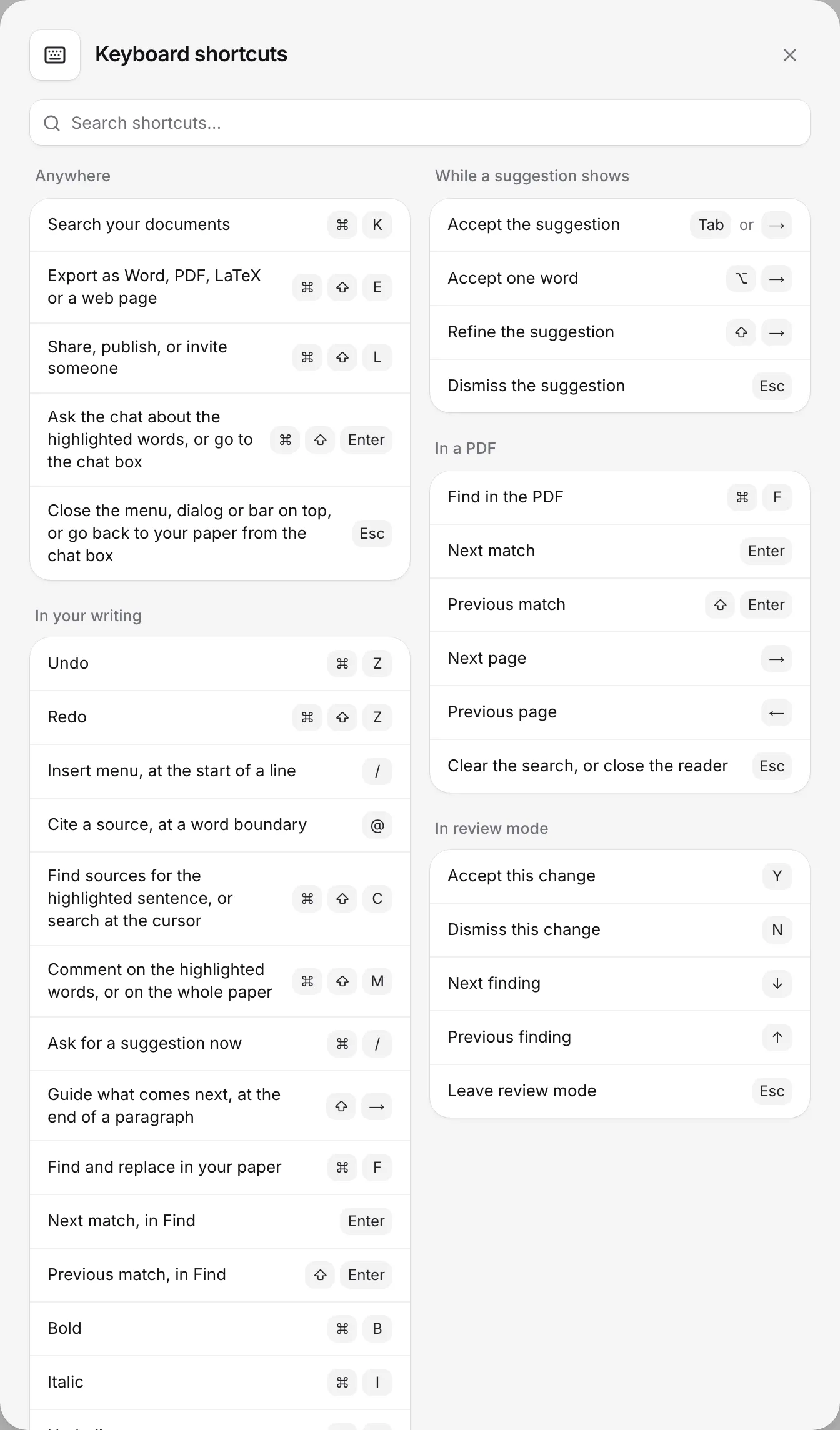
Every keyboard shortcut in Writing Studio, for Mac and Windows, grouped by where you use it.
Writing Studio has shortcuts for citing, commenting, accepting suggestions, formatting and more. To see them in the app, click Help at the bottom of the left sidebar, then Keyboard shortcuts.
Open the shortcuts window
- Click Help at the bottom of the left sidebar.
- Click Keyboard shortcuts.
- To find one quickly, type in Search shortcuts…. You can search by what it does (“comment”), by its group, or by its keys.
The window shows keys the way your computer writes them: ⌘⇧E on a Mac, Ctrl+Shift+E on Windows. Buttons in the app show their shortcut when you hover over them, too.
Mac and Windows keys
On a Mac, shortcuts use ⌘ (Command), ⇧ (Shift) and ⌥ (Option). On Windows and other computers, use Ctrl in place of ⌘, Shift in place of ⇧, and Alt in place of ⌥. Arrow keys, Tab, Enter and Esc are the same everywhere.
Anywhere
| What it does | Mac | Windows |
|---|---|---|
| Search your documents | ⌘K | Ctrl+K |
| Export as Word, PDF, LaTeX or a web page | ⌘⇧E | Ctrl+Shift+E |
| Share, publish, or invite someone | ⌘⇧L | Ctrl+Shift+L |
| Ask the chat about the highlighted words, or go to the chat box | ⌘⇧Enter | Ctrl+Shift+Enter |
| Close the menu, dialog or bar on top, or go back to your paper from the chat box | Esc | Esc |
In your writing
| What it does | Mac | Windows |
|---|---|---|
| Undo | ⌘Z | Ctrl+Z |
| Redo | ⌘⇧Z | Ctrl+Shift+Z |
| Insert menu, at the start of a line | / | / |
| Cite a source, at a word boundary | @ | @ |
| Find sources for the highlighted sentence, or search at the cursor | ⌘⇧C | Ctrl+Shift+C |
| Comment on the highlighted words, or on the whole paper | ⌘⇧M | Ctrl+Shift+M |
| Ask for a suggestion now | ⌘/ | Ctrl+/ |
| Guide what comes next, at the end of a paragraph | ⇧→ | Shift+→ |
| Find and replace in your paper | ⌘F | Ctrl+F |
| Next match, in Find | Enter | Enter |
| Previous match, in Find | ⇧Enter | Shift+Enter |
| Bold | ⌘B | Ctrl+B |
| Italic | ⌘I | Ctrl+I |
| Underline | ⌘U | Ctrl+U |
| Strikethrough | ⌘⇧S | Ctrl+Shift+S |
| Inline code | ⌘E | Ctrl+E |
| Superscript | ⌘. | Ctrl+. |
| Subscript | ⌘, | Ctrl+, |
| Add a link to the highlighted words | ⌘K | Ctrl+K |
| Equation inside a sentence, as you type | $$x^2$$ | $$x^2$$ |
| Save an equation, in its box | ⌘Enter | Ctrl+Enter |
The / menu also opens after a space, not only at the start of a line. An @ typed in the middle of a word stays an ordinary @.
While a suggestion shows
These work while grey autocomplete text is showing. See Write faster with autocomplete.
| What it does | Mac | Windows |
|---|---|---|
| Accept the suggestion | Tab or → | Tab or → |
| Accept one word | ⌥→ | Alt+→ |
| Refine the suggestion | ⇧→ | Shift+→ |
| Dismiss the suggestion | Esc | Esc |
In a PDF
These work in the PDF reader. See Read PDFs and keep quotes.
| What it does | Mac | Windows |
|---|---|---|
| Find in the PDF | ⌘F | Ctrl+F |
| Next match | Enter | Enter |
| Previous match | ⇧Enter | Shift+Enter |
| Next page | → | → |
| Previous page | ← | ← |
| Clear the search, or close the reader | Esc | Esc |
In review mode
These work when you go through suggestions one by one. See Go through suggestions one by one.
| What it does | Mac | Windows |
|---|---|---|
| Accept this change | Y | Y |
| Dismiss this change | N | N |
| Next finding | ↓ | ↓ |
| Previous finding | ↑ | ↑ |
| Leave review mode | Esc | Esc |
Y and N are ignored while you’re typing in a text box.
Other keys worth knowing
These aren’t in the shortcuts window, but work in the places listed.
- The / menu: ↑ and ↓ to choose, Enter or Tab to insert, Esc to close.
- The Citation finder: ↑ and ↓ to choose a result, Enter to cite it (or save it), ⌘Enter (Ctrl+Enter) to ask it as a question, Esc to close.
- The Cite tab: ↑ and ↓ to move between sources, Enter to insert the citation, Esc to close.
- The Citation checker: ⌘Enter (Ctrl+Enter) runs the check.
- The chat box: Enter sends your message, and ⇧Enter (Shift+Enter) starts a new line.
- Comments: Enter posts, ⇧Enter (Shift+Enter) starts a new line, Esc cancels.
- The equation box: ⌘Enter (Ctrl+Enter) saves, Esc cancels.
- Tables: Tab moves to the next cell.
- Images: hold ⌥ (Ctrl on Windows) as you drop an image you’re dragging to copy it instead of moving it.
- The paper’s title: Enter moves down into the body.
Markdown shortcuts
You can format as you type with Markdown. Type these at the start of a line, followed by a space:
| Type | To get |
|---|---|
| # | Heading 1 |
| ## | Heading 2 |
| ### | Heading 3 |
| #### | Heading 4 |
| - or * or + | Bulleted list |
| 1. | Numbered list |
| > | Block quote |
These work inside a line:
| Type | To get |
|---|---|
| **words** | Bold |
| *words* | Italic |
| ~~words~~ | Strikethrough |
| `words` | Inline code |
| ==words== | Highlight |
| $$x^2$$ | An equation inside a sentence |
Type three backticks (```) for a code block, three hyphens (—) for a divider, and $$$ before and after an equation, like $$$x^2$$$, to put it on its own line. See Format your text.
Frequently asked questions
Can I change the keyboard shortcuts?
No, the shortcuts are fixed. The Keyboard shortcuts window in the Help menu always shows the current list.
Why does ⌘K sometimes add a link instead of opening Documents?
With words selected in your paper, ⌘K (Ctrl+K on Windows) adds a link to them, as in Word and Google Docs. With nothing selected, it opens Documents.
Why can't I find Keyboard shortcuts on my phone?
The Keyboard shortcuts window isn't in the Help menu on phones, since most phones have no keyboard. Open Writing Studio on a computer to see it, or use this page.
Was this page helpful?
Thanks for letting us know.