

Library
Organize sources with collections and filters
Group sources by course or collection, filter them by date, type, full text or access, and act on many sources at once.
Use courses and collections to group your sources, and filters to narrow down what you see. A source can be in as many courses and collections as you like.
Courses and collections
- A course is shared with your papers. It groups everything for one class, like PSYC 201: its papers and its sources. See Organize papers into courses.
- A collection is only for sources. Use it for anything: a chapter, a topic or a reading list.
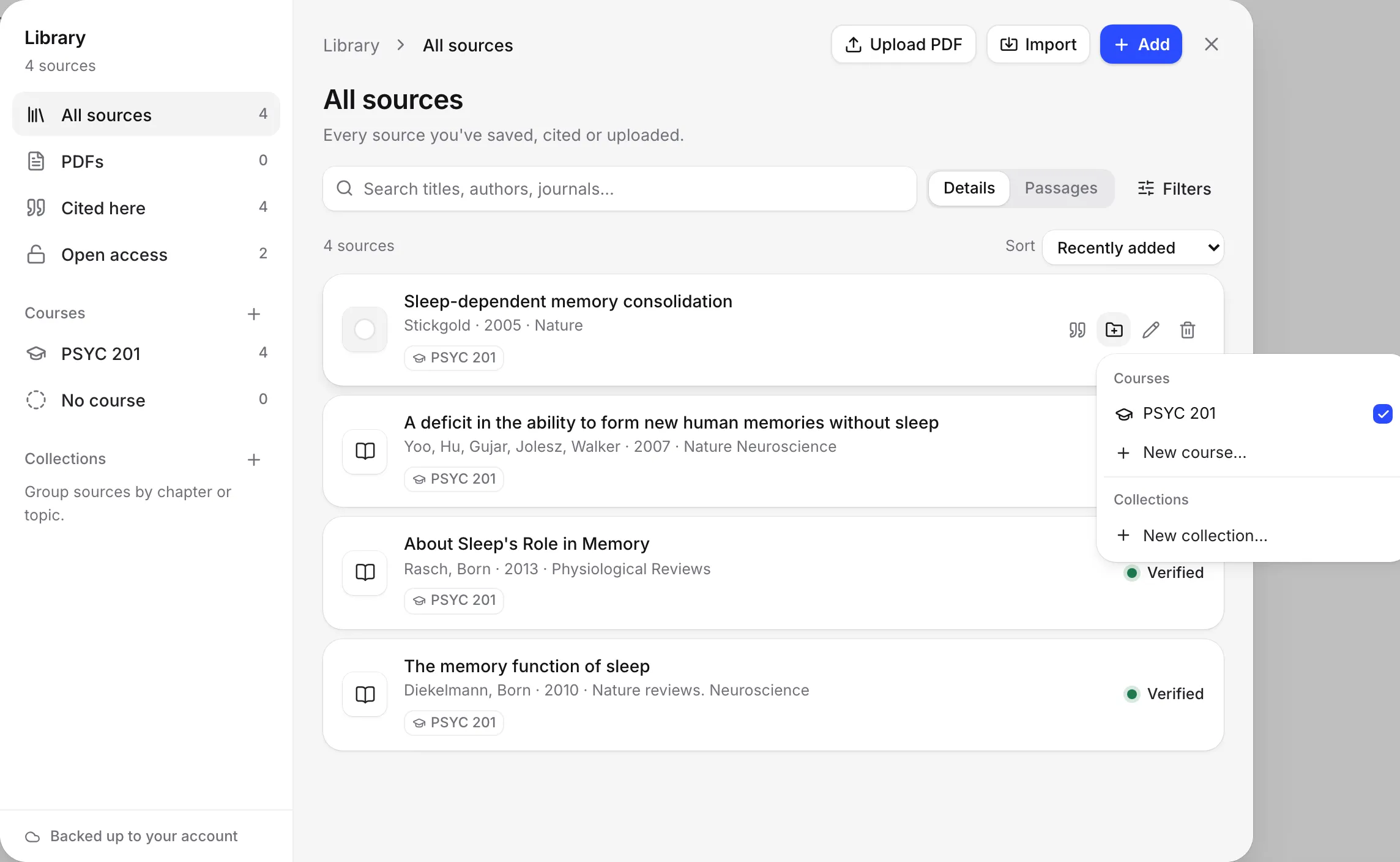
Both appear in the column on the left of your library. No course shows sources not in any course, and Uncollected shows sources not in any collection.
Create a course or collection
- Open your Library from the left sidebar.
- Click New course or New collection in the column on the left.
- Type a name and choose Create.
You can also create one while saving a source: in the Citation finder, open the Save to menu and choose New course… or New collection….
Add sources to a course or collection
Any of these works:
- Drag source cards onto a course or collection on the left. A message says “Added” and how many, with Undo.
- Hover over a card, choose Add to, and tick the courses and collections it belongs in. Untick one to take the source out.
- On a source’s page, under Details, click the collection names to add or remove it, then Save.
- When you upload PDFs or import a file while looking at a course or collection, the new sources go straight into it.
Rename or delete a collection
- Open the collection’s menu (Collection options) in the column on the left.
- Choose Rename or Delete collection.
Deleting a collection keeps its sources in your library. To rename or delete a course, do it from the course in the sidebar. See Organize papers into courses.
Filter your sources
Click Filters to narrow the list:
- Published within: Any time, or the last 3, 5 or 10 years.
- Full text: Has full text (a PDF you can search and quote) or No full text.
- In this document: Cited or Not cited by the open paper. Shown only when a paper is open.
- Access: Open access or Closed.
- Type: such as Journal article, Conference paper, Book chapter, Book, Preprint, Thesis, Report, Dataset or Web page.
Filters work together with the place you are in and your search. When nothing matches, choose Clear filters to see everything again.
Work with many sources at once
- Click the icon at the left of a source card to select it. Select as many as you need.
- Use the bar at the bottom:
- Add to: add them all to a course or collection.
- BibTeX or RIS: export them as a file. See Import or export BibTeX and RIS.
- Remove: take them out of your library.
- Press Esc or choose Clear selection when you’re done.
Frequently asked questions
What is the difference between a course and a collection?
A course groups both your papers and your sources, such as everything for BIO 101. A collection is only for sources, such as Chapter 2 or To read. A source can be in several of each.
Does deleting a collection delete its sources?
No. The sources stay in your library. Only the collection goes.
How do I find sources I saved but never cited?
Open a paper, then in the library choose Filters and set In this document to Not cited.
Was this page helpful?
Thanks for letting us know.