

Documents
Export your paper
Download your paper as a Word file, PDF, LaTeX project or web page, or copy it, with citations and references formatted for you.
Click Export in the bar above your paper, or press ⌘⇧E (Ctrl+Shift+E on Windows). Choose a layout, then pick Word, PDF, LaTeX, Web page or Copy to clipboard. Your citations and reference list are formatted for you in your paper’s citation style.
Export a paper
- Open your paper and click Export in the bar at the top. On a phone, tap ⋯ at the top and choose Export.
- Check the line at the top of the dialog, like “12 references included, formatted in APA.” Fix anything it warns you about (see below).
- Choose a Layout.
- If you need one, fill in the Assignment header.
- Click the format you want. The file downloads straight away. For PDF, your browser’s print window opens.
Shortcut: press ⌘⇧E, then Enter, to download a Word file right away.
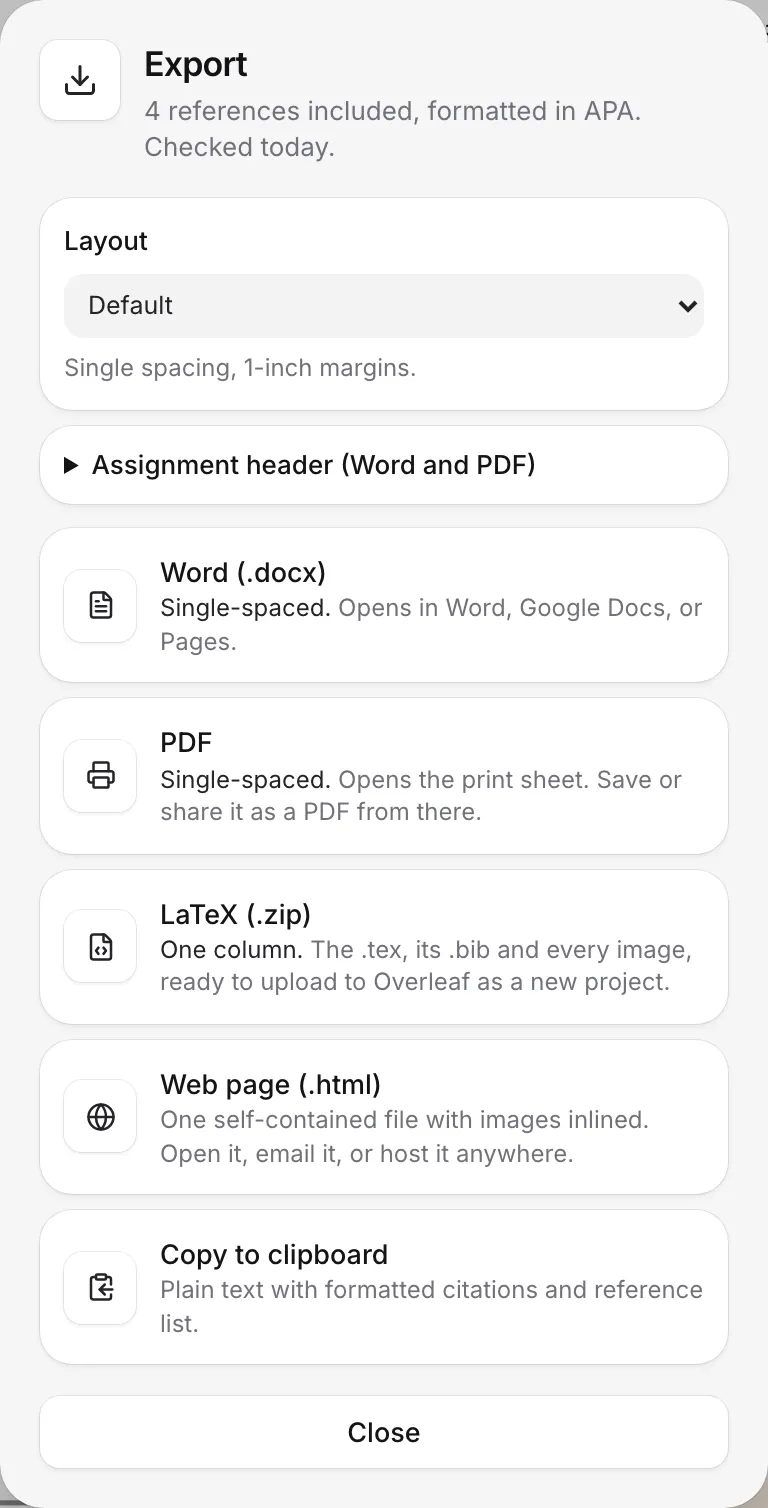
Choose a format
| Format | What you get | Best for |
|---|---|---|
| Word (.docx) | A Word file that also opens in Google Docs and Pages. | Handing in, or editing further in Word. |
| Opens your browser’s print window. Choose Save as PDF there. | Handing in a file that can’t be changed. | |
| LaTeX (.zip) | A zip with the .tex file, its .bib file and every image. | Uploading to Overleaf or another LaTeX editor. |
| Web page (.html) | One file with the images built in. | Opening in any browser, emailing or putting online. |
| Copy to clipboard | Plain text with formatted citations and the reference list. | Pasting into a form, an email or another app. |
Word
The Word file uses Word’s own styles, so it’s easy to keep working on:
- Headings are real Word headings.
- Equations are real Word equations you can edit.
- Highlights, page breaks and block quotes (in Word’s Quote style) come through.
- Pages are numbered.
- The reference list always starts on a new page.
See Microsoft Word for more on moving between Word and Writing Studio.
Writing Studio lays out your paper the same way as the Word file, then opens your browser’s print window. Choose Save as PDF (or Microsoft Print to PDF on some Windows computers) as the printer, then save.
Some browsers leave out page numbers when they make a PDF. If yours does, the Export dialog says “This browser leaves out page numbers. Word has them.” In that case, export to Word and save it as a PDF from Word.
LaTeX
You get one zip file with:
- main.tex, your paper.
- references.bib, your references.
- A figures folder with every image, chart and diagram.
It’s ready to upload to Overleaf: choose New Project, then Upload Project, and pick the zip. References use biblatex with biber, in an author-year or numbered style to match your citation style. See Overleaf.
If an image couldn’t be added, the dialog tells you, and its place is marked in main.tex.
Web page
A single .html file that opens in any browser, with all images inside it. It uses its own reading layout, so the Layout choice doesn’t change it.
Copy to clipboard
Copies your title, your text, and your reference list as plain text, with every citation formatted. Paste it wherever you need it.
Choose a layout
The Layout menu sets how the page looks:
- Default: single spacing, 1-inch margins. Works for every format.
- Double-spaced manuscript: for submission and marking. Word and PDF only.
- Two-column paper: a conference layout. LaTeX only.
Each format says what it will use, like “Double-spaced, with your header.” If a layout doesn’t apply to a format, that format is dimmed and says why, but you can still download it.
Add an assignment header
Many rubrics ask for your name, your instructor, the course and the date at the top of the first page. The Assignment header (Word and PDF) adds this for you.
- Click Assignment header (Word and PDF) to open it.
- Check or fill in Your name, Instructor and Course.
Writing Studio fills these in where it can: your name from your account, the course from the paper, and the instructor from your last paper in that course. The header adds today’s date above the title, and your surname beside the page number, in the MLA-style block most rubrics ask for.
The header is kept with the paper, so it’s there next time you export. Leave all three empty to skip it.
Fix warnings before you export
The top of the Export dialog tells you if anything needs a look. You can still export either way.
- References that need a look, like “2 references need a look”. A cited source may be retracted, or its details may not match the published record. Click Review to see them in Check my paper.
- Things that will be left out, like “2 citation reminders will be left out”. Placeholders like [citation needed], citations with no source, and missing images aren’t put in the file. Click Review to fix them first.
- Highlights, like “3 passages are still highlighted”. Highlights stay in every format. Click Remove all highlights to take them off. Changed your mind? Click Undo.
- AI use statement: if your course asks for one, you’ll see “Your course asks for an AI use statement.” Click Get it to write it. See Write your AI use statement.
Writing Studio also checks your references against their published records when you open Export, if they haven’t been checked in the last day.
Charts, diagrams and images
Charts and diagrams are drawn as pictures in every format. If one can’t be drawn because its code has a mistake, the file shows its code instead, and the dialog says so. Fix it in your paper and export again. See Add diagrams, charts and code.
What isn’t included
- Comments aren’t included in any export. To keep them, use Export everything (see Download a copy of all your work), which saves them in its zip.
- Placeholders and citations without a source are left out, as described above.
File names
Files are named after your paper’s title, in lowercase with hyphens. For example, a paper called “Sleep and Memory” becomes sleep-and-memory.docx. A paper without a title is saved as document.docx.
A copy is kept for you
Every time you export to Word, PDF or LaTeX, Writing Studio saves a snapshot of the paper in Version history, called Exported as Word, Exported as PDF or Exported as LaTeX. The 20 latest exports are always kept, so you can always find the exact version you handed in.
Frequently asked questions
Which format should I hand in?
Usually Word (.docx) or PDF, whichever your course asks for. Word keeps page numbers, real headings and editable equations, and opens in Word, Google Docs and Pages. Choose Double-spaced manuscript if your instructor wants double spacing.
Are my comments included in the exported file?
No. Exports contain only your paper and its reference list. To keep a copy of your comments, use Export everything in Settings, under Your data, which includes them.
Why is there no page number in my PDF?
Some browsers leave page numbers out when they print to PDF, and the Export dialog tells you if yours does. Export to Word instead, which always has page numbers, and save it as a PDF from Word if you need one.
Can I find the exact file I handed in later?
Yes. Each Word, PDF and LaTeX export saves a snapshot in Version history, called Exported as Word, Exported as PDF or Exported as LaTeX. The 20 latest exports are always kept.
Was this page helpful?
Thanks for letting us know.