

AI tools
Write a literature review
Writing Studio searches the databases, reads the papers and writes a literature review in a new document, citing only papers it can quote.
The literature review tool searches the databases, reads each paper, and writes a review from the ones it can quote. It checks every cited sentence against its source, and puts the review in a new document.
It comes with Plus and Pro. On Free, you can use it with your own AI key.
Who can use it
- Free: not included with the plan’s AI. Add your own AI key in Settings to use it.
- Plus: included, with fair-use limits.
- Pro: included, with fair-use limits.
If you ever reach a fair-use limit, email support@writingstudio.com to have it lifted. See Plans and pricing.
Start a review
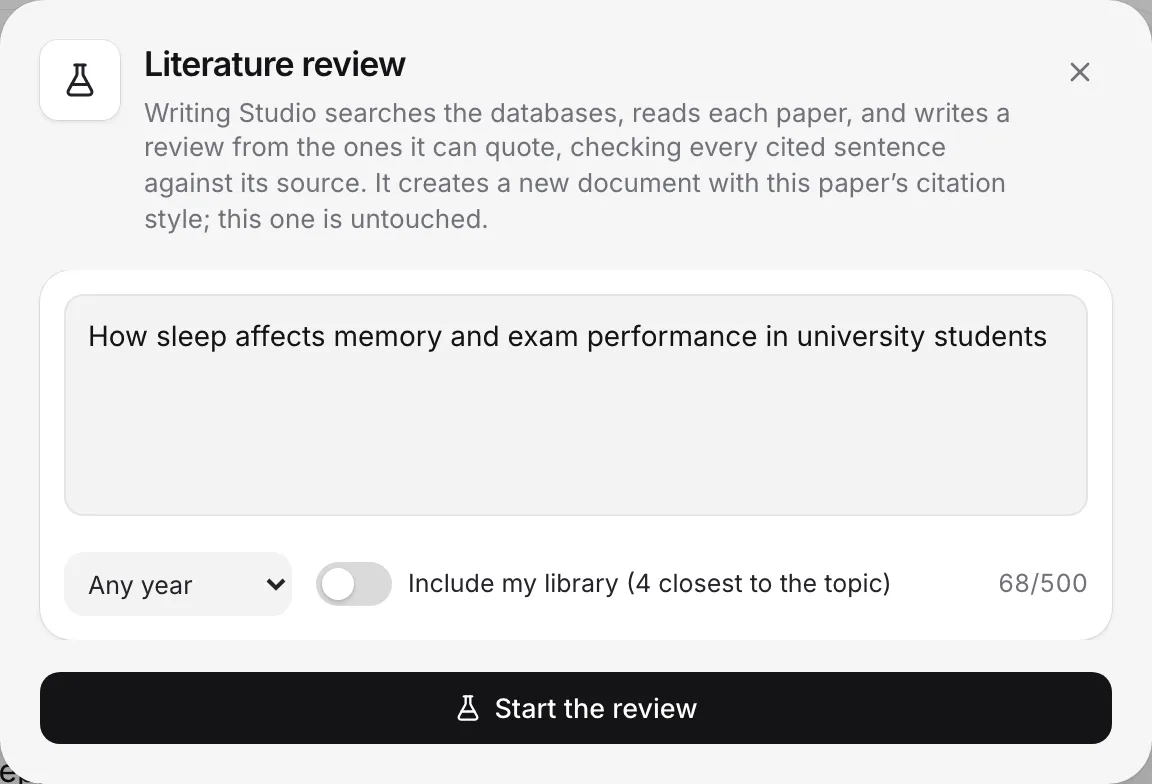
- Click Literature review in the left sidebar.
- In Topic, describe what the review should cover, in up to 500 characters. Be specific. For example: “How sleep affects memory consolidation in teenagers, and what is still unclear about the role of REM sleep.”
- Choose how far back to look: Any year, Last 5 years or Last 10 years.
- Turn on Include my library if you want it to use your own sources too. It adds the sources in your library closest to your topic. The label beside the switch says how many it will include.
- Click Start the review.
While it works
The dialog shows each step: Planning the searches, the searches it runs, Reading the papers, and Writing the review.
This usually takes a few minutes. You can close the dialog and keep writing. The sidebar shows “Writing…” while it runs, and Writing Studio tells you when the review is ready. Click Stop to end it early.
When it is ready
You see “Your literature review is ready.” Then:
- Open the review opens it as a new document. The paper you had open is not touched.
- Start another begins a new review.
- Papers it read lists the papers, with how many had a passage to quote and how many the review cites. Save any of them to your library from here.
- Gaps and next questions suggests what the research doesn’t answer yet, which can help you find your own angle.
If it stops early
If the review stops before it finishes, you see “What it wrote before it stopped.” Click Open as a paper to keep that part.
If it can’t find enough to work with, it says so, for example “We couldn’t find strong sources for this topic. Try rewording it, using broader terms, or widening the years.” Try a broader topic or a wider range of years.
Use it responsibly
The review is AI-written text. In the new document, your writing history records it as AI text from the literature review tool, and your AI use statement includes it.
Before you use any of it in your work:
- check that your course allows AI drafting. See Set AI rules for an assignment.
- read the key papers yourself, using Papers it read.
- rewrite it in your own words and argument where your course expects that.
Frequently asked questions
Can I use the literature review on the Free plan?
Not with the included AI. It comes with Plus and Pro. On any plan, you can use it with your own AI key.
Does it make up sources?
No. It only cites papers it found and could quote, and it checks every cited sentence against its source.
Will it change the paper I have open?
No. The review is written into a new document. The paper you have open stays as it is.
How long does it take?
Usually a few minutes. You can close the dialog and keep writing, and Writing Studio tells you when the review is ready.
Was this page helpful?
Thanks for letting us know.