

Documents
Change a paper's settings
Set a paper's due date, word goal, AI rules, citation style, source rules, typeface and autocomplete in one place.
Click ⋯ (More actions) at the top of your paper and choose Paper settings. Settings at the top apply to everyone on the paper. Settings under Just for you only change what you see.
Open Paper settings
- On a computer, click ⋯ (More actions) at the top right of your paper and choose Paper settings.
- On a phone, tap ⋯ at the top of the paper and choose Paper settings. It opens full screen.
Paper settings is part of the Settings window, under This paper, so you can switch to your account settings from there too.
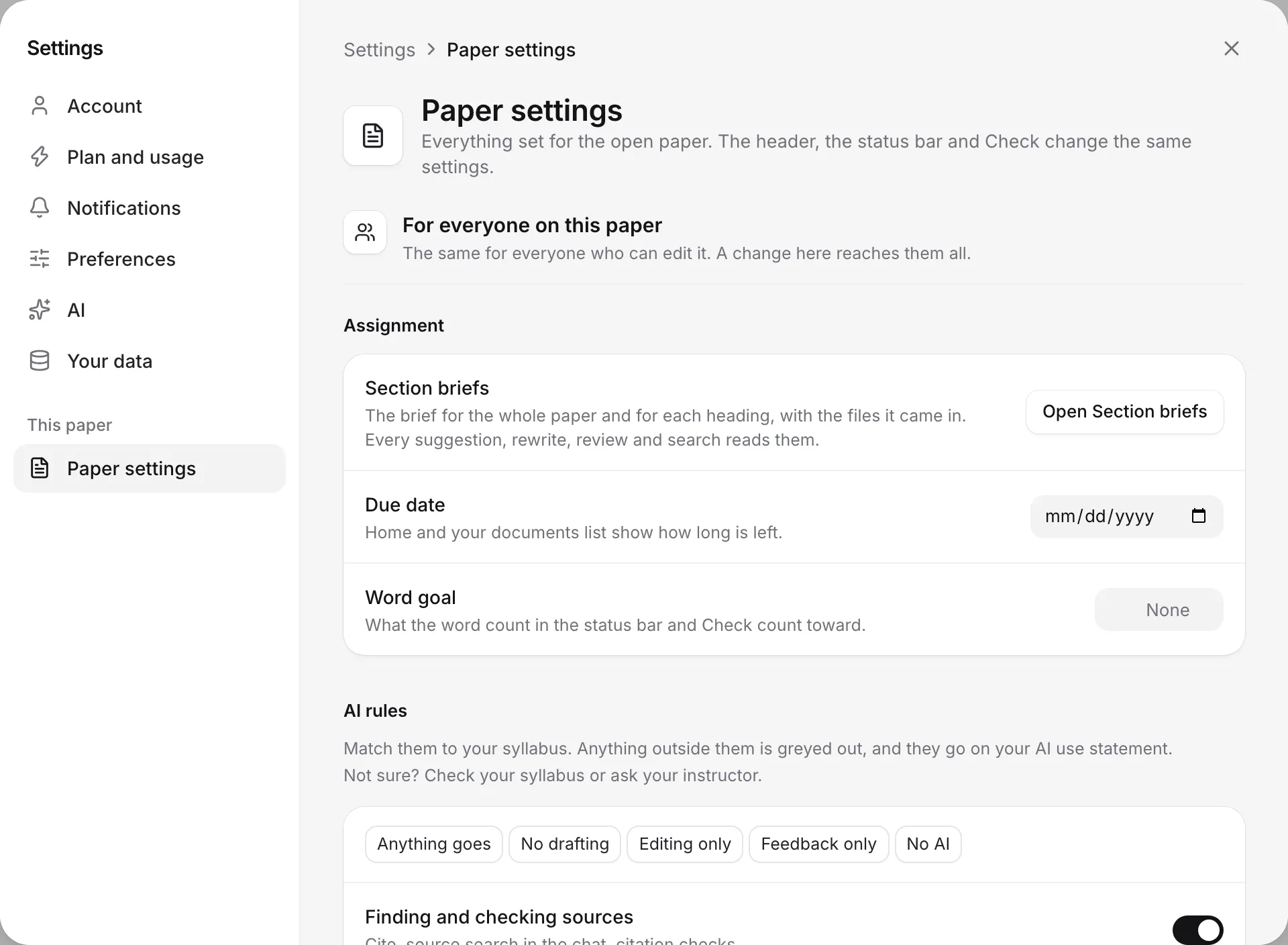
Settings for everyone on the paper
These are under For everyone on this paper. If you share the paper, a change here reaches everyone who can edit it.
Assignment
- Section briefs: click Open Section briefs to write guidance for the whole paper and each heading. Autocomplete, rewrites, reviews and searches all read them. See Guide the AI with briefs.
- Due date: pick a date. Your home screen and Documents list then show how long is left, like “Due in 5 days”. Click Clear to remove it.
- Word goal: the number of words you’re aiming for. The word count in the status bar and Check my paper count toward it. See Word count and word goal.
If you add your assignment brief, Writing Studio can fill in the word goal, citation style and AI rules for you.
AI rules
Set which AI features fit your assignment, to match your syllabus. Pick a preset, like Anything goes, No drafting, Editing only, Feedback only or No AI, or turn each task on or off:
- Finding and checking sources
- Brainstorming and outlining
- Feedback on my writing
- Editing and proofreading
- Drafting sentences or paragraphs
Anything outside your rules is greyed out, and the rules go on your AI use statement. Click Clear rules to remove them. See Set AI rules for an assignment.
Citations
- Citation style: choose APA 7th, MLA 9th, Chicago 17th, IEEE, Harvard, Vancouver, or one of more than 10,000 other styles. Every citation in the paper changes instantly. See Change your citation style.
- Localised for: the language used for words inside citations and references, like “and” or “edited by”.
- Number figures and tables: labels images, charts and diagrams “Figure 1” and tables “Table 1”, the way your style asks. See Number figures and refer to them.
Source rules
These guide which papers Writing Studio suggests when autocomplete, the chat, Cite and the Citation finder look for sources:
- Published: only sources from a certain year on, or Any year.
- Times cited: only sources cited at least a certain number of times, or Any.
- Include preprints: whether to include papers that haven’t been peer reviewed yet.
Settings just for you
These are under Just for you. Changing them leaves everyone else’s copy as it is.
Editor
- Typeface: Default (a clean sans-serif font) or Serif, for the body text of this paper.
- Autocomplete: suggest continuations as you write. See Write faster with autocomplete.
- Cite from your library: let suggestions use sources you’ve saved.
- Find new sources for claims: when you accept a suggestion that states a fact, look for a published paper that supports it, cite it, and add it to your library.
All three autocomplete switches are on by default.
Your documents
- Course: file this paper in a course, choose None, or pick New course… to make one. Sources you find or cite in the paper join that course in your library. See Organize papers into courses.
- Use these for new documents: click Make default to start your new papers with this paper’s citation style, typeface and autocomplete setting. Your default follows you to any computer you sign in on. Papers you’ve already written don’t change.
If the button says Already the default, your new papers already start this way. A paper you start inside a course takes its style and typeface from that course’s latest paper instead.
Frequently asked questions
Why can't I change some settings on a shared paper?
If you can only view or comment, you can't change the paper's settings. You can still pick which of your own courses it's filed in, and use Make default for your own new papers.
Do settings I change affect my other papers?
No. Paper settings only change the open paper. To start new papers with the same citation style, typeface and autocomplete setting, click Make default.
Does turning off autocomplete affect people I share with?
No. Autocomplete, the typeface and the other settings under Just for you only change things for you. Settings under For everyone on this paper change it for everyone who can edit.
Was this page helpful?
Thanks for letting us know.