

Library
Import or export BibTeX and RIS
Bring references in from Zotero, Mendeley, EndNote or any reference manager with a BibTeX or RIS file, and export yours the same way.
BibTeX (.bib) and RIS (.ris) files are the standard way to move references between apps. Import them to bring references into your library, and export them to take your sources to Zotero, Mendeley, EndNote, LaTeX or anything else that reads them.
Importing and exporting are free on every plan.
Import references
- Export your references from your other app as a BibTeX or RIS file.
- Open your Library from the left sidebar.
- Click Import and choose the file. You can also drop a .bib, .bibtex or .ris file onto the library.
- A message says how many sources were imported, for example “Imported 42 sources”, and how many were already in your library.
If you import while looking at a course or collection, the sources go into it.
A source you already have isn’t added again. If it has the same DOI, or the same title, first author and year, the new details merge into your existing copy. So importing the same file twice adds nothing new.
If you see “Could not read” and the file name, the file may be damaged or not really BibTeX or RIS. Export it again from your other app and try once more.
Every imported source is checked against academic databases, like any other source. See Check your references.
Export sources from your library
- In your library, select the sources you want. Click the icon at the left of a card to select it, then select more.
- In the bar that appears at the bottom, choose BibTeX or RIS.
- The file downloads as library.bib or library.ris.
Press Esc or choose Clear selection to stop selecting.
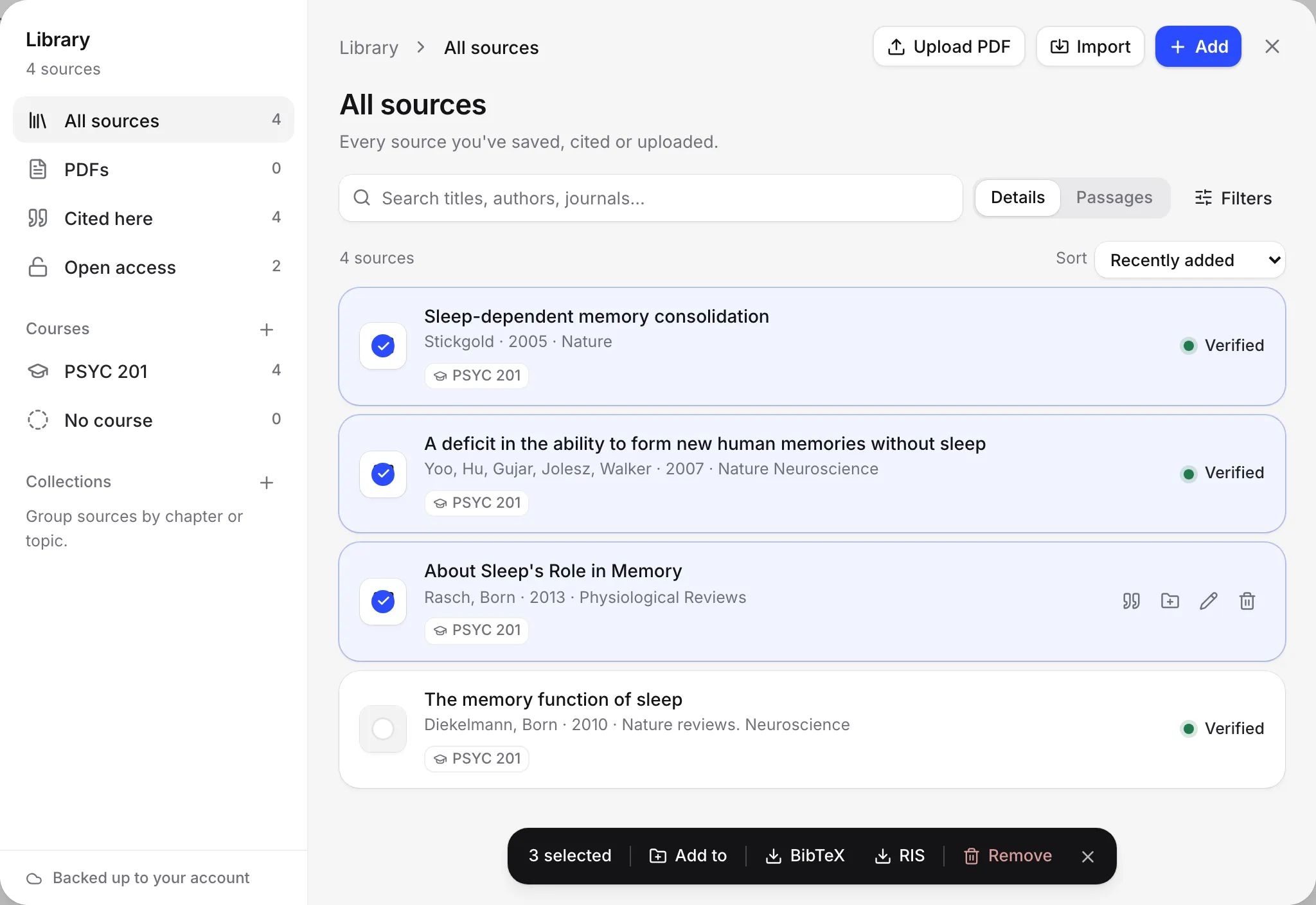
Export the references of one paper
At the top of a paper’s reference list, open the Copy menu:
- Copy as BibTeX copies the paper’s references as BibTeX, ready to paste into a .bib file.
- Download RIS file downloads them as references.ris.
See Your reference list.
Export your whole library
Settings, then Your data, then Export everything downloads a zip of all your work. It includes your whole library as references.bib, for Zotero, Mendeley or anything else that reads BibTeX. See Download a copy of all your work.
Use with other apps
- Zotero and Mendeley: a direct connection is not available yet. Use BibTeX or RIS both ways. See Zotero and Mendeley.
- EndNote: use RIS files both ways. See EndNote.
- LaTeX and Overleaf: export your paper as LaTeX, which includes a references.bib file. See Overleaf.
Frequently asked questions
Can I connect Zotero or Mendeley directly?
Not yet. For now, export a BibTeX or RIS file from Zotero or Mendeley and import it into your library, and export from Writing Studio the same way to go back.
What happens if I import a file twice?
Nothing is added twice. Sources already in your library are merged with the new details, and the result tells you how many were already there.
Which file types can I import?
BibTeX files ending in .bib or .bibtex, and RIS files ending in .ris.
Was this page helpful?
Thanks for letting us know.