

Getting started
Get help from support
Email the Writing Studio support team from the Help menu, and what to include so we can help quickly.
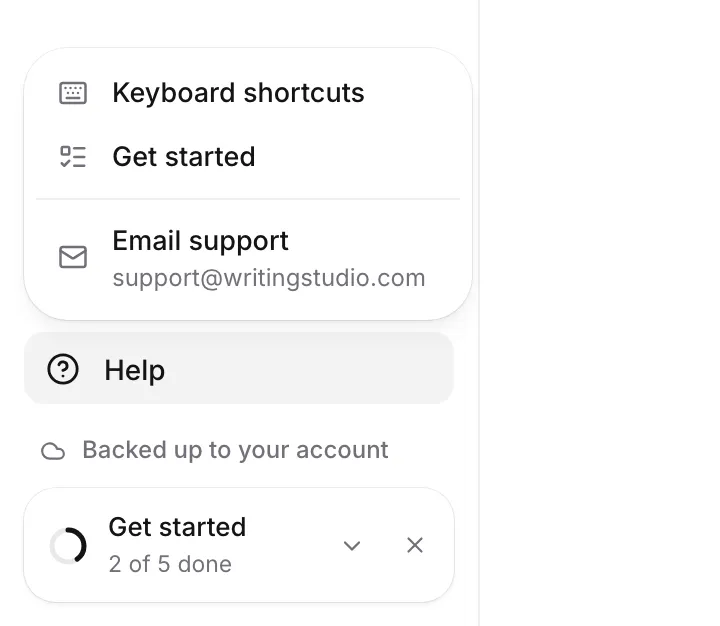
To contact support, click Help at the bottom of the left sidebar, then Email support. You can also write to support@writingstudio.com from any email account.
Email support from Writing Studio
- Click Help at the bottom of the left sidebar.
- Click Email support.
- Your email app opens a new message to support@writingstudio.com.
- Write your question at the top of the message, then send it.
The message already includes three details support usually needs, below where you write: your plan (and whether you use your own AI key), your browser, and where your backup stands. Leave them in, as they help us find the problem faster.
If no email app opens, the address is shown under Email support in the menu. Copy it into the email service you use.
What to include
The more we know, the faster we can help. Try to include:
- What you were doing, step by step, when the problem happened.
- What you expected, and what happened instead.
- The exact words of any message Writing Studio showed you.
- A screenshot, if you can take one.
- The paper’s title, if the problem is with one paper.
If Writing Studio shows an error screen
If you see “Something went wrong on this screen”, your writing is safe. Every draft is saved in your browser and isn’t affected.
- Click Reload the page. This usually puts everything back.
- If it keeps happening, click the support address at the bottom of the error screen. The email it starts includes an error code. Keep the code in your message so we know which problem it was.
Things to try first
Some problems have a quick fix:
- “You’re offline” at the top of the page: check your internet connection. Your writing still saves in your browser, and AI and backup come back when you reconnect. See How saving and backup work.
- “You’ve been signed out”: click Sign in again. See Create an account and sign in.
- An AI feature says you’ve used your allowance: see AI allowances and limits for when it resets.
- The page looks stuck: reload the page. Your work is saved in your browser first.
Support on each plan
You can email support on every plan. Plus includes email support, and Pro includes priority support. See Plans and pricing.
Other help in the Help menu
The Help menu also has:
- Keyboard shortcuts, a searchable list of every shortcut. See Keyboard shortcuts.
- Get started, which brings back the getting started checklist. See Use the Get started checklist.
On a phone, open the menu at the top left of your paper to find Help. Keyboard shortcuts isn’t there on a phone.
Frequently asked questions
What is the support email address?
It's support@writingstudio.com. You can write to it from any email account.
Can I email support on the Free plan?
Yes. The Email support link is in the Help menu on every plan. Plus includes email support, and Pro includes priority support.
I reached a fair-use limit on Pro. What do I do?
Email support@writingstudio.com and ask for the limit to be lifted. Pro is unlimited, with fair-use limits only there to prevent abuse.
Was this page helpful?
Thanks for letting us know.