

AI tools
Guide the AI with briefs
Tell the AI what your whole paper and each section must do, attach brief files, and choose which sources a section can cite.
A brief tells the AI what your paper, or one section of it, must do. Autocomplete, rewrites and AI Chat all read your briefs, so their suggestions fit your assignment.
Open Section briefs
- Click Briefs on the formatting toolbar.
- Or open a heading’s block menu (the grip in the left margin) and choose Section brief. It says Set when that heading already has one.
- Or go to Paper settings and click Open Section briefs.
- On your phone, tap More, then Section briefs.
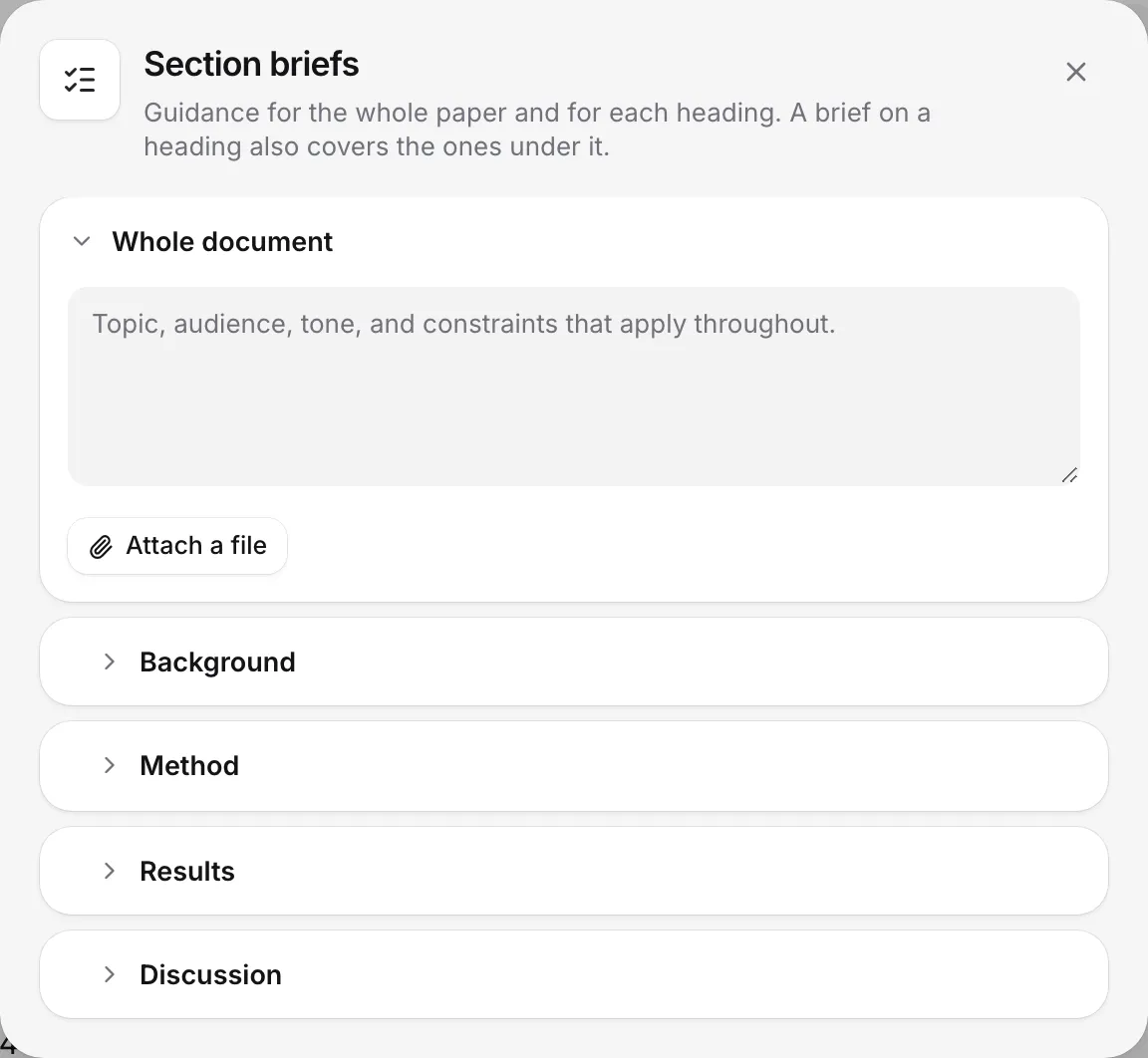
At the top it says: “Guidance for the whole paper and for each heading. A brief on a heading also covers the ones under it.”
Write a brief for the whole paper
Under Whole document, fill in Brief for the whole document. Describe the topic, audience, tone, and any rules that apply throughout, like “2,000 words, for a second-year biology course, formal tone, no first person”.
Attach brief files
Click Attach a file to add your assignment sheet, rubric or notes. You can attach:
- up to 4 files
- PDF, Word (.docx) or text files
- up to 20,000 characters of text from each
The file is read in your browser, and only its text is kept with the paper. Use Open and Close to look at a file’s text, and Remove to take it off. When you remove one, the AI stops reading it, and it isn’t kept anywhere else.
If a file has no text Writing Studio can read, you see “Couldn’t find any text in” and the file’s name. Scanned PDFs often have this problem.
Read your brief
Under Read from your brief, click Read my brief. Writing Studio picks out what your assignment asks for and builds your checklist in Check. Click Read again after you change your brief. This doesn’t use any of your AI allowance. See Read your assignment brief.
Write a brief for a section
Every heading in your paper is listed. Fill in Brief for that heading with what the section must cover and anything to avoid, like “Explain the two main theories. Don’t evaluate them yet.”
A brief on a heading also covers the headings under it. So a brief on “Methods” also guides “Participants” and “Procedure” below it.
Choose which sources a section uses
Each heading has a sources button. It shows one of:
- Uses document sources: the section can cite anything in your library, as usual.
- Sources pinned with a number: the section cites only the sources you picked.
- Sources off: the section is written without citations.
Click it to Search your library and pick sources, Pin a whole collection, or turn on Write this section without citations.
With sources pinned, suggestions and rewrites in that section cite only those sources, not the rest of your library, and don’t look for new ones. Headings under it follow the same choice.
Draft a paragraph from a brief
Each heading has a Draft a paragraph button. It writes one paragraph at the end of that section, guided by its brief, as grey text. Press Tab or → to accept it, or Esc to dismiss it.
It counts as 1 AI autocomplete (10 a day on Free, 3,000 a month on Plus, unlimited on Pro with fair-use limits). It only shows when your AI rules allow drafting. See AI allowances and limits.
Good to know
- Briefs belong to the paper, so on a shared paper they are the same for everyone who can edit it.
- Briefs guide the AI. They don’t change what you have written.
- To steer one suggestion rather than a whole section, see Guide autocomplete.
Frequently asked questions
Which AI features read my briefs?
Autocomplete, rewrites and AI Chat all read the whole-document brief, your brief files and the briefs for the section you are in.
Do the people I share my paper with see my briefs?
Yes. Briefs belong to the paper, so they are the same for everyone who can edit it.
Are brief files uploaded?
No. Writing Studio reads the text from the file in your browser and keeps only that text with the paper. Removing a file removes its text too.
Was this page helpful?
Thanks for letting us know.