

Guides
Use AI within your course rules
Find out what your course allows, set Writing Studio to match, keep an honest record as you work, and declare your AI use if you are asked.
Courses draw the line around AI in different places. Some ban it. Some allow proofreading and not drafting. Some allow anything, as long as you say so. This guide takes you through one assignment: how to find out where your course’s line is, set Writing Studio to match it, work inside it, and keep an honest record you can show.
It is worth being clear about what Writing Studio can and can’t do. It can switch AI features off for a paper, and it keeps a private record of what you accepted and used. It cannot decide what your course allows, and it has no AI detector. Staying inside the rules is your job, and this is how the tools help you do it.
Find out what your course allows
Start with the syllabus and the assignment brief. Look for wording like “AI may be used for brainstorming and proofreading but not for drafting”, and note anything about declaring use. If it is unclear, ask your instructor, and ask the specific question: “Can I use AI to find sources? To proofread? To get feedback on a draft?” An answer in an email is worth keeping.
Writing Studio’s rules use the five kinds of help that syllabi tend to mention:
| Rule | What it covers |
|---|---|
| Finding and checking sources | Cite, source search in the chat, citation checks |
| Brainstorming and outlining | Ideas, angles and outlines from the chat |
| Feedback on my writing | AI comments on your draft, such as Tone and Peer review. It doesn’t write |
| Editing and proofreading | Rewrites of passages you select, and Proofread |
| Drafting sentences or paragraphs | Autocomplete, and the chat writing into your document |
Set the rules for the assignment
Set them before you write the first sentence, because it is easy to drift. Click the AI rules chip beside the paper’s title. Pick the preset closest to your course, then adjust any switch that doesn’t match.
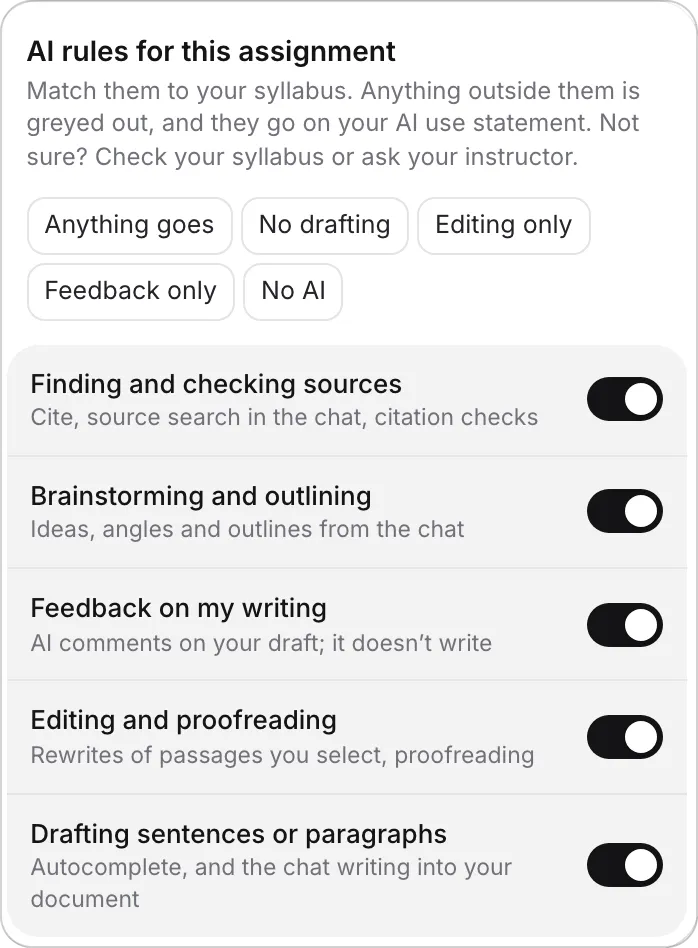
Your course’s wording usually points to one of the presets:
- Anything goes: AI is allowed, and you should declare it.
- No drafting: AI may help with ideas, sources, feedback and editing, but the sentences have to be yours.
- Editing only: AI may find sources and proofread, and that is all.
- Feedback only: AI may find sources and comment on your draft, but not write or edit it.
- No AI: none of it.
If you read your assignment brief into the paper, Writing Studio sets the rules from what the brief says, shown as the preset’s name followed by “from your brief”. That is a good start, but read it: a vague policy produces a vague setting. If the paper is in a course, a new paper started in that course begins with the rules of the course’s most recently edited paper, so you set them up once. See Set AI rules for an assignment and Organize papers into courses.
Work inside the rules
With the rules set, anything outside them is greyed out with the note “Not allowed on this assignment”. Under No drafting, for example, autocomplete is switched off and the rewrite options that add content, such as Add a counter-argument and Expand, are greyed out, while presets such as Simplify and Soften claims stay.
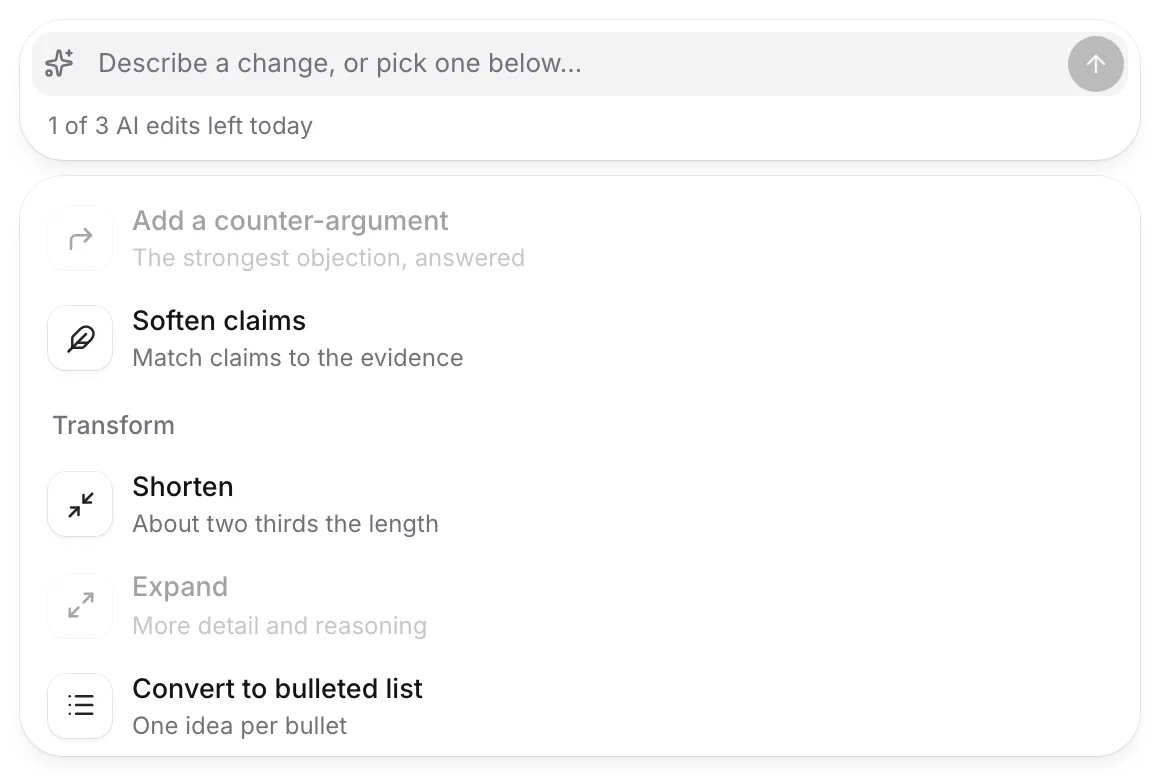
The chat is told your rules, and it will say so if you ask for something outside them: “Your AI rules for this assignment don’t allow drafting.” Under No AI, the chat box says “Your AI rules don’t allow AI on this assignment”.
A lot keeps working under any rules, because it doesn’t use AI: searching for papers and looking up DOIs, your library, the PDF reader, citing and formatting, the checks in Check my paper, and export. A paper with No AI is still a paper you can research, cite and check.
Two details are worth knowing. Writing Studio’s AI never invents a citation, because it only cites sources from your library or from a real search. And the rules apply to the paper they are set on, so another paper has its own.
Keep the record straight
While you work, Writing Studio keeps your writing history: where each part of the text came from, when you worked, and which AI features you used. It records no keystrokes. Open Check and click History to see it.
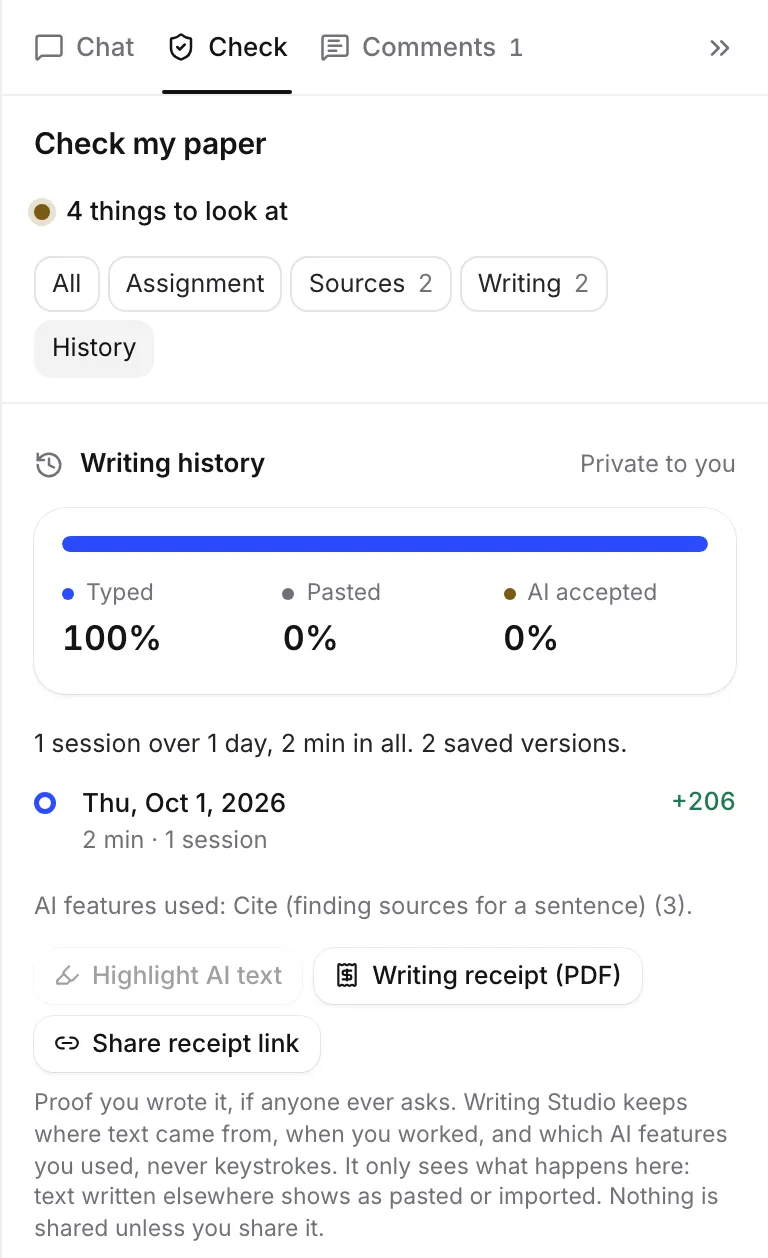
Take the sleep essay with the No drafting rule. You use Cite to find sources, you ask the chat for feedback, and you run a Proofread and apply three fixes. Your history will show most of the text as typed, a small share as AI rewrites, and a line like “AI features used: Cite (finding sources for a sentence) (4); AI chat questions (2); AI proofreading (1)”. Every one of those is inside the rules, and the record shows it.
A few things the record can’t do:
- Applied suggestions count as AI text. A fix from a review or a rewrite you accept marks those words as AI, and replaces the whole phrase it points at, so a small fix can mark a bigger phrase. If you reword the passage yourself afterwards, your own words count as typed.
- It can’t see outside Writing Studio. If you paste something from another tool, it shows as pasted, not as AI. Declare other tools yourself.
- The Literature review tool ignores your rules. It doesn’t check the rules of the paper you start it from, and what it writes counts as AI drafting. If your course doesn’t allow drafting, don’t use it for text you will hand in.
Declare it, if you are asked
If your course wants a statement, open History and the AI use statement card. Switch on My course asks for an AI use statement if reading the brief hasn’t done it for you. Choose Paragraph or Task list, read the draft against what you remember, edit anything that isn’t right, and click Copy statement. See Write your AI use statement.
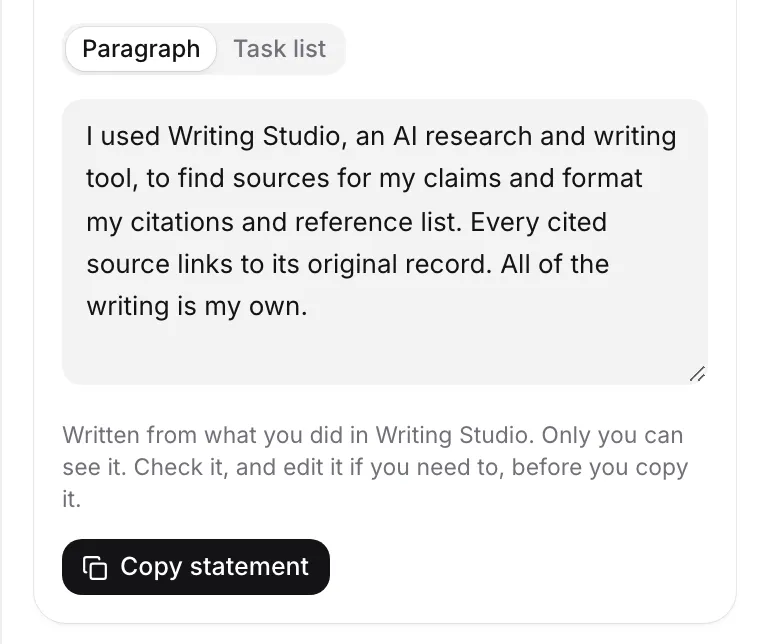
The statement says what the record shows: the AI features you used, the AI text still in your paper, and your rules. The last sentence, “All of the writing is my own” or “The rest of the writing is my own”, is yours to confirm. Writing Studio doesn’t add it to your paper, so paste it where your course asks. If you paste it into the paper, expect it to add to your word count and to show as pasted text in your history.
If someone asks how you wrote it
Most students are never asked. If you are, a writing receipt is a one-page record you can download as a PDF or share as a link, and it never shows your paper’s text. Your Version history shows how the paper grew over time. Sharing either is your choice, and nothing goes to anyone unless you send it.
Frequently asked questions
Do AI rules stop me from using a feature?
They switch the matching features off for that paper, but they are a setting you control, not a lock. Their job is to keep you inside the line your course drew, and to put that line on your AI use statement.
Can Writing Studio tell my instructor I broke the rules?
No. Nothing is sent to anyone. Your writing history, statement and receipt are private until you share them.
My course has no AI policy. What should I do?
Ask your instructor, because silence is not permission. If they say any use is fine, leave the rules on Anything goes and keep the record, which is free.
Was this page helpful?
Thanks for letting us know.