

Guides
Write a paper with other people
Plan a group paper, share it with the right roles, avoid stepping on each other's edits, use comments for feedback, and finish it together.
A group paper goes wrong in three ways: two people rewrite the same paragraph, nobody knows who is meant to do what, and the feedback gets lost in a chat thread. This guide walks through a group paper on the sleep and memory project, from setting it up to handing it in, with you as the person who starts it, two teammates and a tutor.
Writing Studio is not a real-time editor, and most of the advice below follows from that. You are working on shared copies that catch up with each other, so the habits that help are the ones you would use when passing a document around by email.
Decide who writes what before you share
Agree the structure first, in headings. A paper with Background, Method, Results and Discussion gives you four sections to hand out, and a name next to each. One person per section avoids almost every conflict. You can still comment on each other’s sections, and one person can do the final read for consistency.
Choose the owner carefully. The person who creates the paper owns it. Only the owner can add people, change roles, publish it on the web or delete it, and if the owner deletes it for everyone, everyone loses it. Start it from the account that will still be there at the end of term.
Set it up once, then share
Before you invite anyone, set up what the whole group shares. Open Paper settings and look under For everyone on this paper: the due date, word goal, citation style and AI rules are the same for every editor, so a change one person makes reaches everyone. Settings under Just for you, such as the typeface and autocomplete, only change your own view.
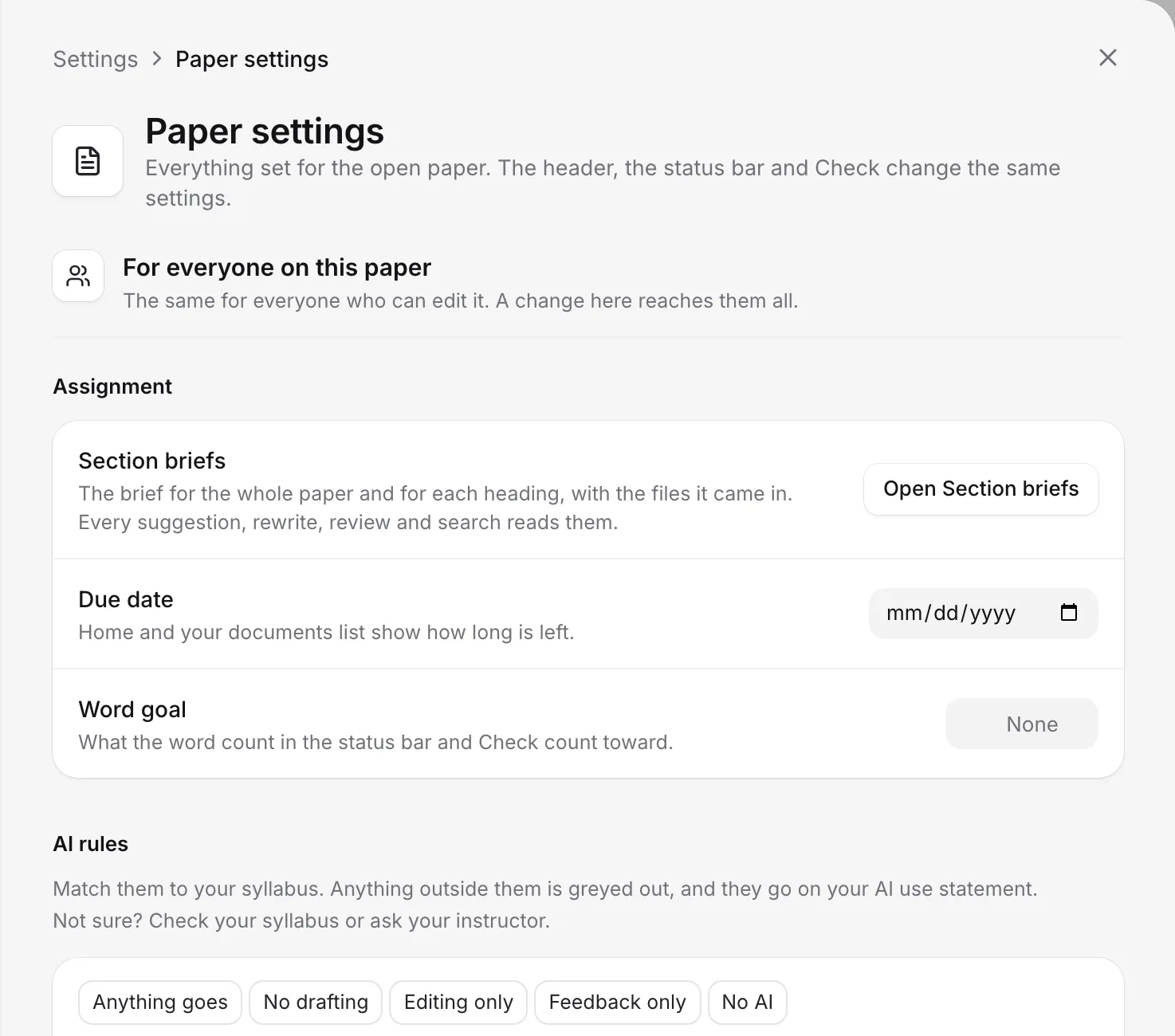
Write the headings, and if your brief matters, read it into the paper so the checklist is shared. See Read your assignment brief and Guide the AI with briefs. Agree the AI rules as a group too. They are one setting for the whole paper, and every teammate works under them.
Invite people with the right role
Click Share (or press ⌘⇧L, or Ctrl+Shift+L on Windows). Type an email address, choose a role and click Invite. You can add a short note to the email.
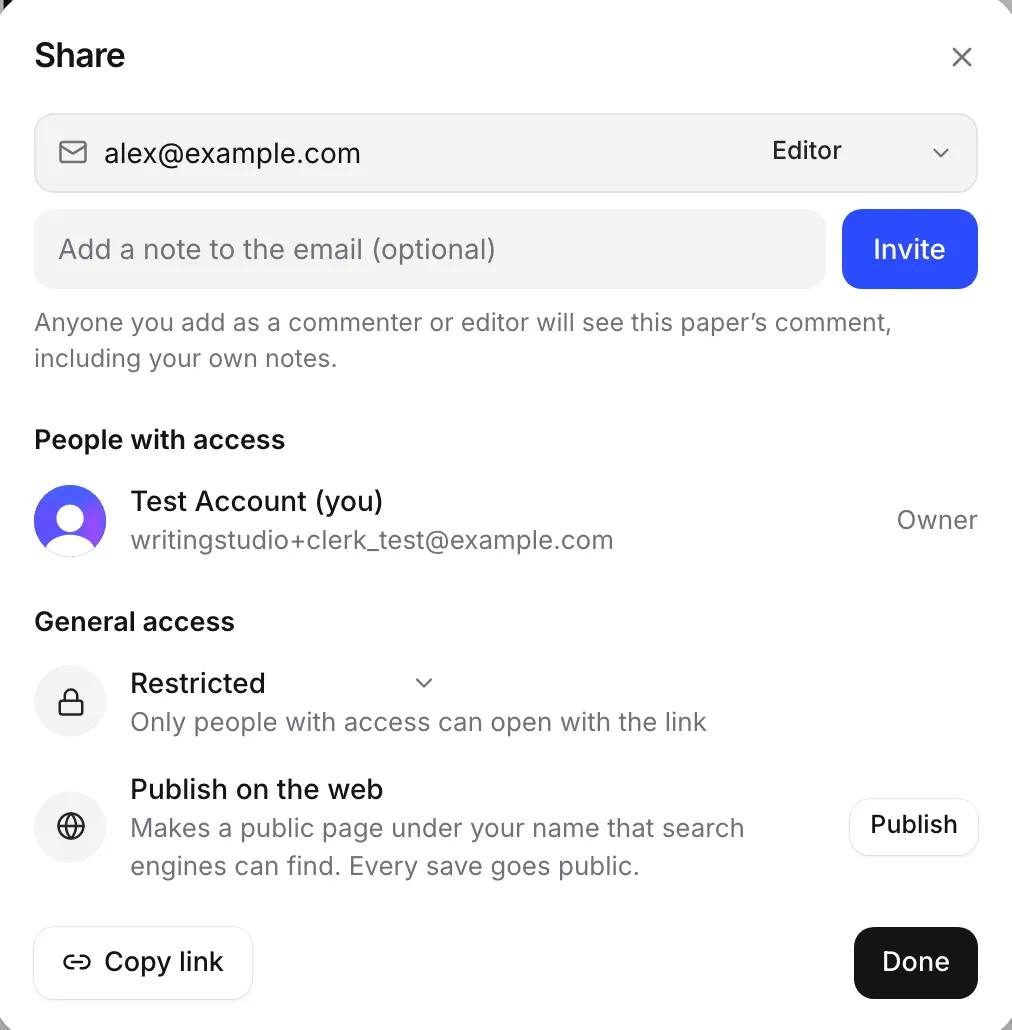
The roles decide what each person can do:
- Editor can write in the paper, comment and see Version history. This is the role for your teammates.
- Commenter can read and comment but can’t change the text. This is the role for your tutor, or a friend giving you feedback.
- Viewer can read the paper, but can’t see or add comments.
Two traps to know. Each person has to sign in with the email address you invited, otherwise they see “This document is restricted”. And when you add someone as a commenter or editor, they see the paper’s existing comments, including any private notes you left yourself. Delete those first. The Share window warns you.
Sharing needs an account with a verified email. Leave General access on Restricted so only the people you invited can open the paper. See Share a paper and Understand roles and access.
Write without stepping on each other
Your copy checks for other people’s changes every 30 seconds while it is open, and again when you come back to the tab. So when a teammate saves a change, it reaches you within about 30 seconds. You won’t see them typing.
Work in your own section and keep to it. If two of you do edit the same passage at almost the same moment, the newer saved copy loads and yours goes into Version history. You will see “A newer version loaded. Yours is in Version history.” with an Open button, and you copy back what you need. See Work on a paper shared with you.
Everyone sees the sources the paper cites, including the PDFs attached to them, but not each other’s whole libraries. When one of you cites a new source, it travels with the paper. Cite as you write with @, as you would alone, so the reference list stays right for everyone.
Give feedback in comments
Comments are how you talk to each other without changing each other’s text. Select a passage and press ⌘⇧M (Ctrl+Shift+M on Windows), or click Comment, and write what you want to say. A comment with nothing selected is about the whole paper, which is a good place for a to-do list. Type @ and a name to mention someone, and they get an email straight away.
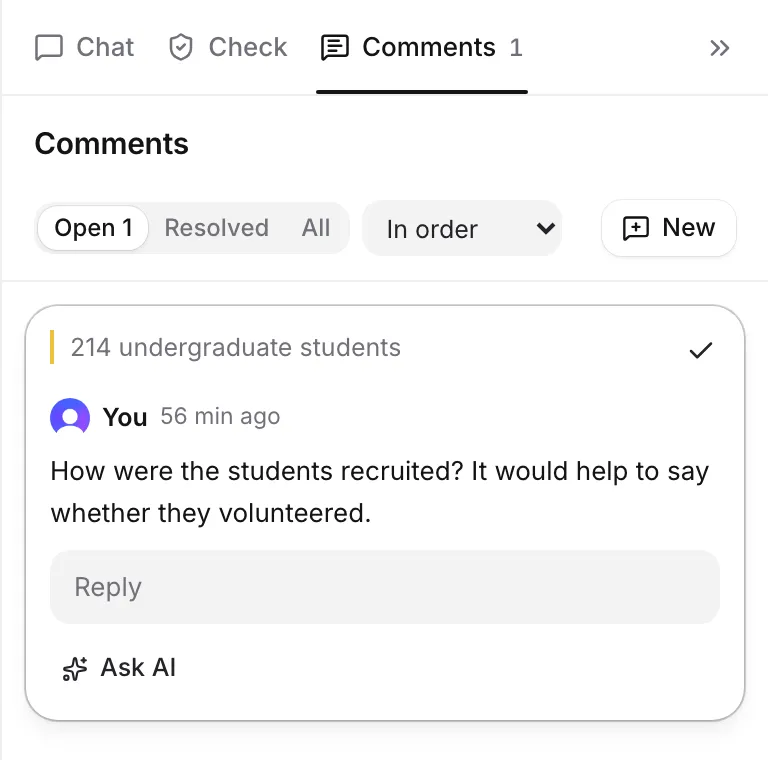
When a comment is dealt with, click the tick to Resolve it, so the list always shows what is left. Editors can resolve any comment, and a commenter can resolve their own. The Open comments count in Check is your to-do list on the last day. See Add and reply to comments and Mention people and get comment emails.
Be clear about the record
A group paper has one writing history. Writing Studio doesn’t know who typed which words, so Typed includes everyone, and Check says “Group paper: typed text includes co-writers”. It is a record of the paper, not of one person’s share.
If your course needs to know who wrote what, Version history is the better evidence. On a group paper each saved copy is labelled with the person whose session took it, and Changes since compares any copy with now. Only the owner and editors can see it.
The same goes for AI. The rules are shared, so agree what you will use, and decide who writes the AI use statement if one is needed.
Finish it together
A few days before the deadline, freeze the content. The owner runs Check my paper and the group works through what it lists, using comments to divide the fixes. See Get your paper ready to submit for the order.
Have one person do the final export, so you submit one version. Resolve the open comments first. They don’t appear in the exported file, but they are the quickest way to see what is still undone. Once the paper is in, the owner can remove people from Share.
Frequently asked questions
Can we all type in the paper at the same time?
You can all have it open, but it is not a real-time editor. There are no live cursors, and a change someone else saves appears for you within about 30 seconds. Agree who edits which section.
I only want feedback from my tutor. What should I do?
Share the paper with your tutor as a Commenter. They can read it and leave comments but can't change the text. A Viewer can't see comments at all.
Who owns the paper if we start it together?
The person who creates the paper owns it. Only the owner can add people, change roles, publish or delete it, so start it from the account that will still be around at the end.
Was this page helpful?
Thanks for letting us know.