

Guides
Write an essay from an assignment brief
Follow one essay from the moment you get the brief to the moment you export it, with the reason for each step and the traps to avoid.
This guide follows one essay from the day you get the brief to the day you hand it in. The brief is the one used across this help center:
PSYC 201, Essay 2. Write a 2,000 word essay on how sleep affects memory consolidation in university students. Use APA 7th and at least eight journal articles from the last ten years. Finish with what universities could do about it. Due 15 November.
Each step says what to do, why it comes when it does, and where the detail is.
The shape of the work
The order matters because each stage feeds the next. The brief sets your word goal, style and sources. Your sources decide what you can claim. Your claims need citations while you write, and the citations are what the final check and the export rely on. Skip a stage and you pay for it at the end, usually at midnight.
Start from the brief, not a blank page
Click New document and paste the whole brief into the box on the home screen, then send it. If Writing Studio asks “Search the web in this conversation?”, choose Search, so the answer is built from real papers.
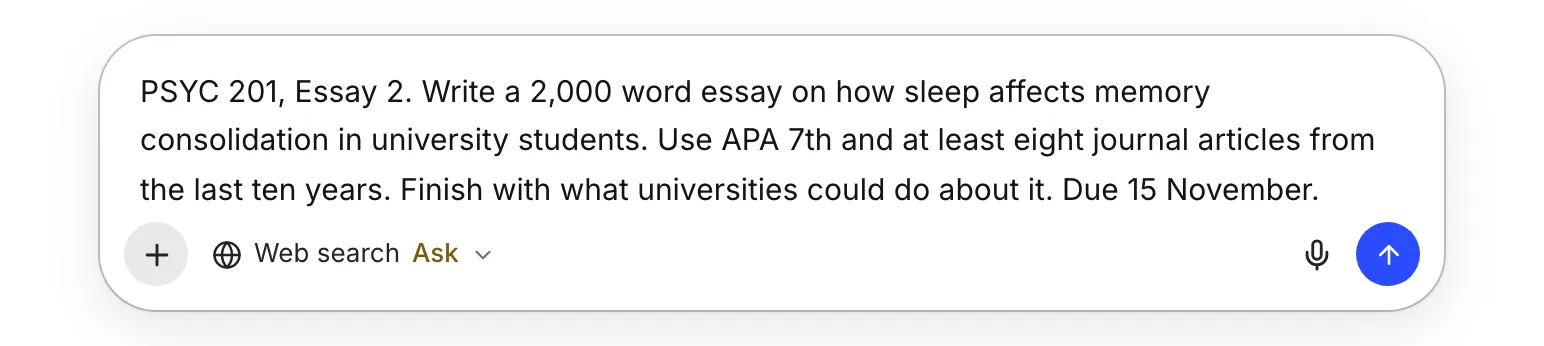
The first answer is research, not prose: a few key findings with their citations, two or three angles you could take, and a working title. That is deliberate. Picking an angle after you have seen what the literature says is easier than defending one you chose in the dark. If you asked for an essay, it puts an outline into your paper, headings with short bullets, as long as your AI rules allow it. The essay itself is yours to write.
Two things happen quietly. Your message becomes the paper’s brief, which autocomplete, rewrites and source searches read from then on. And because it is long enough to look like a brief (200 characters or more), Writing Studio reads it for the details a checklist needs. Sending the first message uses one AI chat message. See Start your first paper.
Check what it understood
Under your message, a line says what was read, like “From your brief: 2,000 words · APA · due 15 November”, with a Review link. Click it to open Check, then Assignment, where the brief has become a live checklist: the length range, the eight journal articles, how recent they must be, your citation style and the due date.
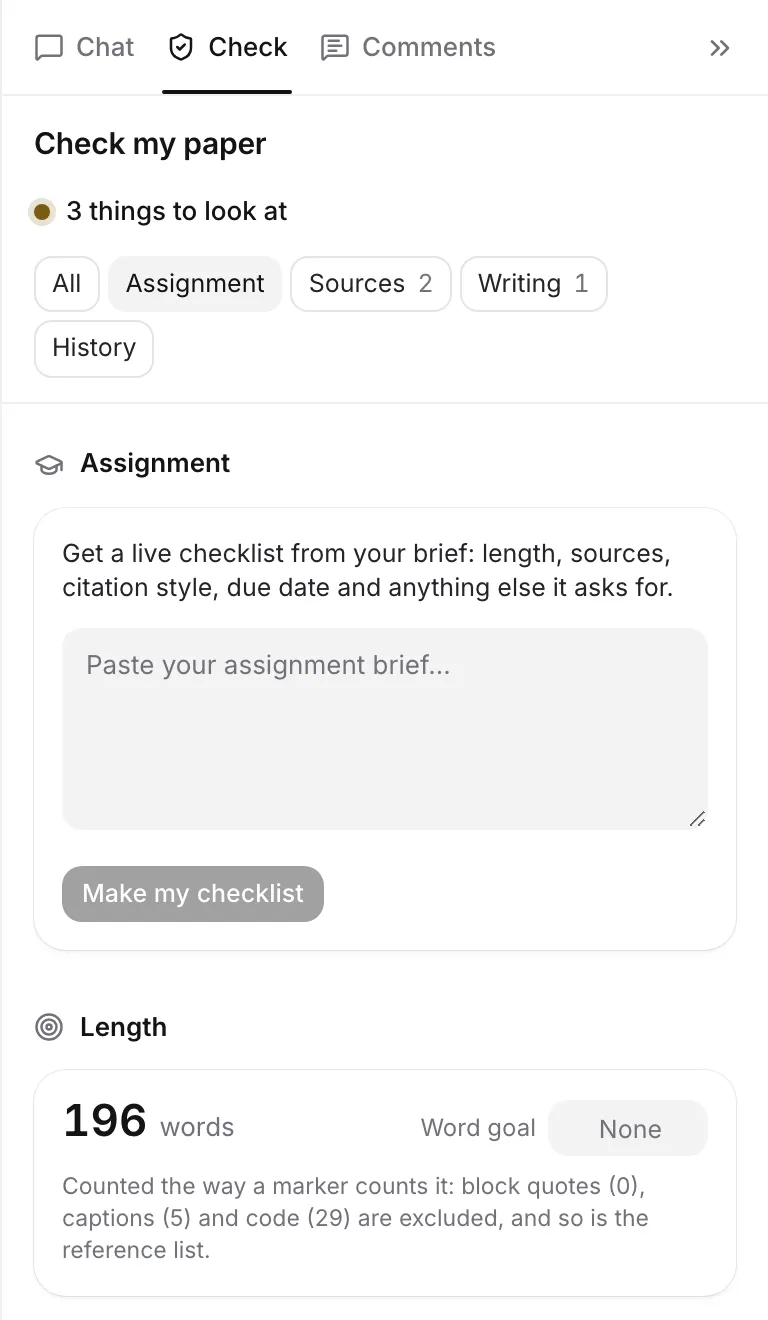
Look for mistakes now. The brief is read by AI, so check the numbers against your own copy: the word range, the number of sources, the date. Reading a brief never overrides a word goal or AI rules you set yourself, but it can switch the citation style to the one the brief asks for, which is why the line above names the style. Fix anything in Paper settings. If the brief says something about AI, your AI rules are set from it, and Use AI within your course rules covers what to do with that.
If you skipped the chat, paste the brief into the Assignment box and click Make my checklist. See Read your assignment brief.
Plan the paper in headings
The outline of an essay is its headings. For this one you might use Background, Sleep loss in students, and What universities could do. Type ## and a space for a heading, or use the / menu. Click the paper’s title to see a list of your headings with a word count for each section, which turns “2,000 words” into a budget you can see.
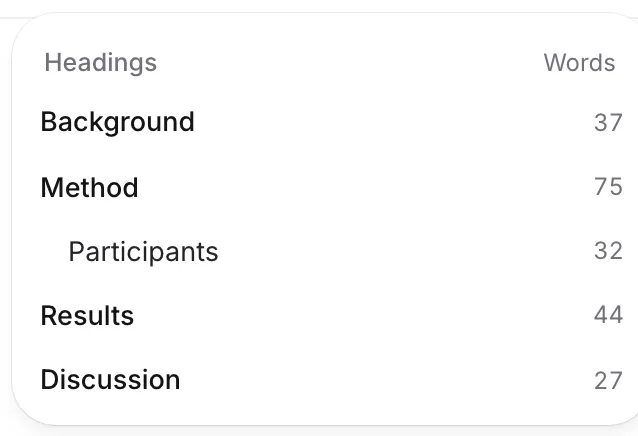
Headings pay off later too. Check flags a heading with nothing under it, and Section briefs let you tell autocomplete, rewrites and the chat what each section must cover and what to avoid, for example “the experimental evidence only, no policy”. A brief on a heading also covers the headings under it. See Use headings to organize your paper and Guide the AI with briefs.
Find and read your sources first
You need eight journal articles from the last ten years. Open the Citation finder from the sidebar, search for your topic, and use Filters to limit the years and show journal articles only. Choose Save on anything promising. Save adds a source to your library without citing it, which is what you want while you are collecting.
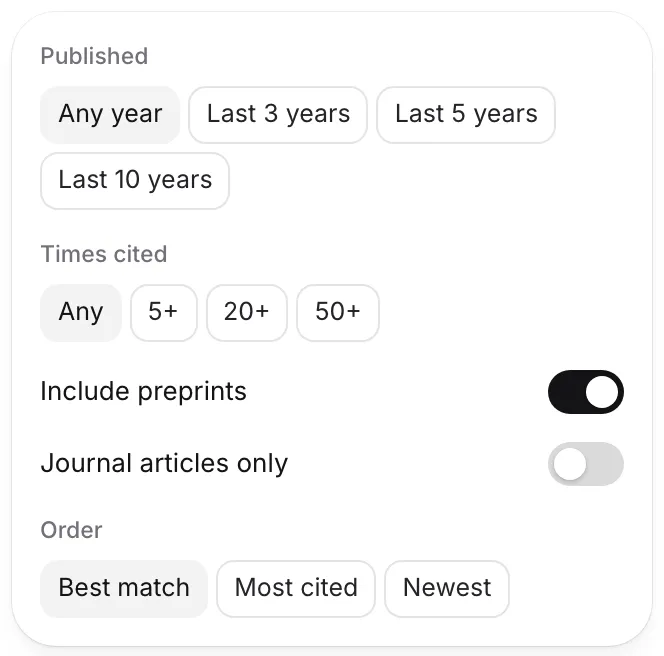
Then read. Upload the PDFs you can get, open them in the reader beside your paper, and use Quote & cite on the passages you will use. Writing Studio reads each PDF so you can search across all of them later. See Add sources to your library, Upload PDFs and Read PDFs and keep quotes.
The reason to read before you draft is that it changes what you write. A sentence built on a paper you have read is specific. One built on a title is a guess, and Check will list it later under Cited but not read.
Write the first draft and cite as you go
Write the section you know best first, not the introduction. When a sentence needs support, type @, search for the paper and choose Cite. The citation lands in your text in APA, your reference list updates, and the source is in your library. Doing this while the claim is in your head takes seconds. Hunting for the source behind every sentence the night before takes an evening. See Cite a source with @.
If your rules allow it, autocomplete suggests how a sentence might continue, in grey. Press Tab to accept or keep typing to ignore it. When a suggestion states a fact, Writing Studio looks for a published paper that supports it and cites it, or leaves a [citation needed] marker instead of guessing.
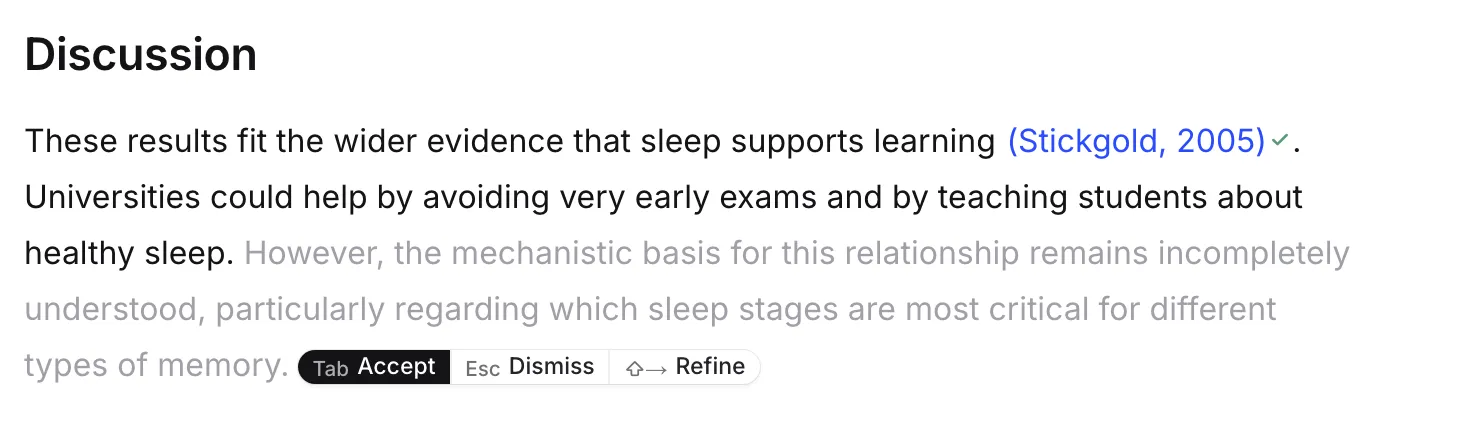
Accept the suggestions that say what you were about to say, and write the rest yourself. The paper will sound like you, and everything you accept is recorded in your writing history. See Write faster with autocomplete.
Don’t stop to hunt for a source you can’t find. Choose Placeholder for now in the finder and keep writing. The [citation needed] marker waits for you, and Check lists every one. For a table or a figure, use the / menu, add a caption, and the numbering follows your citation style. See Add a source by hand or a placeholder.
Check as you go, then check properly
Halfway through, open Check and glance at the count. It is cheap, because almost everything in it is worked out without AI. When the draft is complete, run the whole final pass: claims without a citation, sources you cited but never opened, references that don’t match their records, and the checklist from your brief. Get your paper ready to submit walks through that in order.
Export and hand in
Click Export. For an essay you hand in as a document, choose the Double-spaced manuscript layout and fill in the Assignment header if your course wants your name, instructor and course on the first page. Word and PDF both work, and the dialog tells you if any references need a look or any passages are still highlighted. Open the file once before you submit it. See Export your paper.
Frequently asked questions
Do I have to use the chat to start?
No. Click Start writing yourself for a blank page, and paste your brief into Check, then Assignment, so Writing Studio can still read it. The chat only adds a first round of research, and it uses one AI chat message.
Can I do this guide without AI?
Yes. Searching and citing sources, the library, the PDF reader, reading your brief for the checklist, Check my paper and export don't need the included AI. Set the AI rules to No AI and everything AI-based switches off.
What if my brief is a file, not text?
Attach it to the chat on the home screen (a Word file asks whether it is your paper or the brief), or add it as a brief file under Section briefs.
Was this page helpful?
Thanks for letting us know.